morganw23265943
Participant
December 18, 2017
Answered

Way to fix area of overexposure (blown out) in image?

  • December 18, 2017
  • 5 replies
  • 8865 views

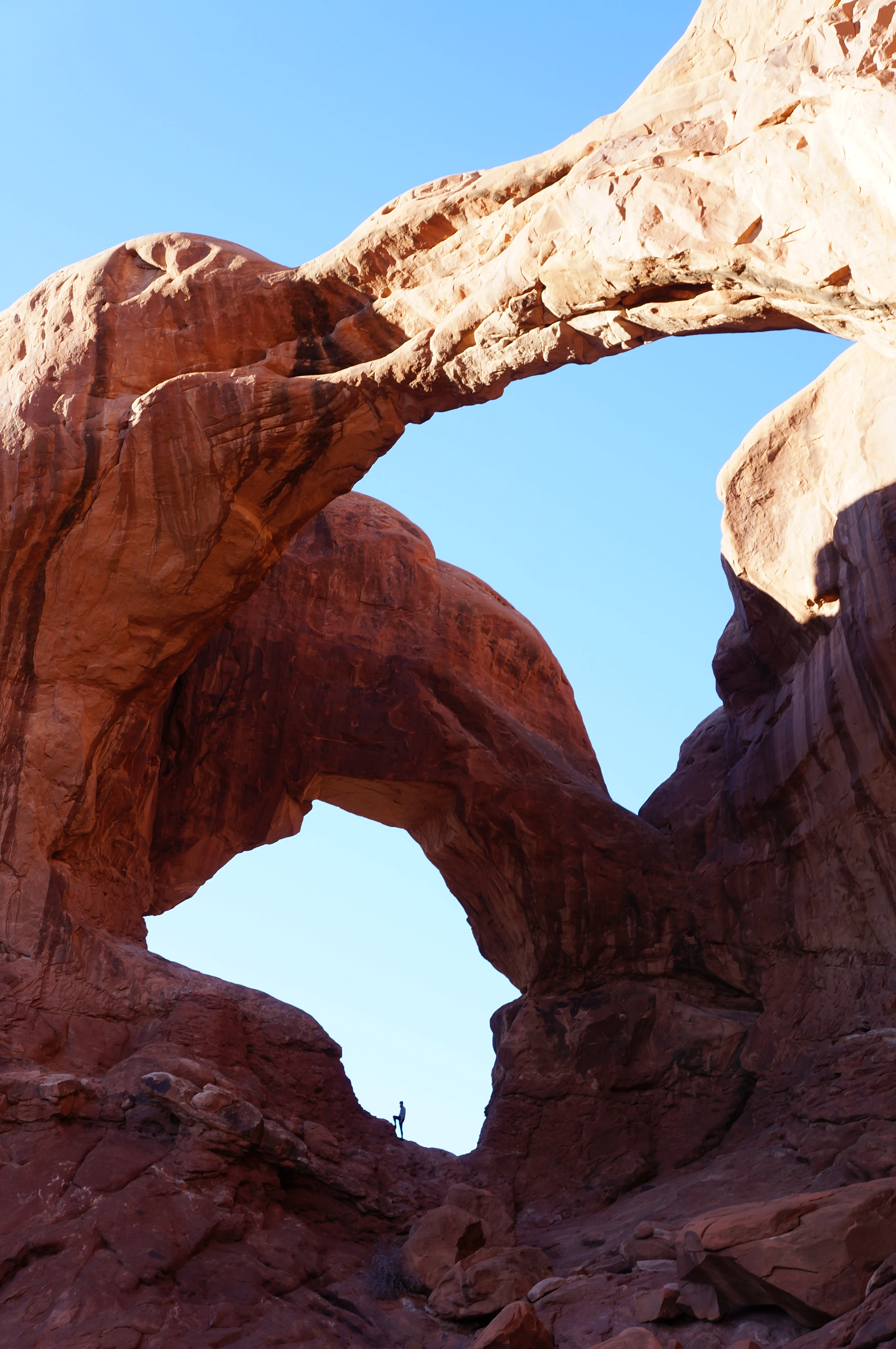
I have been searching for ways to fix/edit this image so that the overexposed arch on top doesnt stand out as much, but cant find anything. Is there any way to fix this or is it a lost cause?

This topic has been closed for replies.
Correct answer Norman Sanders

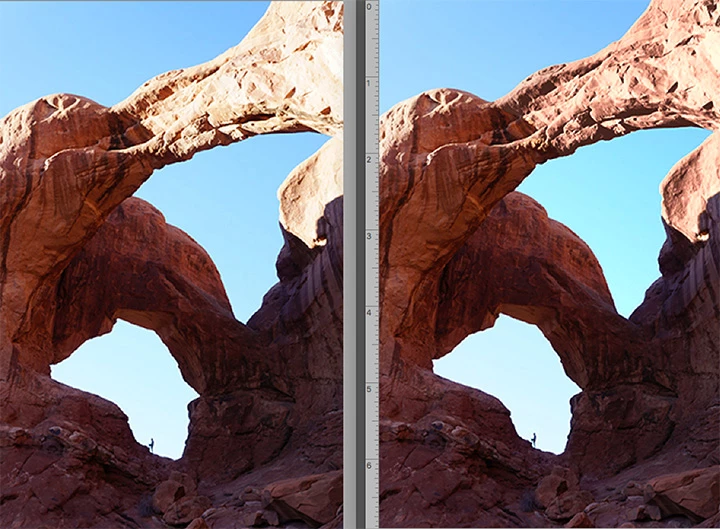
With a surface such a this, the texture may be a first priority. To enhance the texture:

1. Make a selection of the sun-blasted area and Cmd+J to place it on its own layer. Save Selection.

2. Lock the transparent areas by clicking on the symbol a the top of the Layers panel

3. Dupe the layer and lock the dupe transparent areas.

4. Image > Apply Image. Choose the Blue layer (which has the most texture. Blending Mode: Multiply

5. In the Layers panel change the Blending Mode to Luminosity and adjust its Opacity if desired.

6. Flatten. Then use Curves to adjust color after reloading the Selection
5 replies

josephlavine
Community Expert
Community Expert
December 19, 2017

It appears that you still have detail in the arch, which makes this easy if you have the RAW file.  With the RAW file, you can adjust the Highlight or Exposure sliders.  If you do not have the RAW file then the above suggestions are helpful.

Norman Sanders
Norman SandersCorrect answer
Legend
December 18, 2017

With a surface such a this, the texture may be a first priority. To enhance the texture:

1. Make a selection of the sun-blasted area and Cmd+J to place it on its own layer. Save Selection.

2. Lock the transparent areas by clicking on the symbol a the top of the Layers panel

3. Dupe the layer and lock the dupe transparent areas.

4. Image > Apply Image. Choose the Blue layer (which has the most texture. Blending Mode: Multiply

5. In the Layers panel change the Blending Mode to Luminosity and adjust its Opacity if desired.

6. Flatten. Then use Curves to adjust color after reloading the Selection

morganw23265943
Participant
December 21, 2017

This helps tremendously! Thank you for the details!

Abambo
Community Expert
Community Expert
December 18, 2017

You can find here my edit to this:

You may switch on layers that I kept. Feel free to experiment with different parameters.

Do not forget: Opacity can lower the effect of a layer, if you think that the edit is too intrusive.

Please see also the switched off layers fro additional modifications. If you ave the RAW image, you have much mode possibilities combining different RAW edits.

The possibilities are nearly limitless to achieve your goal.

BTW: I just saw that some of the masks are not that accurate as they should be. You still have some work ahead... :-)

ABAMBO | Hard- and Software Engineer | Photographer
c.pfaffenbichler
Community Expert
Community Expert
December 18, 2017

An unedited Curves Adjustment Layer set to the Blend Mode »Multiply« with an appropriate Layer Mask might provide one option.

c.pfaffenbichler
Community Expert
Community Expert
December 18, 2017

Good day!

Do you have the RAW image?

Regards,

Pfaffenbichler