
bluegaz26163211
Participating Frequently
June 7, 2019
Question

Weird squares on white background

  • June 7, 2019
  • 11 replies
  • 4302 views

Hello!

I'm pretty new to Photoshop and I have a problem with "weird squares" showing up on the white background on some of my product images. When I edit my product images I usually use the quick tool, magic tool or pen tool, create a path, then I select the object, and create a seperate layer with it. After that I create a background that I fill with white color. After this I crop the image to a square, then I change it to 800 x 800 px, compress it, and upload it to the website.

Here is one of the products that have this problem (I have used the quick tool for this one):
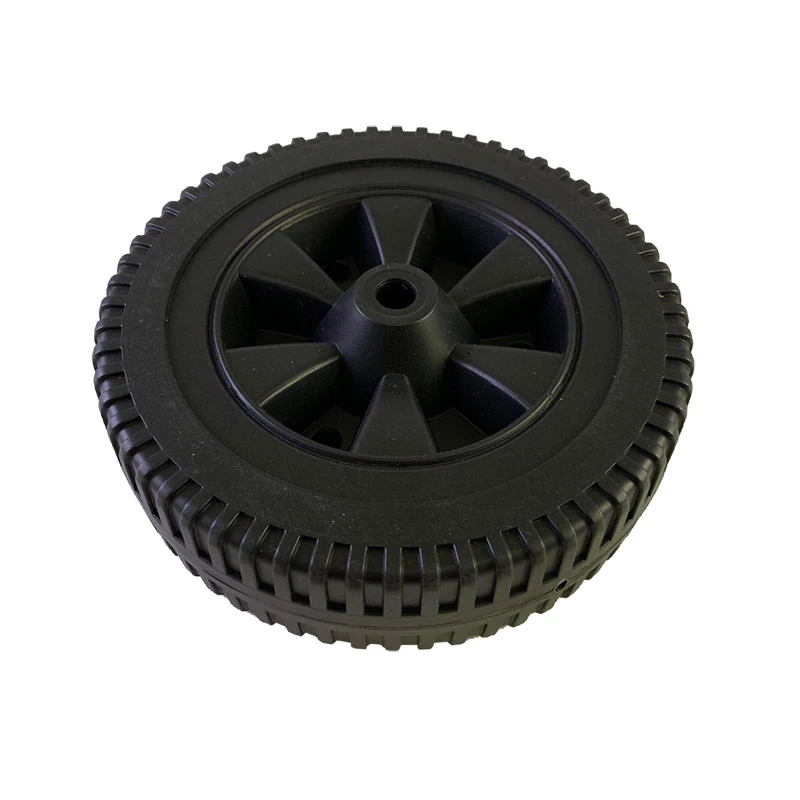
If you tilt your laptop backwords you will see that there are weird squares at the top left and bottom right corners. On a bigger screen I can also see the squares.

Does anyone have any idea what this is and how I can avoid it in the future? I¨ve tried painting with a white brush over these areas but no difference?

Thx for all of your help!

Best regards,

Isabella

This topic has been closed for replies.

11 replies

bluegaz26163211
Participating Frequently
June 7, 2019

The squares only appear after I change the image size from 1512 x 1512 px to 800 x 800 px. 

June 7, 2019

How are you resizing the image

bluegaz26163211
Participating Frequently
June 7, 2019

I go to image - image size, then I change from 1512 to 800 px

bluegaz26163211
Participating Frequently
June 7, 2019

I have also asked for help in a FB-group and one person wrote this.

bluegaz26163211
Participating Frequently
June 7, 2019

c.pfaffenbichler
Community Expert
Community Expert
June 7, 2019

The image of the wheel you posted here originally had no such artefacts, plain and simple.

Please provide a link to the page and post the original image you sent there.

bluegaz26163211
Participating Frequently
June 7, 2019

bluegaz26163211
Participating Frequently
June 7, 2019

Here are a few of the products where I can see the squares when I tilt my laptop backwards.

Sometimes I lighten the images or do something with contrast but other than that no further editing. The one with the wheel I have not done anything with other than what I wrote in my first post

https://bluegaz.se/produkt/vansterhjul-bluegaz-z3-z4/

https://bluegaz.se/produkt/ram-hallare-for-brannare-bluegaz-z3/
https://bluegaz.se/produkt/overdrag-bluegaz-bullet/

June 7, 2019

I can see some very faint squares in this area with the screen tilted

bluegaz26163211
Participating Frequently
June 7, 2019

bluegaz26163211
Participating Frequently
June 7, 2019

Maybe this image is more clear.

c.pfaffenbichler
Community Expert
Community Expert
June 7, 2019

Not really, can you post a link to the page?

Could the page-backgrounds be uneven are the images edited further?

bluegaz26163211
Participating Frequently
June 7, 2019

Hmm alright that is so strange. I can also only see it on my laptop screen and one of my bigger screens, but it's only on some images, not all of them. I guess I'll just have to ignore it for now since most people can't see it.

KShinabery212
Community Expert
Community Expert
June 7, 2019

I must be blind..... I do not see anything.

Let's connect on LinkedIn. https://www.linkedin.com/in/kshinabery/
bluegaz26163211
Participating Frequently
June 7, 2019

bluegaz26163211
Participating Frequently
June 7, 2019

Thank you everyone for your input! I did not realize there would be such quick answers to my questions (thank you!) so I have been playing around with changing the images a little bit. What I have noticed is that when I try to change the image size and upload it the squares appear. When I upload an image with 1512 x 1512 (which is the size I get after cropping it) there are no squares, however when I then change the size to 800 x 800 the squares come back. Right now the image on the website is 800 x 800 and I can see the squares.

There is a chance that the image you looked at was one with 1512 x 1512 px, I do apologize for this!

Trevor.Dennis
Community Expert
Community Expert
June 7, 2019

åkeb26163211 

There's nothing there.  I even tried to force it, but revealed nothing.  You can see a slither of very bright content on extreme right of the curve (and in c.p.'s Threshold screen shot, but that has to be that white fringe around the periphery.  Incidentally, I learned a long time ago, to invert the background as a final test with product shots.  You don't know for sure how the client will use your artwork, and it's embarrassing if they do the unexpected, and through up a problem you didn't see against your white background.

So it sounds like a GPU issue.  If you are using a Mac and a Wacom tablet, I'd be thinking about the White Window plugin, but that should have been eliminated several updates ago.  Check it out anyway to see if the other issues/clues exist in your system.

Menus, shortcuts, Lasso tool, or Photoshop stop working when using a Wacom tablet | Mac OS

Otherwise, turn off GPU acceleration, and check your Cache levels (they need to be set to a value other than 1.

Good luck, and please let us know if you and how you fix it.

c.pfaffenbichler
Community Expert
Community Expert
June 7, 2019
If you tilt your laptop backwords you will see that there are weird squares at the top left and bottom right corners.

Not really.

Please use Adjustment Layers to accentuate the issue and post a screenshot.

Or are you talking not about the image but the object?

The edges of that are naturally somewhat damaged by the lossy compression.

bluegaz26163211
Participating Frequently
June 7, 2019

I'm sorry I don't quite know how to use the adjustment layers in Photoshop. I will try to upload the correct image here, if you want to look at it. See my comment down below about changing the image sizes

(I am talking about the background)