
Participating Frequently
June 25, 2020
Answered

Weird visual glitches on Photoshop 21.2 when moving objects on Windows

  • June 25, 2020
  • 2 replies
  • 5640 views

I sure hope someone can help because I'm tearing my hair out in frustration!  I've just upgraded to 2020 and have the latest version.  Every time I move an object I can still see it in it's original location.  I see it where it's moved to as well, but it's also still visible in the orginal spot.  I have to turn the background layer on and off for it to disappear.  Also, if I import a new object into a new layer over the original layer, the original layer's shadow effect doubles in darkness.  I've also noticed that when I'm using the eraser tool I'll see the effect for the first few strokes, but then nothing.  No pixels disappear.  Again, in both instances, once I turn the background layer off and on then I'm seeing what I'm supposed to be seeing (what's actually there.)  I'm sure I'm explaining this terribly but I did make an image so you can see a visual of what I'm taking about (minus the eraser tool effect.)  I sure hope someone knows what's happening here because it's extremely frustrating and has basically halted my work over the last few days.  
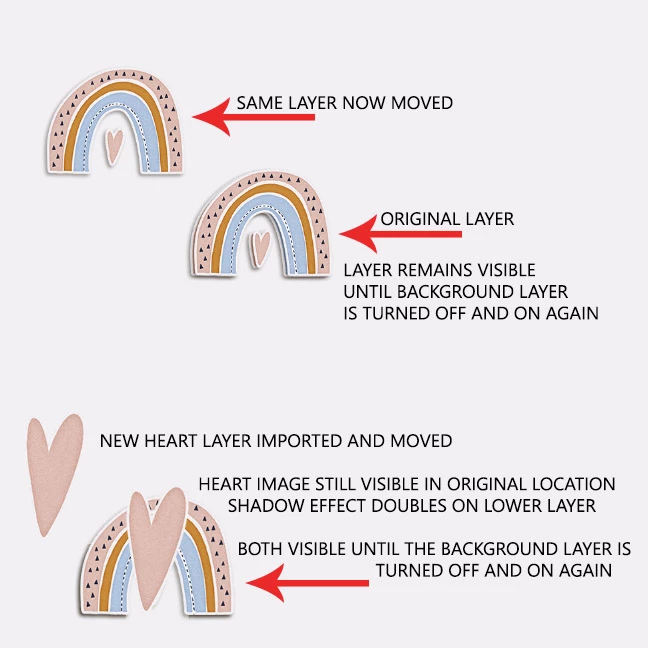


{Thread title edited by moderator}

This topic has been closed for replies.
Correct answer nikunj.m

Hi there,


We're sorry about the trouble with Photoshop 2020. Would you mind sharing the version of Windows you are using?


You can try disabling (unchecking) the option for Legacy Compositing from Photoshop by going to the Preferences, then Performance. Once done, quit and relaunch Photoshop to check if that helps. Also, please check if the option to Use Graphics Processor is checked.


Let us know how it goes!

Regards,

Nikunj

2 replies

Participant
June 25, 2020

Was having similar issues when I recently updated my version of Photoshop 21.1.3 to 21.2. Additionaly, the update stopped recognizing my NVIDEA graphics card and I could no longer utilize 3D tools as well as (and more importantly) making normal and bump maps for materials. After exhaustive steps via Adobe community (updating graphic driver, checking that driver was compatible and not using Intel driver, etc.), the trick was to revert back to version 21.1.3. This fixed it and I'm back in business.


Obviously "bugs" are gonna happen with new releases/ updates, etc., but it's never fun when something like this happens during a deadline. 😞


For now, sticking with the 21.1.3 version.

My rig:

Win 7 ultimate, 64 bit

Intel core i7 w/ 16G of RAM 

nikunj.m
Community Manager
nikunj.mCommunity ManagerCorrect answer
Community Manager
June 25, 2020

Hi there,


We're sorry about the trouble with Photoshop 2020. Would you mind sharing the version of Windows you are using?


You can try disabling (unchecking) the option for Legacy Compositing from Photoshop by going to the Preferences, then Performance. Once done, quit and relaunch Photoshop to check if that helps. Also, please check if the option to Use Graphics Processor is checked.


Let us know how it goes!

Regards,

Nikunj

Participating Frequently
June 25, 2020

I'm using Windows 2010 Home Edition... the latest version.  I turned off Legacy Compositing and that seems to have done the trick!  Why, oh why, didn't I ask this here two days ago???  Thank you so much for your help!  (I bow to you!)  LOL

Participant
June 25, 2020

Hey, I was having the same issue and was freaking out about it cause I couldn´t find a solution anywhere, decided to take a look here and found it. just did it and it´s all fixed. Thanks for asking the question!