


Claire H.
Community Manager
Community Manager
May 12, 2025
Question

✏️ What are your favorite retouching techniques in Photoshop?
  • May 12, 2025
  • 7 replies
  • 2886 views


Whether you’re going deep with frequency separation, shaping light with dodge and burn, or testing out the latest Neural Filters and AI tools, there’s a world of techniques to explore. And while we all have our personal style and process, it’s always fascinating to see how others get to their final result.

 

Try it in the Desktop App

Download the latest version and dive into the new features offered in Adobe Photoshop. 


My own process depends on the project, but I often start with healing and cleanup using the Spot Healing Brush and Clone Stamp, then move into frequency separation for skin work. I use dodge & burn on a 50% gray layer for more dimensional lighting, then finish with some selective sharpening on the eyes and hair. I’ve also started experimenting with Generative Fill for small background fixes!


What about you?

  • What’s your go-to retouching workflow in Photoshop?
  • Do you stick to traditional techniques, or use AI tools like Generative Fill and Neural Filters?
  • How do you approach skin smoothing vs. preserving texture?
  • Any underrated tools or plugins you’d recommend for portrait work?


Share your tips and techniques, examples, and maybe even a few "before and after" shots. Whether you’re a pro-retoucher or just getting started, we’d love to hear how you work your Photoshop magic.
 

If this was helpful, please click the Upvote icon in the top left corner of this post. Your feedback helps us improve the experience. Thank you!


We’d love to see what you’ve created and hear about your experience or feedback! Click 'Reply' below.

Click 'Follow' below to bookmark this post for easy reference.

For other questions, feel free to start a new post in the community.

7 replies

Participant
August 5, 2025

I love how you mix traditional techniques with AI tools like Generative Fill! My process usually starts with healing, followed by frequency separation and dodge & burn to add depth. For skin, I focus on smoothing while keeping texture intact using high-pass filters. The new Neural Filters are definitely a game-changer too! What's your favorite AI tool so far?

Participant
July 28, 2025

Absolutely love this, Claire! 💛 It's so inspiring to see your mix of classic and new tools—makes me excited to jump back into Photoshop! Generative Fill has been a game-changer for me too. Thanks for sharing your magic! ✨

Shopizo
Participant
July 22, 2025

This is exactly what I'm trying to repair with this picture.  Might you have a suggestion how best to remove the slide image on the two faces and the picture reflection?

Participant
July 30, 2025

Extract shadows and brighten midtones

Participant
July 22, 2025

I love using these Photoshop tools for natural, professional edits especially when working on a product like a watch:


  • Frequency Separation for smooth skin or surface textures
  • Dodge & Burn to add depth and shape
  • Healing Brush for quick blemish or dust
  • removal Clone Stamp for precise touch-ups


This combo keeps everything clean without looking over-edited.

Trevor.Dennis
Community Expert
Community Expert
May 18, 2025

I've just remembered a story about a local photojournalist.  He was pretty good and won the paper several awards for his photography.  He made the mistake of retouching the photo of a young girl that went in the paper, and was fired for it.  It's obviously a big no no in photojournalism.  

c.pfaffenbichler
Community Expert
Community Expert
May 19, 2025

I guess photography for advertising and for journalism have to be governed by different rules. 


Anyway, one thing I would like to recommend slightly off topic: 

When clipping people/objects in images for further use (in design applications or in Photoshop) where objects might be inserted between the object and the background or a completely new background be inserted it is important to decontaminate the edges of both. 

A perfect mask is essentially impossible for photographic images so (manual) decontamination can be necessary and one should, in my opinion, check the edges against at least 4 backgrounds (white, black, gray, several colors of different luminances) at View > 100% or larger. 

Conrad_C
Community Expert
Community Expert
July 28, 2025

Yes, that is why, if the masking is being done in Select & Mask, it should always be verified by using the different View Modes provided. There is also a Decontaminate Colors option in Select and Mask.


For anyone using the View Modes a lot, notice that pressing the F key cycles through the View Modes so you don’t have to manually click each one. 


Trevor.Dennis
Community Expert
Community Expert
May 18, 2025

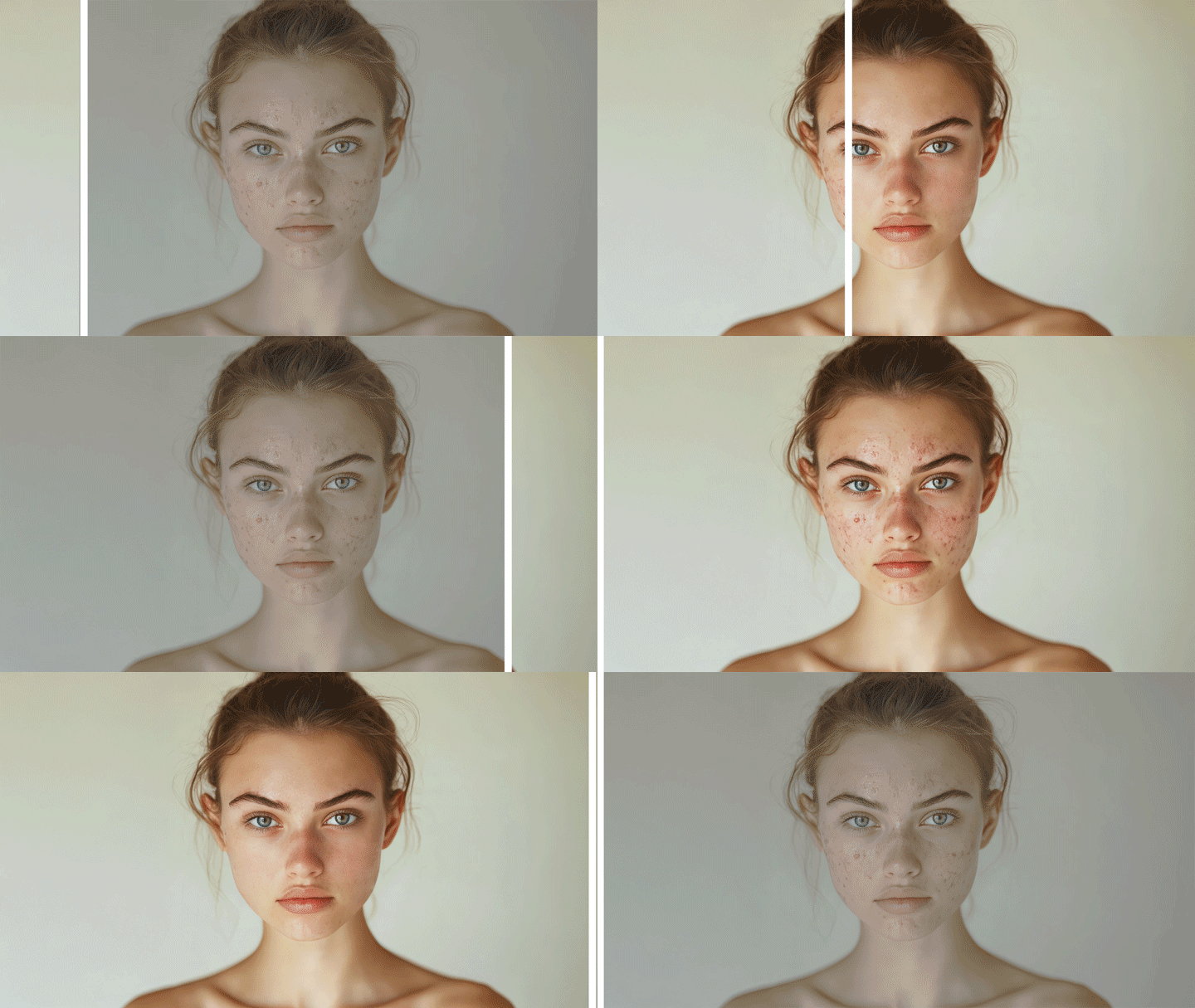
This is a screen grab of Clair's image,

Upsized with Topaz Photo Ai

Skin improved with Neural filter > Skin Smoothing

Improved some more with ACR negative Clarity.

Back into Photo Ai for some sharpening and denoise.

The eyes are a bit crunchy, so I should dialed the sharpening back a bit.

The 4 x up-res is pretty impressive.

There's zero use of healing brush remove tool or similar.  Just Neural skin smooth and negative clarity.


That poor girl must go through hell having skin that bad.  Especially with how pretty she is (I'm old so I'm allowed to say stuff like that).

Participant
May 17, 2025

My Favorite Retouching Techniques in Photoshop

When it comes to retouching in Photoshop, I love combining both traditional tools and the newer AI-powered features to get the best results. Each project is different, but here's a general flow I follow for portrait work:

🧼 1. Healing & Cleanup
I usually start with the Spot Healing Brush and Clone Stamp Tool. These are great for removing small blemishes, dust, or distractions without affecting texture too much.

🎨 2. Frequency Separation
This technique is a game-changer for skin retouching. It helps separate the texture and color layers, so I can smooth out skin tones while keeping natural details like pores intact.

💡 3. Dodge & Burn
I use a 50% gray layer set to Soft Light and gently paint with black or white to shape the light. This adds depth and brings out the natural contours of the face—kind of like digital makeup!

👁️️ 4. Sharpening Key Details
At the end, I do some selective sharpening—mainly on the eyes, lashes, brows, and hair—to draw attention to the most important features. It helps the image really pop.

🧠 5. New Tools I’m Exploring
Lately, I’ve been playing with Photoshop’s Generative Fill to fix backgrounds or remove objects. It saves so much time! Neural Filters are also interesting—especially the skin-smoothing and portrait enhancement options, though I always keep an eye on preserving a natural look.


What About You?

  • Do you stick with classic methods, or do you use AI tools like Generative Fill and Neural Filters?

  • How do you find the right balance between smooth skin and keeping texture?

  • Got any favorite plugins or underrated tools you’d recommend for portraits?

Let’s swap tips! Whether you're just starting out or a seasoned pro, it’s always inspiring to see different approaches. Feel free to share your process—or even a before & after shot if you’d like!