
Djuna_A_
Known Participant
October 16, 2017
Answered

What does "full black" mean in CMYK?

  • October 16, 2017
  • 5 replies
  • 2767 views

Hi again,

finishing up my CMYK files. I've been advised here to do "full black" because of the weak blacks from the offset printer, but I don't know what this means in CMYK (not Grayscale). I'm not painting or messing with background or foreground colors, so I'm not doing swatches or picking colors. These are photographs of paintings that will be printed in a book. (And yes! I have the calibrator AND the printer/paper profile.)

Thanks again!
    This topic has been closed for replies.
    Correct answer D Fosse

    And another.


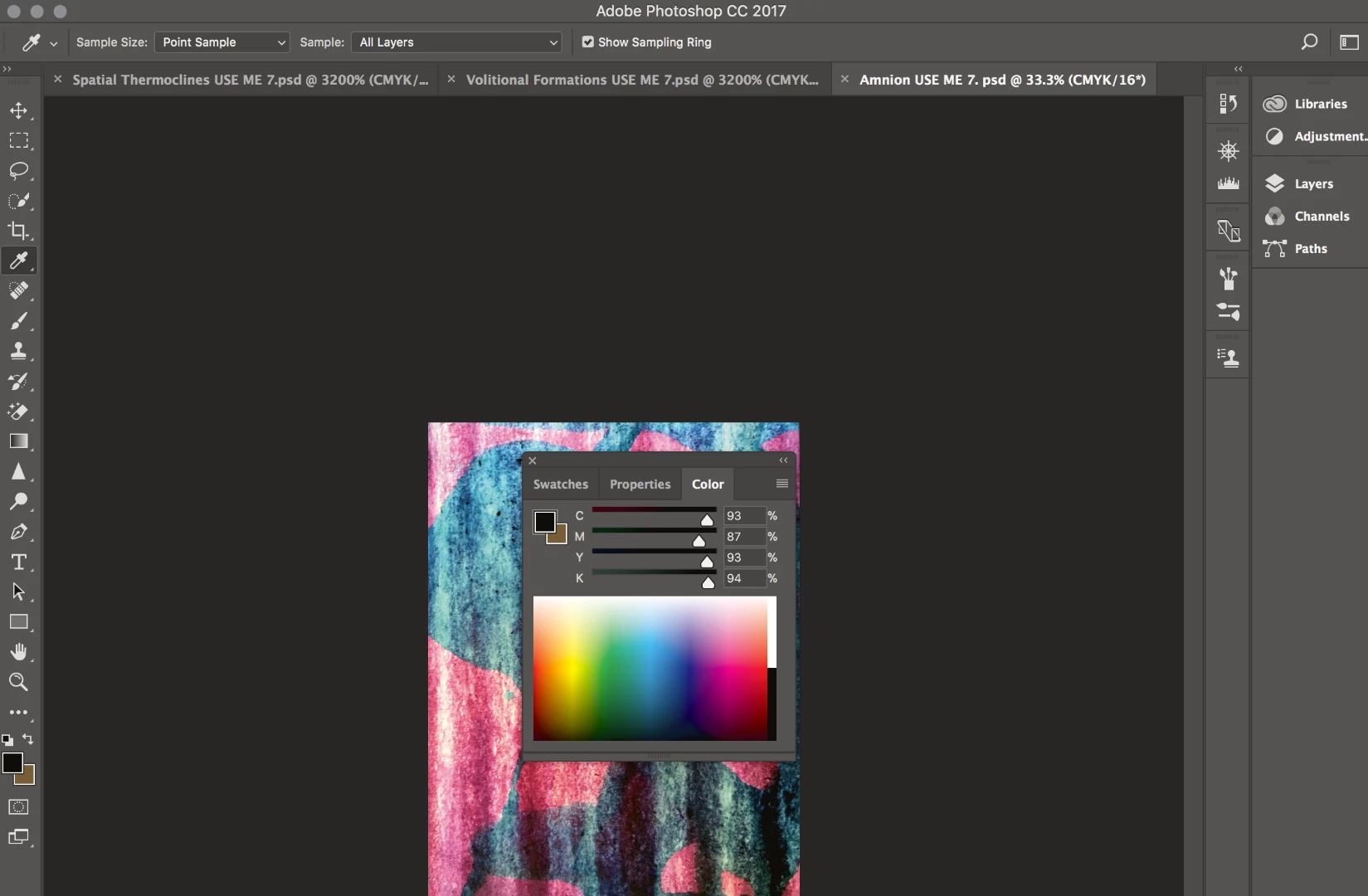
    Djuna, your ink levels are off the charts, way too high. The color in #7 adds up to 367% total ink! Since you're not telling what the profile is, I can't say how much you're over - but you're most certainly over.

    Each CMYK profile has a specific ink limit. You cannot go over this! The ink will smear and run, and not dry properly. A very few profiles go up to 330%, but most stop around 300.

    TAC is built into the profile, and a conversion into the profile is automatically limited. Do this the sensible way - work in RGB, and convert to CMYK at the very end. This way you're safe. Doing it the way you do now is a disaster waiting to happen.

    5 replies

    Legend
    October 16, 2017

    If you don't want to start over see what the effect is of going back to RGB then to the right CMYK. Not ideal, but might work for you.

    Djuna_A_
    Djuna_A_Author
    Known Participant
    October 16, 2017

    Thanks! This is helpful.

    I understand the numbers.  What I still don't understand is something very basic: how to check the numbers, short of eye dropping each pixel. I converted to CMYK early and edited there (not knowing otherwise), so is there a way to check that the already edited files don't have blacks that exceed the ink limit?  I just sampled some of the black pixels in one file, and the numbers are high; it seems like they would exceed the ink limit. Is there a way to universally apply this black setting/limit? I don't think it's a swatch, since I"m not painting or working with background...

    c.pfaffenbichler
    Community Expert
    Community Expert
    October 16, 2017

    I converted to CMYK early and edited there

    Why did you do that?

    Which CMYK Space did you use?

    Does creating a swatch universally apply those numbers to each black pixel?

    No, Photoshop is not a vector oriented application like Illustrator.

    And what do you even mean by »black pixel«? 0-0-0-100 or »looks kind of black« or something else?

    Please post a meaningful screenshot (including the pertinent Panels).

    Djuna_A_
    Djuna_A_Author
    Known Participant
    October 16, 2017

    I converted to CMYK early because I was advised to edit in CMYK.  I just edited in the printer profile, which is a CMYK profile.

    Okay here is the file with some "black" pixels, actually purple, but high numbers of each color.

    Legend
    October 16, 2017

    If you work in RGB and have the correct printer profile, you will get rich black when converting to CMYK.

    D Fosse
    Community Expert
    Community Expert
    October 16, 2017

    It just means 4-color black, as opposed to black plate only (which is used for text and other overprinted elements).

    Every CMYK profile (corresponding to a certain press/paper/ink) has a total ink limit, above which you get smearing and drying problems.

    For ISO Coated v2 300% (eci), which is a common standard in Europe, the numbers are 78-68-58-94. These relative percentages add up to the deepest possible neutral black. Text, on the other hand, would be printed 0-0-0-100.

    Any RGB 0-0-0 black will convert to max ink in any given CMYK profile. This will always be safe. But if you edit numbers in CMYK, you need to be careful to not exceed the limit, known as Total Area Coverage, TAC.

    gener7
    Community Expert
    Community Expert
    October 16, 2017

    This may help, but as always, let your printer tell you what he wants and what you need to do.

    Rich Blacks in Print

    CMYK "Rich Black" information and Tips