Participating Frequently
November 27, 2019
Answered

What happens to Path when Placing image in PS CC?

  • November 27, 2019
  • 2 replies
  • 600 views

Hello


I hope someone can help me or clarify this for me. I am using LR Classic and PS CC. My workflow is:

Batch Edit Images in LR -> Edit in Photoshop (I create a path for each image individually) -> Save (it saves as TIF automatically).

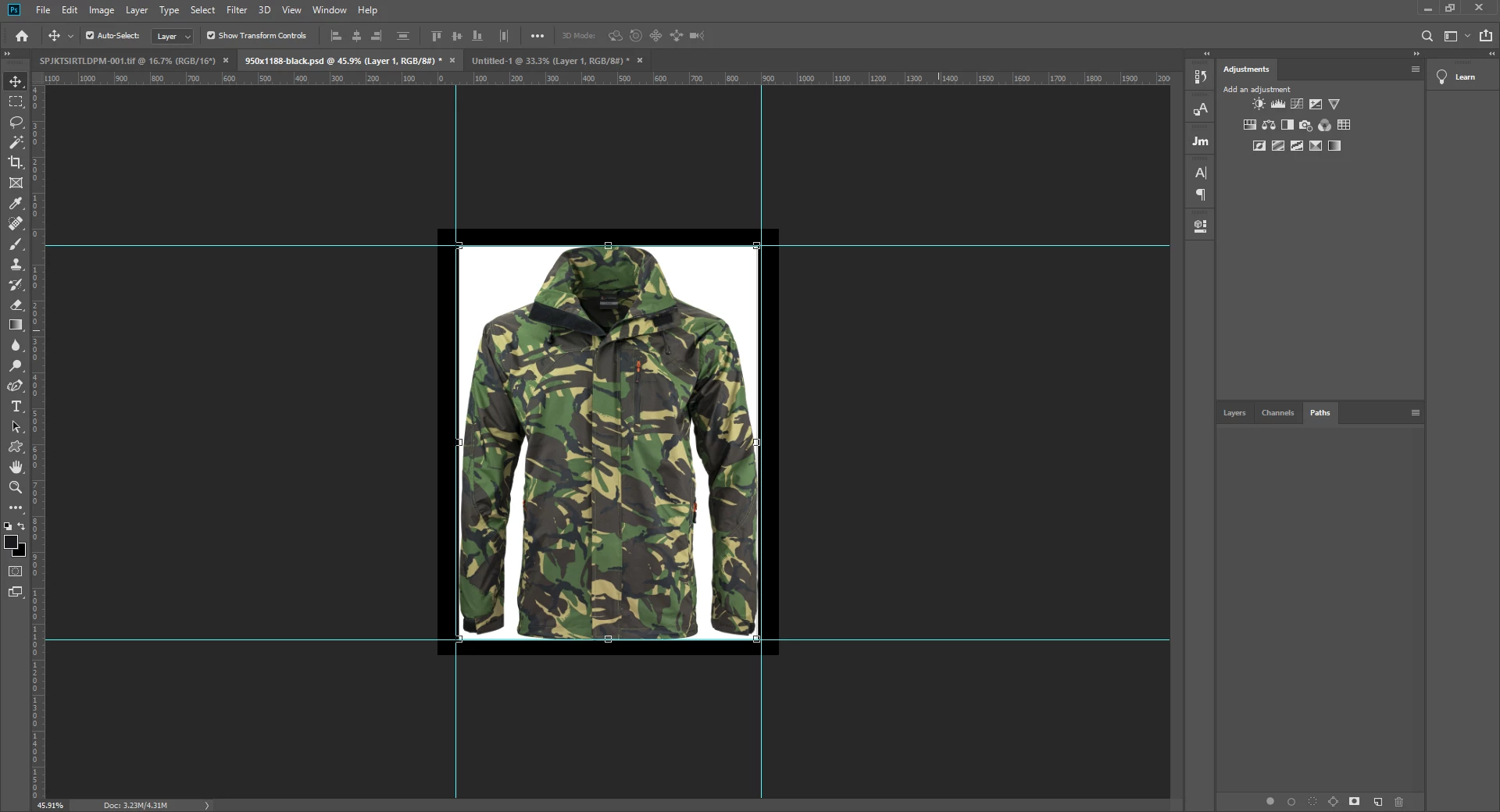
Now the problem I have is when I open the tif file in PS (File->Open) I can see the path I created previously. However, if I drag and drop the file (from the browser level) to a new project, the path disappears. Same happens when I drag and drop the same file opened in PS (from one project to another). Is it normal behaviour or do I need to do something to enable the path?


Please see the screenshots for reference.
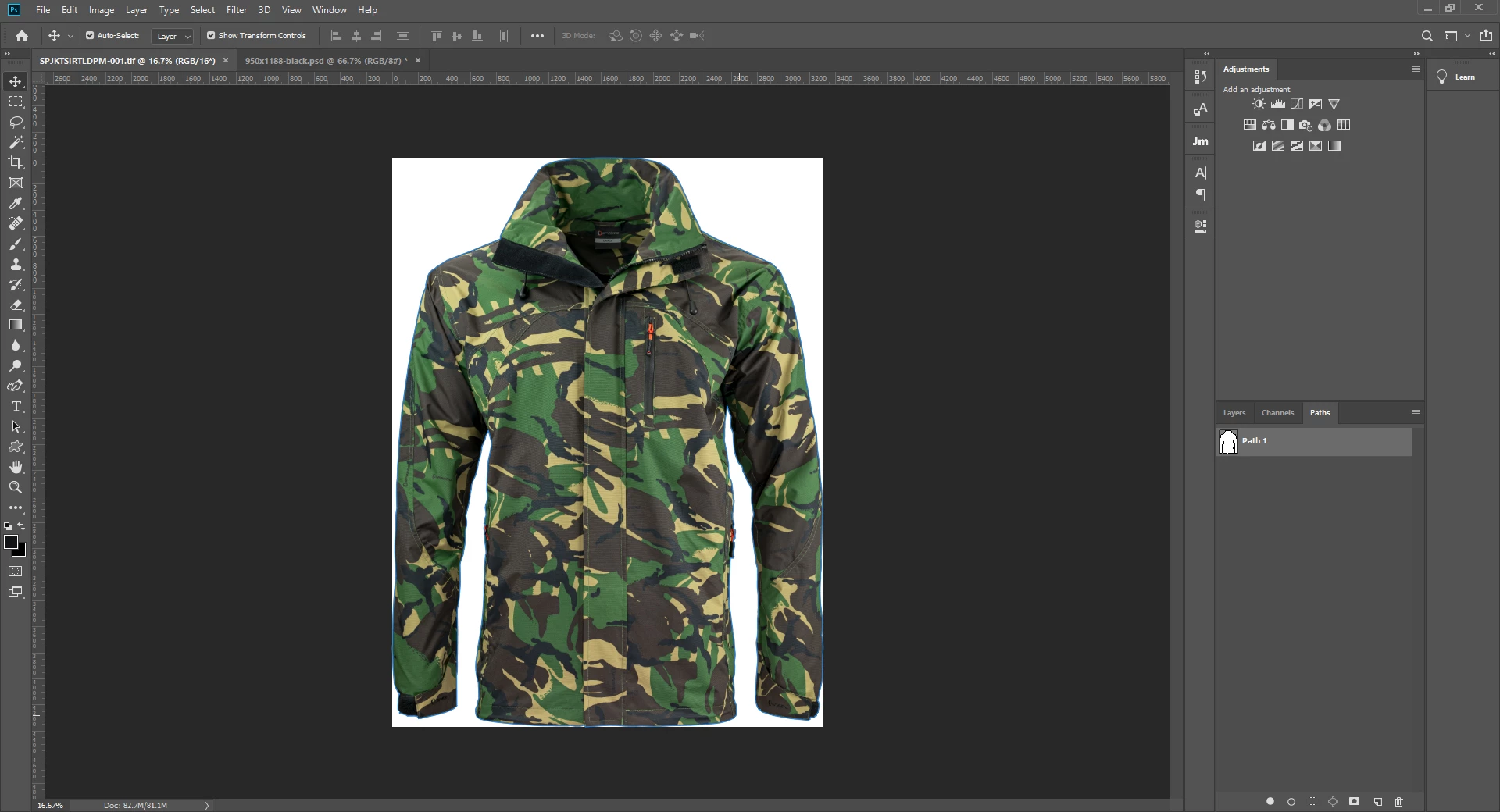


Thank you in advance!


Bax

This topic has been closed for replies.
Correct answer Conrad_C

By "browser" do you mean the file browser on the desktop? Or Adobe Bridge? Not a web browser?


From your screen shots, I would guess that the problem is that you have drawn a path, but the path is not currently set up to do anything to the image. Is your intention to have the path cut out the clothing from the white background? If so, the path also needs to be applied as a mask or a clipping path, depending on how you intend to use it later.


If you want a vector mask, try this:

  1. In the Paths panel, select the path.
  2. Choose Layer > Vector Mask > Current Path.


If you want a layer (pixel) mask created from the path:

  1. In the Paths panel, select the path.
  2. At the bottom of the Paths panel, click the Load Path as a Selection button.
  3. At the bottom of the Layers panel, click the Add a Mask button.


After you do either of those, the background should be cut out when you add the image to other projects.

And when the mask is selected in the Layers panel, you can adjust it using the Properties panel.


If you specifically need a clipping path, reply again and we'll go through that.

2 replies

Conrad_C
Community Expert
Conrad_CCommunity ExpertCorrect answer
Community Expert
November 27, 2019

By "browser" do you mean the file browser on the desktop? Or Adobe Bridge? Not a web browser?


From your screen shots, I would guess that the problem is that you have drawn a path, but the path is not currently set up to do anything to the image. Is your intention to have the path cut out the clothing from the white background? If so, the path also needs to be applied as a mask or a clipping path, depending on how you intend to use it later.


If you want a vector mask, try this:

  1. In the Paths panel, select the path.
  2. Choose Layer > Vector Mask > Current Path.


If you want a layer (pixel) mask created from the path:

  1. In the Paths panel, select the path.
  2. At the bottom of the Paths panel, click the Load Path as a Selection button.
  3. At the bottom of the Layers panel, click the Add a Mask button.


After you do either of those, the background should be cut out when you add the image to other projects.

And when the mask is selected in the Layers panel, you can adjust it using the Properties panel.


If you specifically need a clipping path, reply again and we'll go through that.

Participating Frequently
November 28, 2019

Hi Conrad


If you want a vector mask, try this:

  1. In the Paths panel, select the path.
  2. Choose Layer > Vector Mask > Current Path.


That did the job perfectly! Thanks! I thought I would be able to see the path when I place the photos and then do the Vector mask, but all I need to do is add a step when I save the path in Editing stage I also need to save the Vector Mask too.


Thanks Again!

JJMack
Community Expert
Community Expert
November 27, 2019

The file you are viewing in you browser is not your tiff file it would be a Jpeg or png file. What browser are you using. Screen shots are resized to small on this site 

JJMack