Participant
November 19, 2018
Question

What is the best method to "complete" canvas?

  • November 19, 2018
  • 3 replies
  • 372 views

I know that this may be a basic question, but I have to understand if there is an ideal way to resolve a matter I often encounter:

Let's say a client brings me a bunch of product images for me to design with.

Sometimes I only get vertical pictures when the document itself is required to be square (for social media for example).
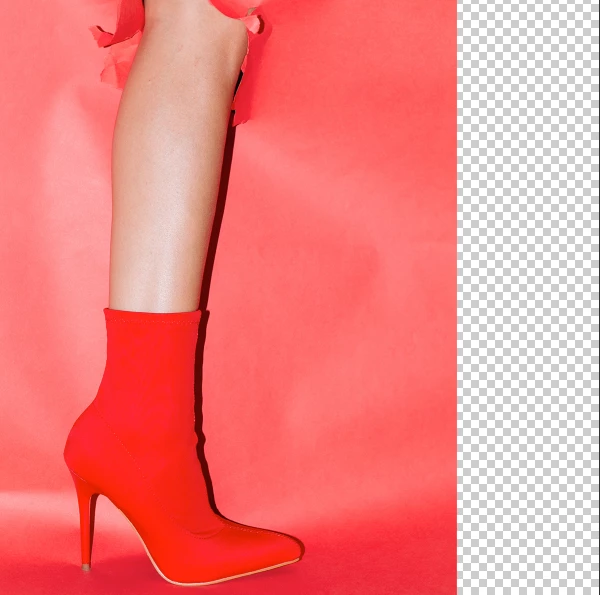
Now, I don't want to zoom in the image for it to fill all the canvas, because I don't want to lose parts of the original image or composition.

So what is the best method for me to fill the canvas with the original background? Is it with the content aware tool?

I would appreciate any advice!

    This topic has been closed for replies.

    3 replies

    Simmer1
    Community Expert
    Community Expert
    November 19, 2018

    Hi,

    Ok, first I would duplicate the image Layer by pressing Ctrl/Cmd + J.

    Next use the Rectangular Marquee Tool to Select the backdrop right of the Models shoe, be sure to add a slight feather to the Marquee Tool before making your selection.

    Once you have Made your selection press Copy and past it onto a new Layer by pressing, Ctrl/Cmd + C then Shift +

    Cmd/Ctrl +V.

    Next flip your selection by going Edit > Transform > Flip Horizontal.

    Finally reposition your feathered selection so it lines up with the Layer beneath. You may have to make it slightly lager to fill any gaps.

    Then use the stamp too to get rid of the symmetrical look.


    I hope this helps!

    Sim

    Mohammad.Harb
    Community Expert
    Community Expert
    November 19, 2018

    If you are using photoshop 2018 and higher, one easy way to get a good result:

    1- crop the photo ( inside) to fit the content. Nad press enter

    2- in the option bar of the crop tool, check “content-aware”

    and now use the crop tool to extend the canvas

    it will fill the area from the surroundings, try not to extend the area at once but gradually multiple times.

    Kenneth Kawamoto
    Community Expert
    Community Expert
    November 19, 2018

    There are many ways but for this particular image, Content-Aware Fill should work very well. Select the empty area > Shift + Delete

    Trevor.Dennis
    Community Expert
    Community Expert
    November 19, 2018

    So  this doesn't work then?

    Kenneth Kawamoto
    Community Expert
    Community Expert
    November 19, 2018

    Trevor.Dennis​ LMFHO