Participant
November 21, 2018
Answered

What's the difference between flipping and reflecting an image?

  • November 21, 2018
  • 4 replies
  • 4622 views

Flipping an imagine horizontally in Photoshop achieves exactly the same result as reflecting the image vertically in Illustrator. Is there a reason for this? As far as I'm aware flipping an image over the horizontal axis should flip the image over the bottom edge, not the side edge. I've been dealing this for the past 5 years and I still have to undo every time I try to flip something. Why is Photoshop using x/y axsis as directional lines?

Is there a way to reflect an image in Photoshop, because this is driving me nuts?
    This topic has been closed for replies.
    Correct answer jane-e

    adephx  wrote

    Flipping an imagine horizontally in Photoshop achieves exactly the same result as reflecting the image vertically in Illustrator.

    IMHO, this question is more of an Illustrator issue, because Photoshop is consistent and it's Illustrator where you have both Flip and Reflect, or rewording Dave's opening sentence, "The same app has different terminology."

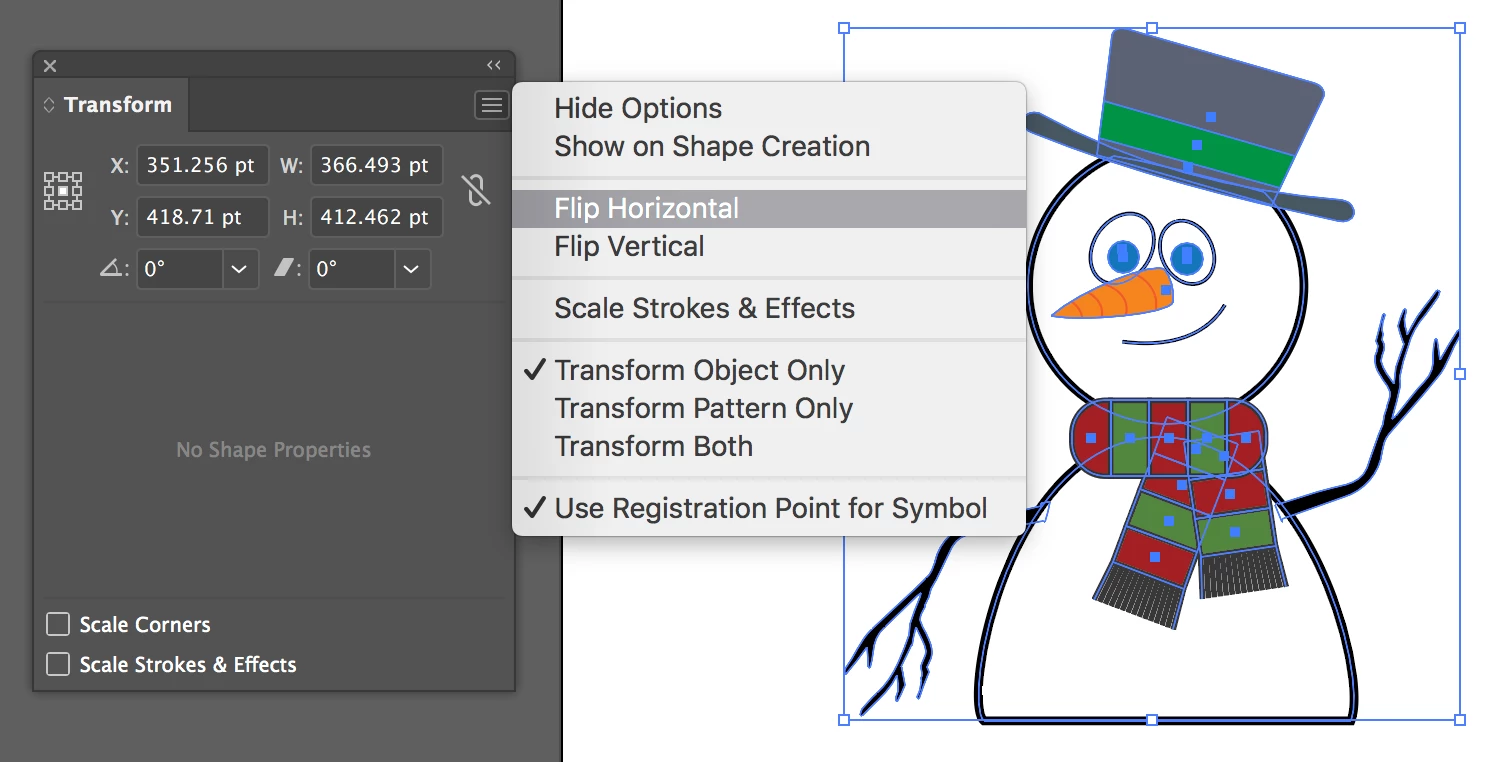
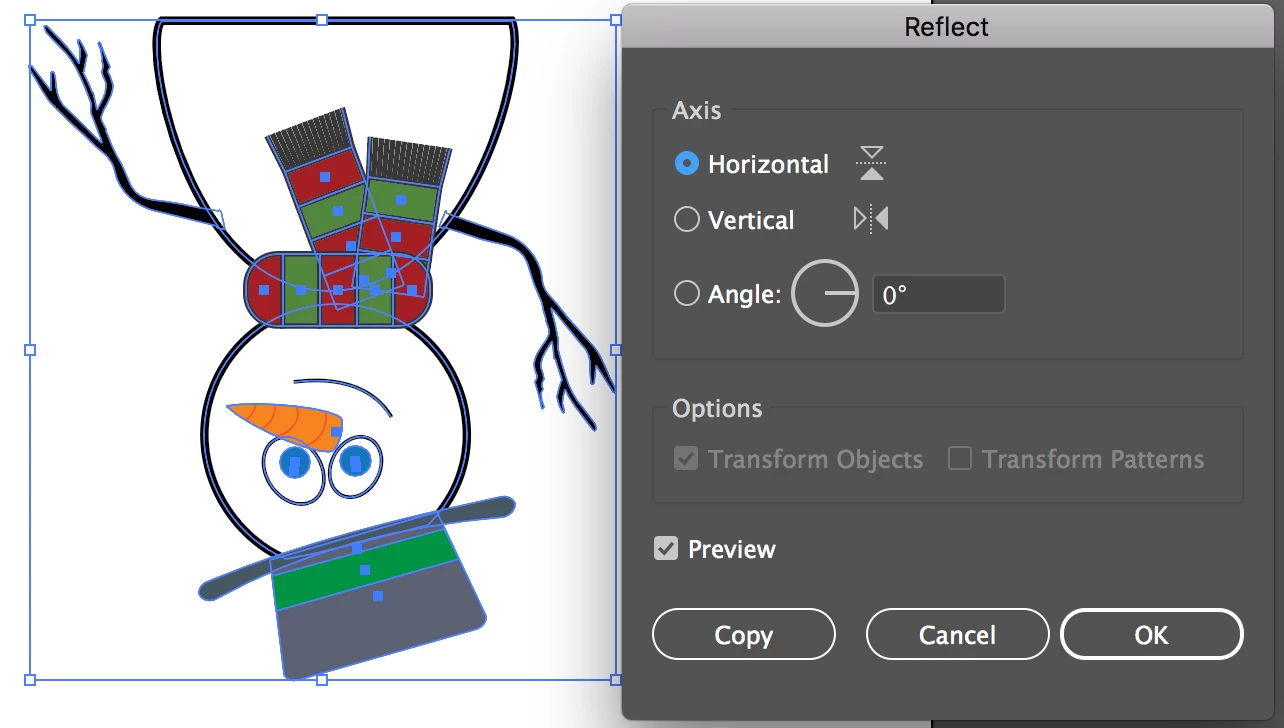
    • In Illustrator, when you choose Reflect (from the Object menu or the Toolbox), you see widgets showing that you will reflect along the axis, which is what happens.
    • In Illustrator, when you Flip from the Transform panel menu (multiple ways to get to Transform), it does the opposite of the Reflect command. There is no widget and there is no preview.
    • Photoshop has Flip commands, which work the same way as the Flip in Illustrator.

    I hope this helps!

    4 replies

    JJMack
    Community Expert
    Community Expert
    November 21, 2018

    Flipping also changed object positioning where a reflection would  not reflection are mirrored images

    JJMack
    jane-e
    Community Expert
    Community Expert
    November 21, 2018

    JJMack  wrote

    Flipping also changed object positioning where a reflection would  not reflection are mirrored images

    Are you referring to Illustrator, JJMack ?

    • In Illustrator, the object positioning is controlled by the reference point. You can lock in any of the nine points. Since mine was in the center, the object flips in place. If yours moved, then you have a different reference point selected. Thanks for letting me clarify!

    • In Illustrator, if you Reflect using Object > Transform Each, you can choose a reference point and reflect more precisely.


    • But for the most precision, you would select the object > switch to the Reflect tool > then Option + Click to reflect on the exact spot that you clicked, such as an anchor point.

    ~ Jane

    JJMack
    Community Expert
    Community Expert
    November 21, 2018

    I do not install AI so I know nothing about it.  If you look in a mirror  your relection look like you are looking at yourself however your looking a mirrored image of yourself. If you print and imaged flipped the image printed is not a mirrored image of you. You right will be on the left and you left will be on the right  that is not what you see in a mirror.

    JJMack
    jane-e
    Community Expert
    jane-eCommunity ExpertCorrect answer
    Community Expert
    November 21, 2018

    adephx  wrote

    Flipping an imagine horizontally in Photoshop achieves exactly the same result as reflecting the image vertically in Illustrator.

    IMHO, this question is more of an Illustrator issue, because Photoshop is consistent and it's Illustrator where you have both Flip and Reflect, or rewording Dave's opening sentence, "The same app has different terminology."

    • In Illustrator, when you choose Reflect (from the Object menu or the Toolbox), you see widgets showing that you will reflect along the axis, which is what happens.
    • In Illustrator, when you Flip from the Transform panel menu (multiple ways to get to Transform), it does the opposite of the Reflect command. There is no widget and there is no preview.
    • Photoshop has Flip commands, which work the same way as the Flip in Illustrator.

    I hope this helps!

    davescm
    Community Expert
    Community Expert
    November 21, 2018

    Hi

    Different apps have different terminology.

    To achieve what you want to do :

    Select the area you want to reflect

    Ctrl+J to copy to a new layer
    Ctrl+T
    In CC v20.1 hold down shift and drag the top edge below the bottom edge till you get the reflection you want

    or

    If you need an exact same size reflection

    Select the area you want to reflect
    Ctrl+J to copy to new layer

    Transform Flip Vertical

    Press V (to select move tool)

    Drag flipped copy into position

    Dave

    Trevor.Dennis
    Community Expert
    Community Expert
    November 21, 2018

    You'd need to ask in the Feedback site.  There are no Adobe employees here.