
miz123
Participating Frequently
November 22, 2018
Answered

When you zoom in in photoshop, I get sequences of windows..[OSX]

  • November 22, 2018
  • 1 reply
  • 530 views

Hi!

All of the sudden, (or maybe I accidentally clicked some button??)

my zoom-in feature started acting weird.

Every time I click on the image to zoom-in, and zoom-out, I get this framed windows..
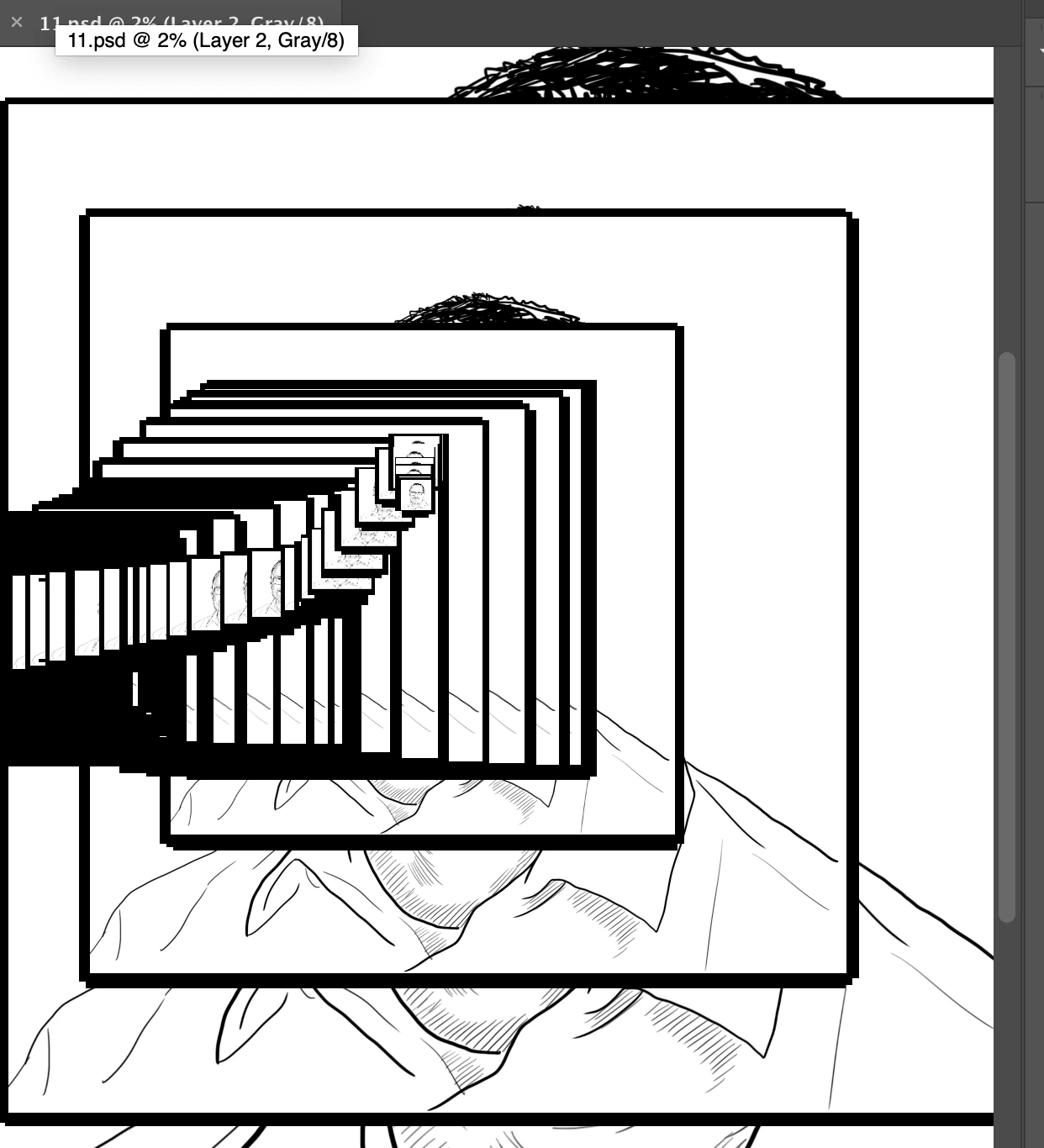
I'm not sure if this picture explains the situation so everyone I click, you get a resized image, one at a time.

I don't know how to fix this! Please help!

This topic has been closed for replies.
Correct answer davescm

Hi

Start by unchecking Use graphics processor. Restart Photoshop and see if the problem occurs.

If that cures it - then recheck use Graphics processor and in Advanced set the drawing mode to Basic. Restart Photoshop and see if the problem occurs. If it does then you will need to uncheck Use Graphics Processor again (and restart)

Dave

1 reply

Trevor.Dennis
Community Expert
Community Expert
November 22, 2018

Looks GPU related.  What is the hardware and operating system?

Try turning GPU acceleration off in Preferences > Performance, and restarting the computer.  If it makes a difference, check that your video card driver is up to date, and from the card maker's site.

miz123
miz123Author
Participating Frequently
November 22, 2018

Thank you for helping me out with this!

I'm using mac pro version 10-15  intel iris graphics 6100 photoshop cc 2018

when you said, >>Try turning GPU acceleration off in Preferences > Performance, and restarting the computer

I didn't see GPU acceleration off in preferences, I see graphic processor settings box on the right corner and should i click on the advanced settings?? then un-click Use Graphics Processor to Accelerate Comoputation??

or should I unclick the Use Praphics Processor??

Sorry this is beyond my knowledge!!

davescm
Community Expert
davescmCommunity ExpertCorrect answer
Community Expert
November 22, 2018

Hi

Start by unchecking Use graphics processor. Restart Photoshop and see if the problem occurs.

If that cures it - then recheck use Graphics processor and in Advanced set the drawing mode to Basic. Restart Photoshop and see if the problem occurs. If it does then you will need to uncheck Use Graphics Processor again (and restart)

Dave