


Participating Frequently
September 11, 2017
Answered

White Background removing from template Adobe Stock

  • September 11, 2017
  • 4 replies
  • 2052 views

Hello ,:)

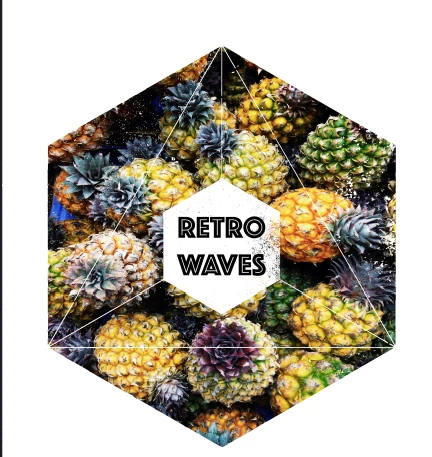
i am trying since hours to find out how to remove the white background from this image but still have the white in the image and still cut of the sides of the hexagon pineapple image? It is crazy i get either the pineapple in the old rectangular shape or the whiteness goes completey away and also inside in the middle of the hexagon.

Tried the magic wand tool, the magic erase, multiple layers adjusting colour and contrast. I dont know how i can upload the PSD file here.

I hope anyone can help me.

Kind regards,

Yannick
This topic has been closed for replies.
Correct answer KShinabery212

First what I would do....

Dupicate original layer.

Then use the Magic Wand or Quick Selection Tool to select the white background.

Play around with the Tolerlance level to find the perfect selection.

Then hit delete.

If that works..... then erase the original layer.

You can also use the Polygonal Lasso Tool as well on the dupiclate layer to select the main part of the shape.  Then Select>Inverse and hit delete.  Then do use the same lasso tool to select the inside and hit delete.

After you do either of these simply save it as PNG.  Then you will have a clear invisible background and no white.

4 replies

Norman Sanders
Legend
September 11, 2017

If this is the result you are aiming for, the following mayl be of help

1. Open the file and make a duplicate layer

2. Make a rectangular selection as shown in the first frame above

3. Choose Edit > Transform > Scale. You are only interested in the center mask.

4. From the top and side rulers drag out guides that cross the center mark.

5. Cancel the Transform and marching ants

6. Choose the Polygon tool (above the hand tool) and set the Options bar to Pixels, normal, 100%, sides: 6

7. Drag from the center mark to one of the corners to create a white area as shown in the second frame

8. Reduce the opacity so that you can make a rectangular selection of  the type and use it to create the mask shown in the Layers panel  and frame 3 above, and then bring the opacity back to f00% as shown in frame 4. The result will require minor touch up in white with the hard edge brush set to Overlay.  The result  is frame 4

9. Cmd+Opt+Shift+E to make a composite as shown in the next to top layer in the Layers panel.

10. Add a blank layer and use the same center mark and method to create the top layer that is shown

11. Use it to create the mask used in the next to top  layer. Note position of the eye in the Layers panel to see the final result.

KShinabery212
Community Expert
KShinabery212Community ExpertCorrect answer
Community Expert
September 11, 2017

First what I would do....

Dupicate original layer.

Then use the Magic Wand or Quick Selection Tool to select the white background.

Play around with the Tolerlance level to find the perfect selection.

Then hit delete.

If that works..... then erase the original layer.

You can also use the Polygonal Lasso Tool as well on the dupiclate layer to select the main part of the shape.  Then Select>Inverse and hit delete.  Then do use the same lasso tool to select the inside and hit delete.

After you do either of these simply save it as PNG.  Then you will have a clear invisible background and no white.

Let's connect on LinkedIn. https://www.linkedin.com/in/kshinabery/
yannickh2Author
Participating Frequently
September 11, 2017

Thanks for your answers they are highly appreciated ,

Anyway I have only photoshop to work with so first thing i can not do.

I can erase the background  but my pineapple image on the next layer is then not in the shape I want it to be. I need to at the same time cut it in the shape.

Do you know what I mean?

Thanks so much for your kind help

Yannick

Legend
September 11, 2017

Can you show a screen shot showing the Layers pallet with all layers expanded?

Ann Bens
Community Expert
Community Expert
September 11, 2017

MOved to Photoshop forum.

Community Expert
September 11, 2017

Is this what you are trying to do:

This was done using the mask in opacity fixed effect.