amyb4862461
Known Participant
January 3, 2019
Answered

White on White

  • January 3, 2019
  • 3 replies
  • 1524 views

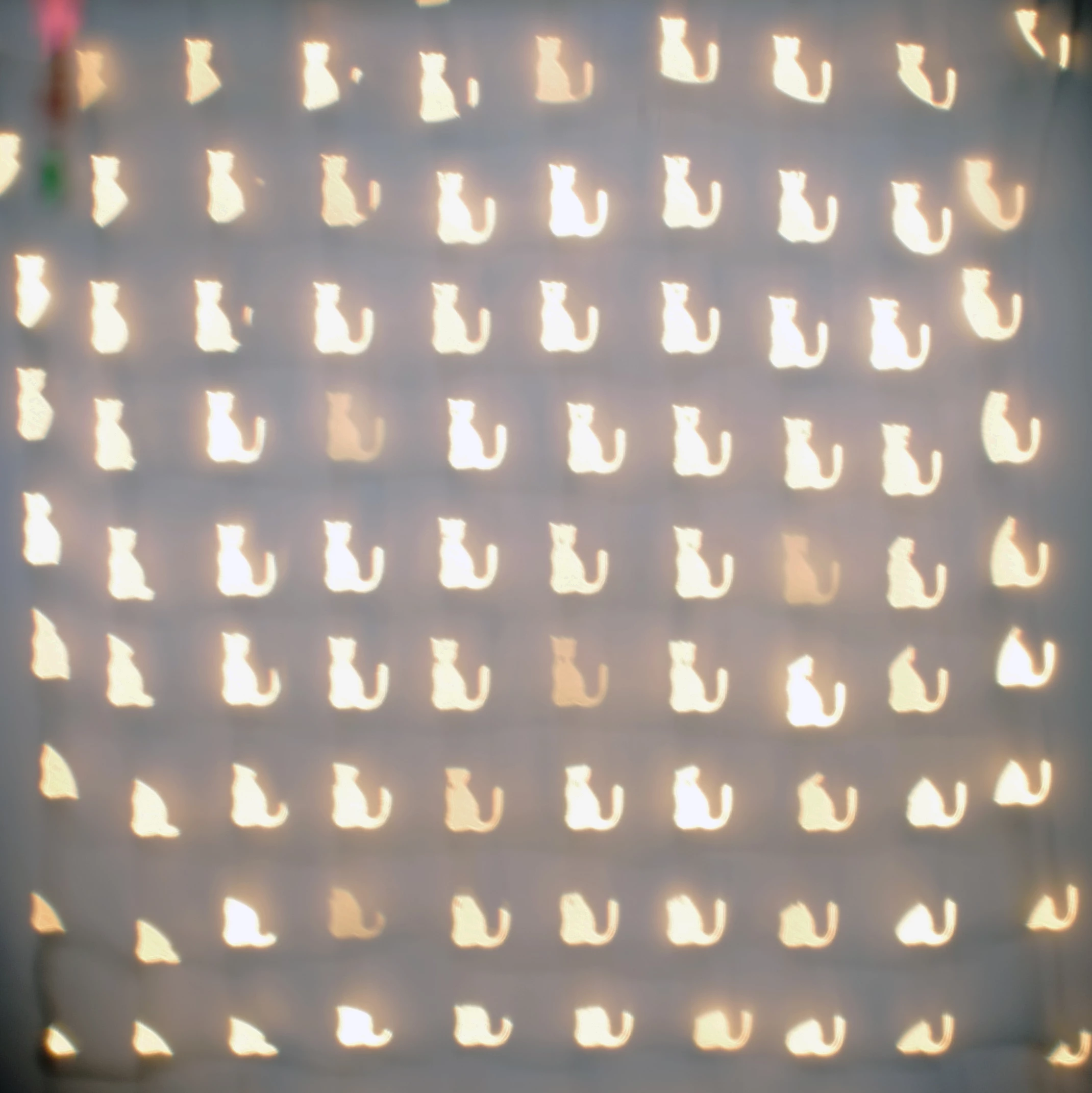
Is there any faster or easier way to select all these bokehed cats and put them on a white background besides doing each one individually.  I was selecting each one individually and the magic wand stopped selecting about 3/4 of the way through.  I'd like as much white on white as I can get without the cats disappearing.  Thank you.

    This topic has been closed for replies.
    Correct answer Trevor.Dennis

    As JJ has told you. that is not great image to work with.  In fact it is a terrible image to work with, but I guess it is what it is, so you need to do the best you can.

    I've copied the layer with a view to making a mask from it.

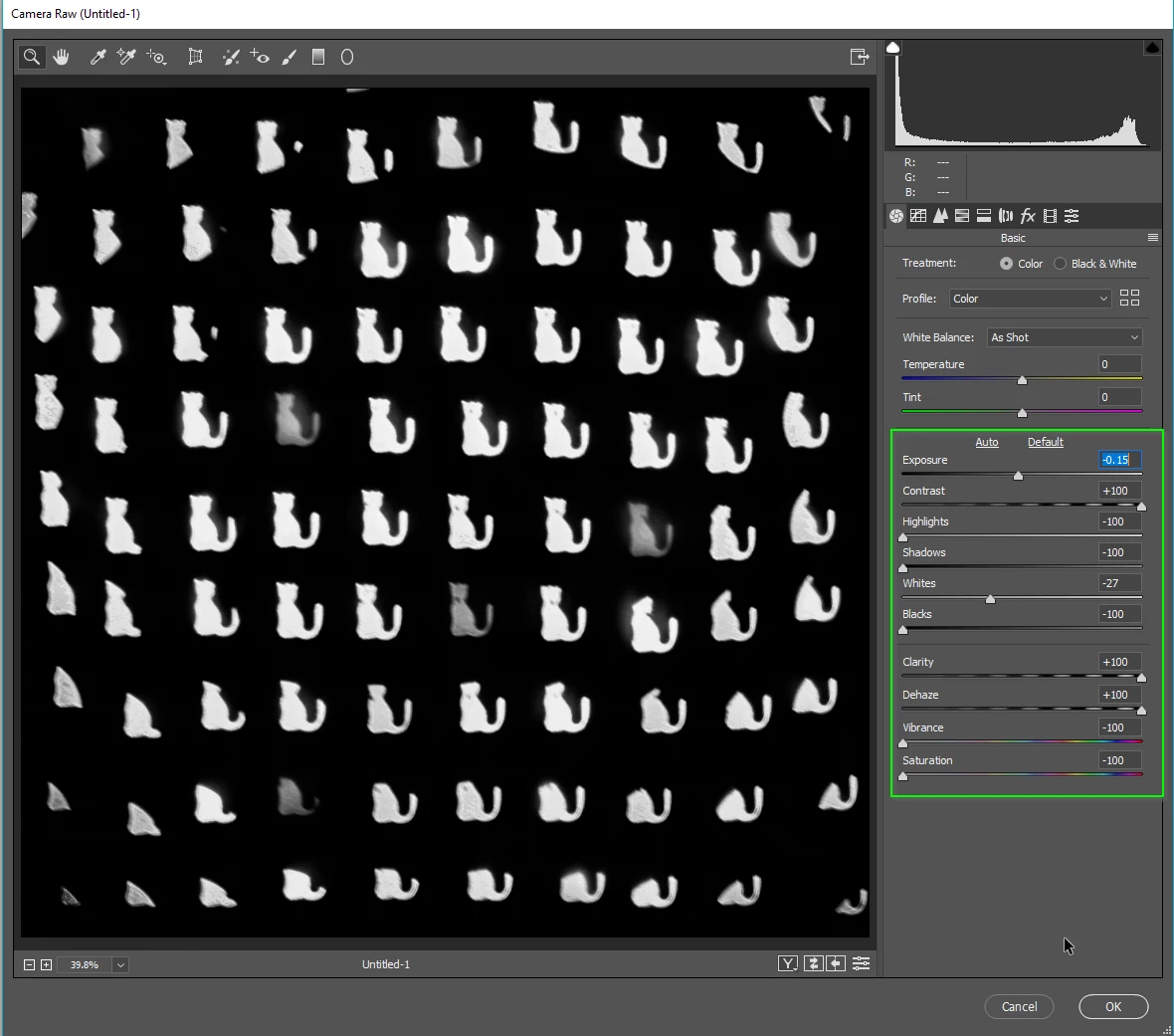
    Opened the copied layer in the Camera RAW filter, an applied the settings you see.
    A curves adjustment layer.  The trick is to try and get to full black, and full white without losing detail.  Or in this case, minimising the inevitable loss of detail
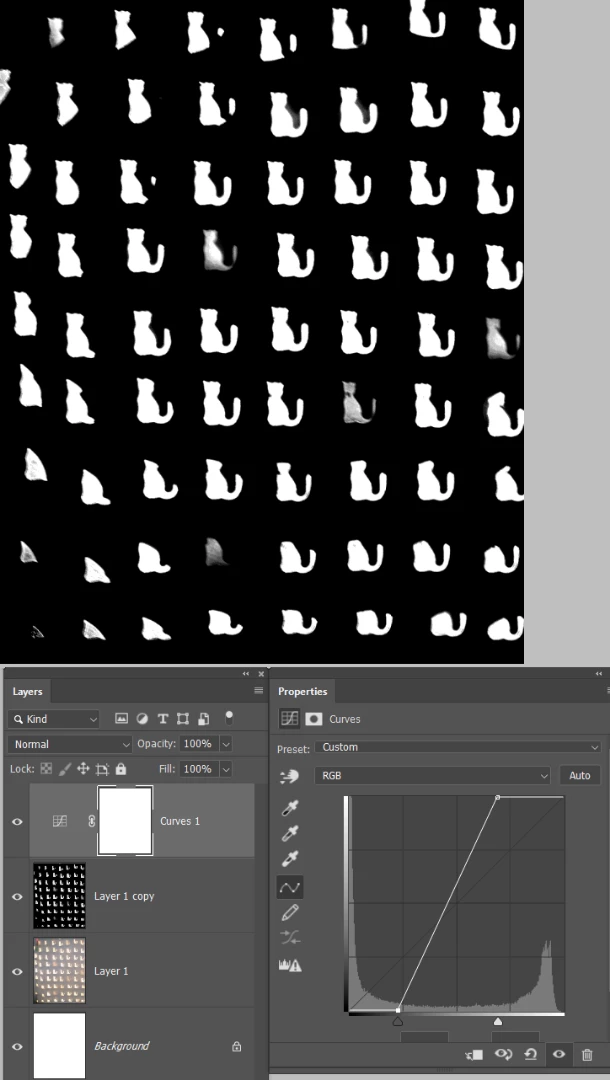
    Make a copy merged layer at the top of the stack (Shift Ctrl Alt E)

    Select a soft round brush, and set it to Overlay in the Options bar, and about 50% opacity
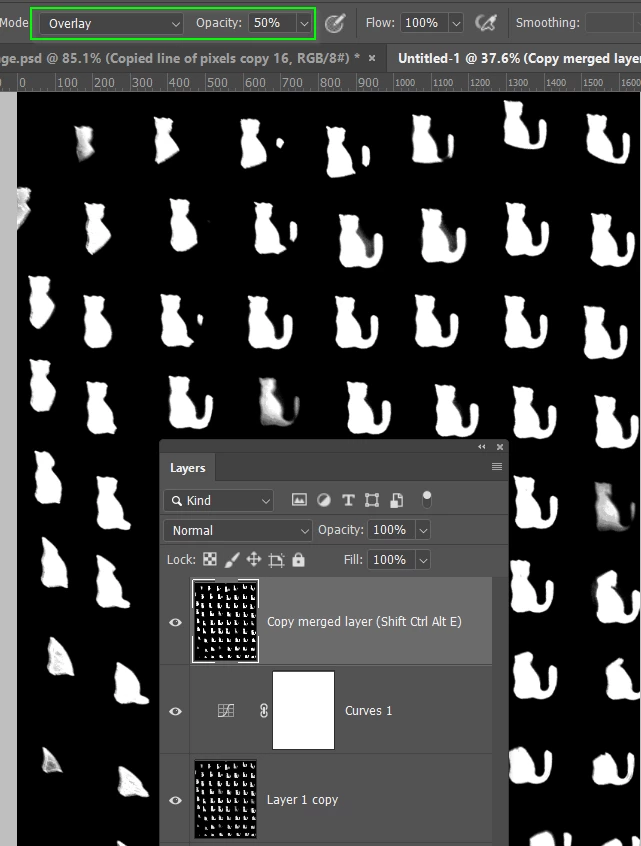
    Paint over the grey cats with white, gradually building to full white.  You can increase brush opacity as the background is already full black and won't spoil.
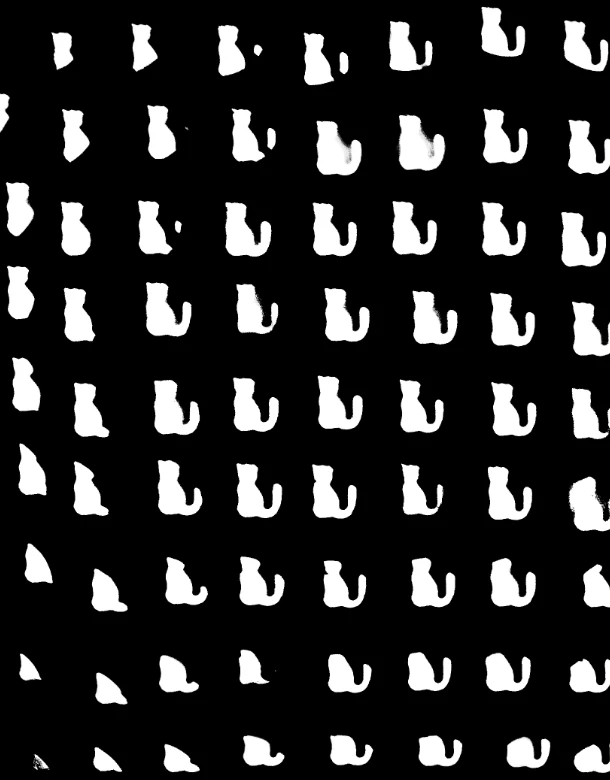
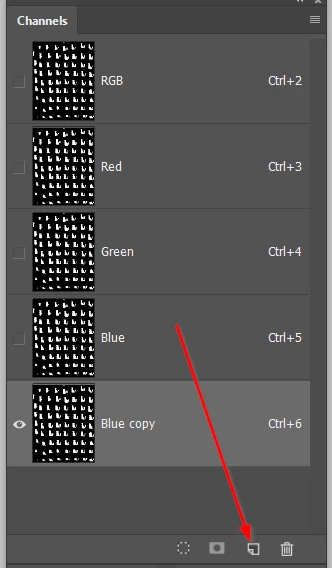
    Take any one of the channels (they are all the same) and drag to the new channel icon
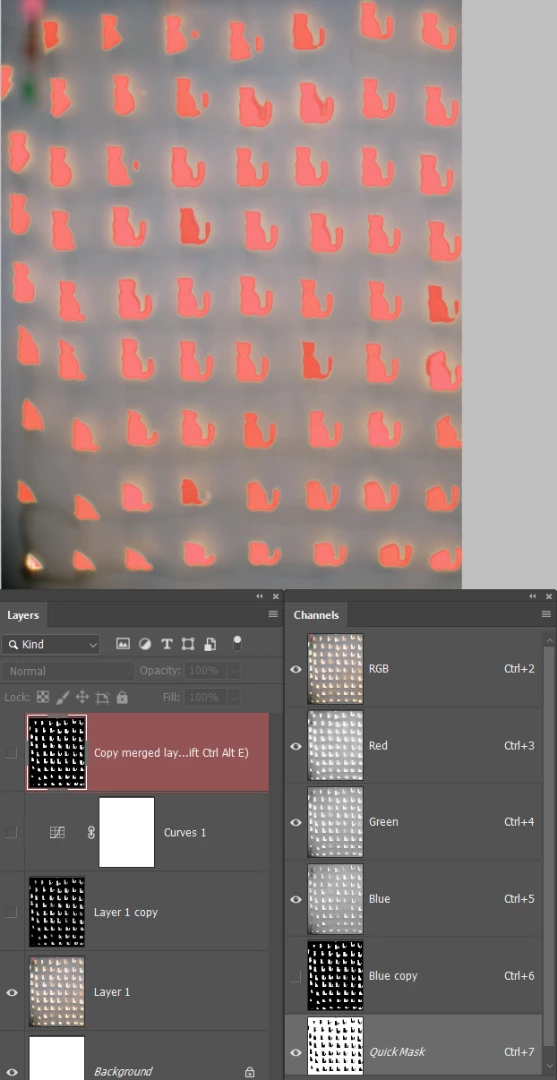
    Turn off all the additional layers we made, so we can see the original.

    Ctrl Click our copied channel, and hit the Q key to enter Quick Mask

    Now its about how fussy you need to be.  I hope you have a tablet.
    Set the brush mode back to normal and make it semi hard
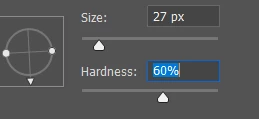
    Zoom in to actual pixel size (Ctrl Alt 0)  that's a zero and not the letter O

    Paint with white to remove from the selection, and black to add
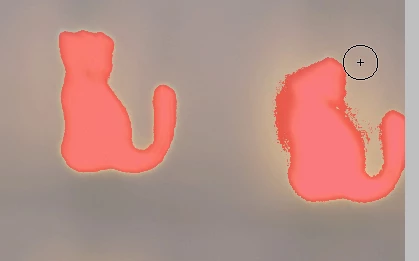
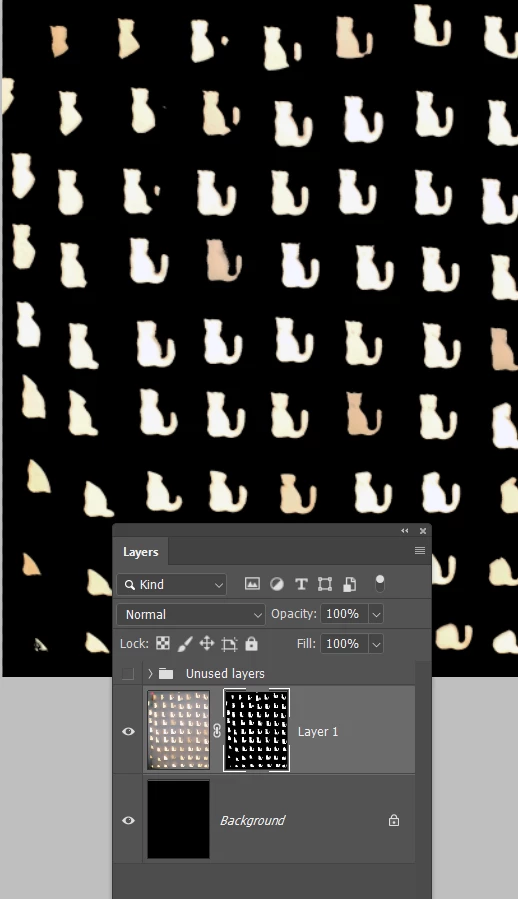
    Hi q to come out of Quick Mask and add a layer mask to the original layer

    You can continue to fine tune using the layer mask.
    Better options...

    1) Use the shoot it again filter.  Perhaps set up on a tripod and use a range of exposures and combine the best

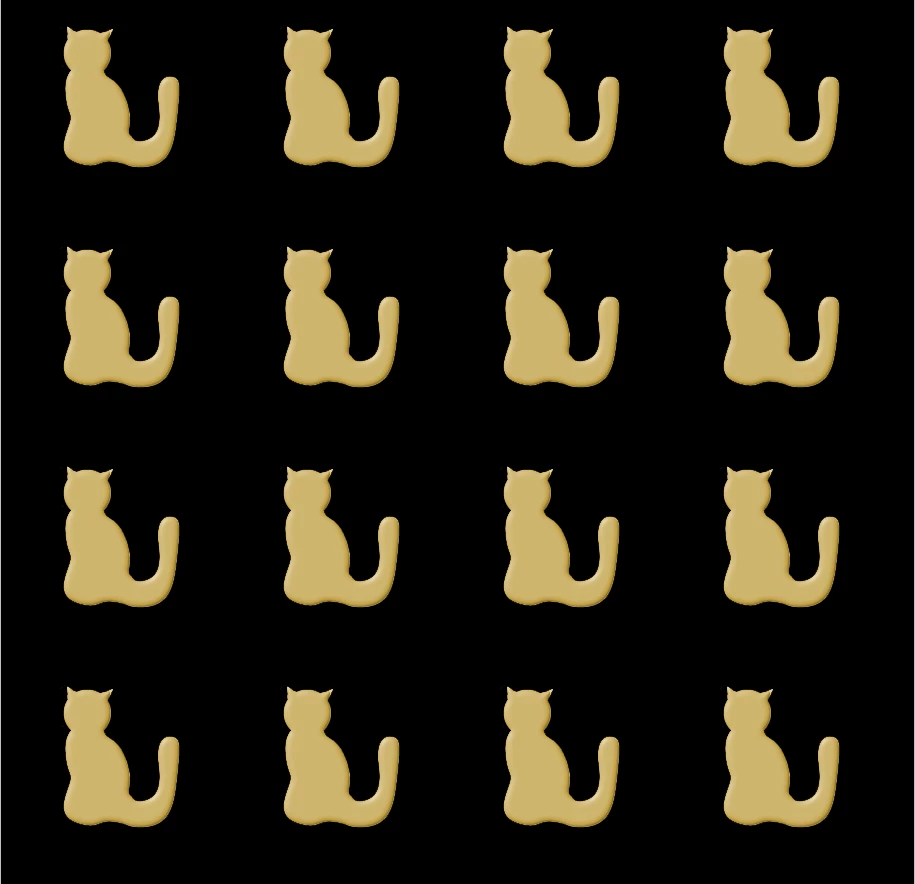
    2) Make a half decent outline of one of the cats, and define it as a pattern

    I added a wee bevel and emboss for good measure
    3 replies

    JJMack
    Community Expert
    Community Expert
    February 1, 2019

    You need to learn hoe to use the pen tool to draw out smooth clean path and define custom shape. One you doe that you can drag our custom shapes any size you want and stroke it, You can do white on white so you can not see the shape,  Even if you do Black one white you can turn it invisible by setting its fill to  zero.  Even invisible the shape layer will cast a shadow. Of top of this everything is adjustable.  The shape will scale perfectly,  The stroke size can be change and the shadow adjusted. Learn the pen tool.

    JJMack
    amyb4862461
    Known Participant
    March 29, 2019

    I just want to thank everyone for all the helpful advice I received concerning this bokeh, white on white image.  I've almost completed it but am now stuck on the drop shadow effect.  It had worked before and my setting were:

    but then all of a sudden it stopped working when I went back and cloned a little.  Can someone figure this out for me, please?  It didn't work whether it was .psd or .jpg.

    Trevor.Dennis
    Community Expert
    Trevor.DennisCommunity ExpertCorrect answer
    Community Expert
    January 3, 2019

    As JJ has told you. that is not great image to work with.  In fact it is a terrible image to work with, but I guess it is what it is, so you need to do the best you can.

    I've copied the layer with a view to making a mask from it.

    Opened the copied layer in the Camera RAW filter, an applied the settings you see.

    A curves adjustment layer.  The trick is to try and get to full black, and full white without losing detail.  Or in this case, minimising the inevitable loss of detail

    Make a copy merged layer at the top of the stack (Shift Ctrl Alt E)

    Select a soft round brush, and set it to Overlay in the Options bar, and about 50% opacity

    Paint over the grey cats with white, gradually building to full white.  You can increase brush opacity as the background is already full black and won't spoil.

    Take any one of the channels (they are all the same) and drag to the new channel icon

    Turn off all the additional layers we made, so we can see the original.

    Ctrl Click our copied channel, and hit the Q key to enter Quick Mask

    Now its about how fussy you need to be.  I hope you have a tablet.

    Set the brush mode back to normal and make it semi hard

    Zoom in to actual pixel size (Ctrl Alt 0)  that's a zero and not the letter O

    Paint with white to remove from the selection, and black to add

    Hi q to come out of Quick Mask and add a layer mask to the original layer

    You can continue to fine tune using the layer mask.

    Better options...

    1) Use the shoot it again filter.  Perhaps set up on a tripod and use a range of exposures and combine the best

    2) Make a half decent outline of one of the cats, and define it as a pattern

    I added a wee bevel and emboss for good measure

    JJMack
    Community Expert
    Community Expert
    January 3, 2019

    With that image quality you will need to work hard.

    JJMack
    amyb4862461
    Known Participant
    January 3, 2019

    I really don't need replies like yours.  This is a Forum where people are supposed to help one another, especially with practical advice.  And just so you know I did photoshop a pretty good image of what I want, I'm just submitting the cropped original to learn from the start.  I really don't know how you became a Forum Advisor with remarks like the one you just made to me.

    Mike_Gondek10189183
    Community Expert
    Community Expert
    January 3, 2019

    I doubt JJ Mack intended for his reply to come across attacking you, he was just being honest and is one of the most helpful and knowledgeable people on the forums.

    • float a copy of the layer and compress  color to get nice seperation like this. Note midtone slider very important on this image.
    • Select Color range, lower fuzziness, and then use eyedropper plus to add colors of the background.


    • make an inverted mask of your selection
    • delete out the dummy extra layer we made

    If you need edge cleanup afterwards the  select and mask (S&M) can help with smoothing the rough edge. You may not need, but post another screenshots zoomed in to show edge problem if one exists and let us know where you at, and will help if you reply nicely.