mikaels71195823
Inspiring
October 10, 2018
Answered

Why do I become red?

  • October 10, 2018
  • 6 replies
  • 1124 views

I have used this before but never seen this. I open a RAW image in Photoshop and I've got PRO Photo RGB as color profile, I edit some more with my photo and then I save it by Export > Save for webb (Legacy).

When I then open my image again I get the box where I choose Convert document's colors to the workspace. Then the skintones are all red, how come?

Before:

After:

    This topic has been closed for replies.
    Correct answer D Fosse

    Yes, always embed the profile. There are very few scenarios left today where you can still get away with not embedding, and they keep getting fewer.

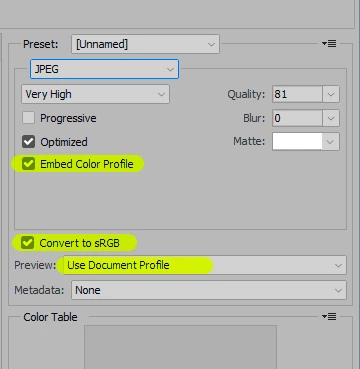
    Also make a round in Save For Web to enable color management all around. All of these need to be set correctly (and then they will stick):

    The new Export module simplifies it a bit, since the preview automatically changes with "embed profile" checked.

    6 replies

    D Fosse
    Community Expert
    Community Expert
    October 11, 2018

    Yes, the only way to get that particular color is to assign ProPhoto to an sRGB image. And that in turn could happen with ProPhoto as working space but no color profile in the image. That's probably how it did happen.

    Photoshop's default color settings are safe and need never be changed. However, there are two default bombs ready to blow up just around the corner, and you need to watch out for them:

    • the Lightroom default, unless you change it, is to send images to Photoshop as ProPhoto. This is an extremely unfortunate choice and I have never understood why they did that. It gets newcomers into trouble constantly - while those experienced enough to take advantage of ProPhoto are perfectly capable of looking out for themselves. They don't need to be hand-held.
    • Safe For Web still assumes no color management on the internet. All the default settings turn off color management. You have to manually set it to embed the profile, and you also have to manually change the preview into the color managed version. The default is Monitor Color.

    When those two crash, it gets ugly. ProPhoto is not for beginners. We constantly hear that ProPhoto is the "best" color space, but that's only true in the sense that a nuclear missile is "better" than a handgun. If you pardon the somewhat tasteless metaphor.

    mikaels71195823
    Inspiring
    October 11, 2018

    I found a way around the issue I can do it two ways, either Export for web and check Embed colors och Save as and check ICC profile.

    Best regards: Micke Seise
    Stephen Marsh
    Community Expert
    Community Expert
    October 11, 2018

    Embed the profile, but don’t leave the image as ProPhoto, convert to sRGB and embed sRGB, then you will be covered. Hoping that end users will have a colour managed and correctly setup system will often result in disappointment (such as in the right hand side of the first example image in my post #5).

    Stephen Marsh
    Community Expert
    Community Expert
    October 10, 2018

    It’s all about colour management:

    If you don’t embed the sRGB profile, then when you convert, you have to pick a source profile, and if you pick ProPhoto rather than sRGB, this is what you get:

    JJMack
    Community Expert
    Community Expert
    October 10, 2018

    My advice stay out of the Sun,,,,,

    JJMack
    mikaels71195823
    Inspiring
    October 11, 2018

    Yes think soo to.

    Best regards: Micke Seise
    D Fosse
    Community Expert
    Community Expert
    October 10, 2018

    Don't convert to an arbitrary working space - convert to sRGB, specifically. Anything headed for web needs to be sRGB. Also check the box to embed the profile to cover all scenarios. The profile should always be embedded, no exceptions.

    Where is the "red" image from? The Save For Web window? Web browser? Which one? Image Viewer? Which one? Be specific.

    If it's SFW you need to set Preview to "use document profile", not the default "monitor color".

    Sahil.Chawla
    Adobe Employee
    Adobe Employee
    October 10, 2018

    Hi Mikaels,

    As the images are getting red tint after export, could you please let us know what operating system you're working on?

    Also, try changing the monitor color profile to srgb iec61966 and let us know if it helps?

    Regards,
    Sahil

    mikaels71195823
    Inspiring
    October 11, 2018

    I work on Windows 10 but I found a way around the issue I can do it two ways, either Export for web and check embed colors och Save as and check ICC profile.

    Best regards: Micke Seise
    D Fosse
    Community Expert
    D FosseCommunity ExpertCorrect answer
    Community Expert
    October 11, 2018

    Yes, always embed the profile. There are very few scenarios left today where you can still get away with not embedding, and they keep getting fewer.

    Also make a round in Save For Web to enable color management all around. All of these need to be set correctly (and then they will stick):

    The new Export module simplifies it a bit, since the preview automatically changes with "embed profile" checked.