
Known Participant
July 29, 2019
Answered

Why is a folder that's copied to a new document changing its appearance?

  • July 29, 2019
  • 3 replies
  • 887 views

Hey folks. I'm trying to copy a folder, and when I do, it goes from this:
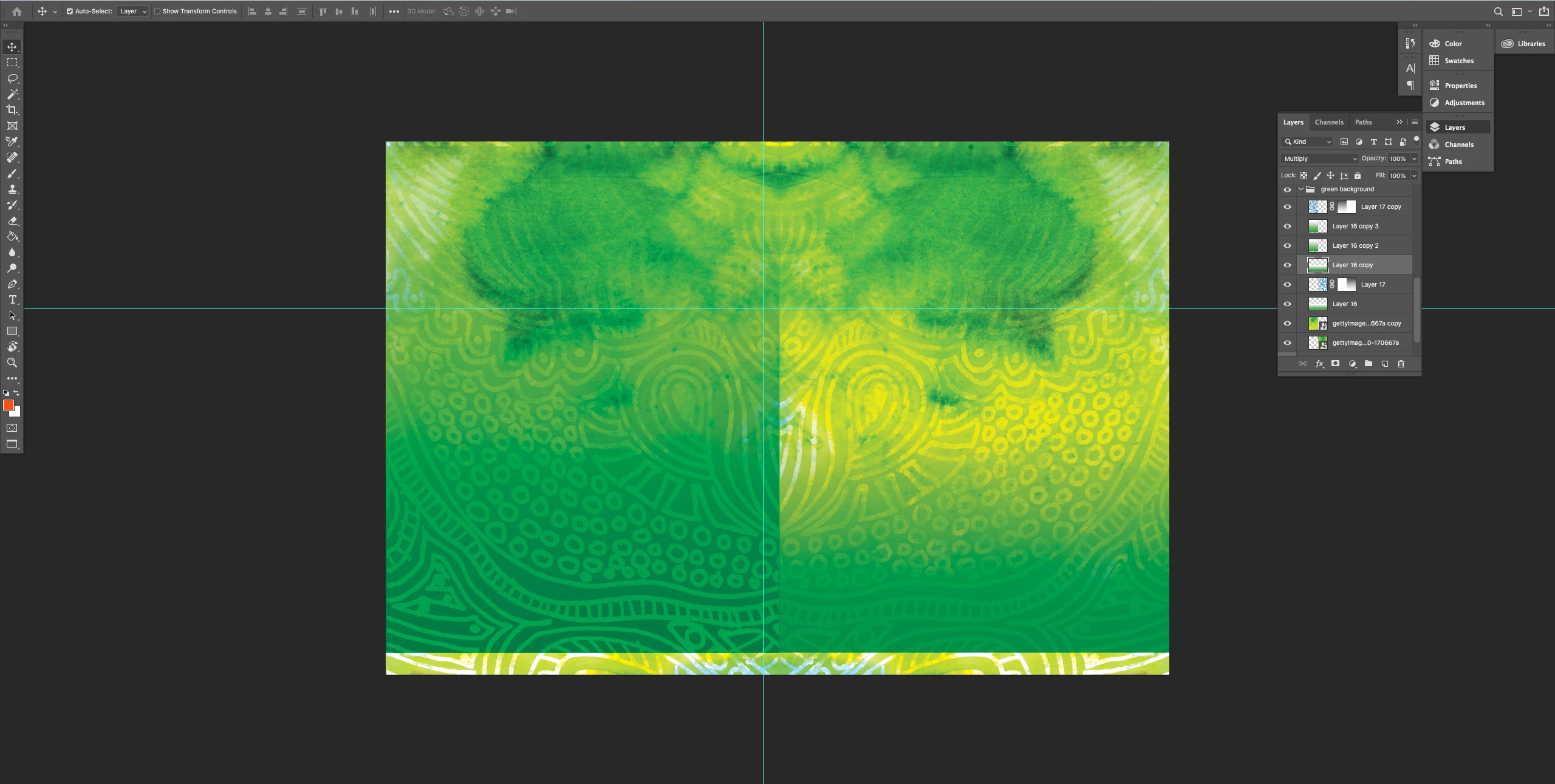
To this:
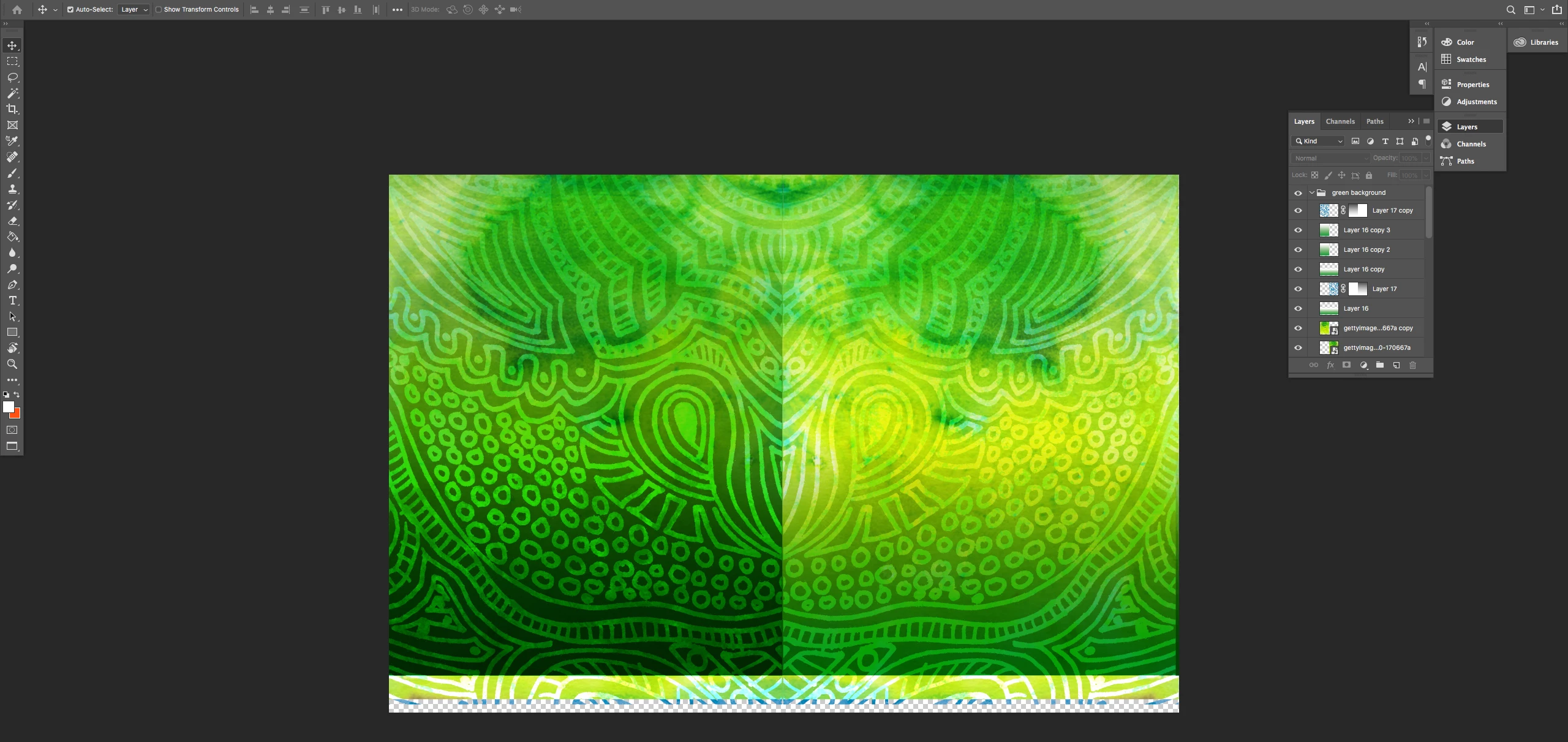
Why would this be happening? Any suggestions on things I can try to fix this? I've checked all the blending modes, and everything seems to have transferred over without a hitch, so I can't figure out what could be the issue.

Thanks for any help given!
This topic has been closed for replies.
Correct answer Sahil.Chawla

Hi Nate,

That shouldn't be happening. As the images are changing colors when placed in a different document, I would check two things.

First check the color space of both documents by going to Image > Image mode.

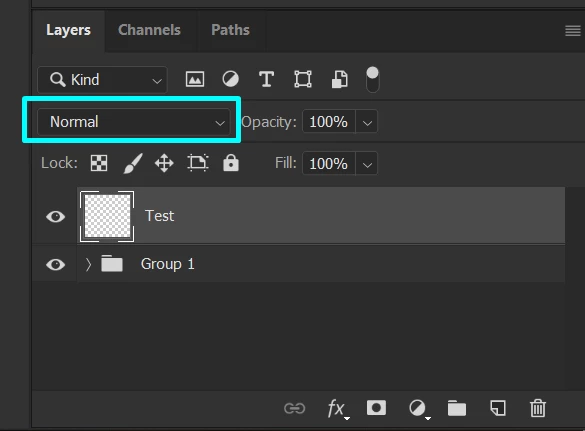
Then check if there is a layer above the folder in the new document, and make sure that it's blending mode is set as normal

Regards,
Sahil

3 replies

Legend
July 29, 2019

BTW the correct terminology is LAYER not folder.

Known Participant
July 29, 2019

You would call this a layer?

Legend
July 29, 2019

In your original image, you have a single layer highlighted. And what you just posted is a Layer Group.

Sahil.Chawla
Adobe Employee
Sahil.ChawlaCorrect answer
Adobe Employee
July 29, 2019

Hi Nate,

That shouldn't be happening. As the images are changing colors when placed in a different document, I would check two things.

First check the color space of both documents by going to Image > Image mode.

Then check if there is a layer above the folder in the new document, and make sure that it's blending mode is set as normal

Regards,
Sahil

Known Participant
July 29, 2019

Thanks Sahil,

The issue was related to the Image mode. One is set to CMYK, the other to RGB. An amateur mistake honestly. I'll have to take greater care for future projects. Thanks again!

Sahil.Chawla
Adobe Employee
Adobe Employee
July 29, 2019

Glad we figured it out! Feel free to reach out to us for any future queries.

Akash Sharma
Legend
July 29, 2019

Hi Natee,

That shouldn't be happening as Photoshop is changing the appearance of a document unexpectedly. Let us help make it right.

Could you please restore Photoshop app preferences to default and let us know if the issue still persists?

Please refer this article for instructions on how to restore Photoshop preferences:

https://helpx.adobe.com/photoshop/using/preferences.html#AdjustpreferencesinPhotoshop

Thanks,

Akash