Inspiring
December 28, 2017
Question

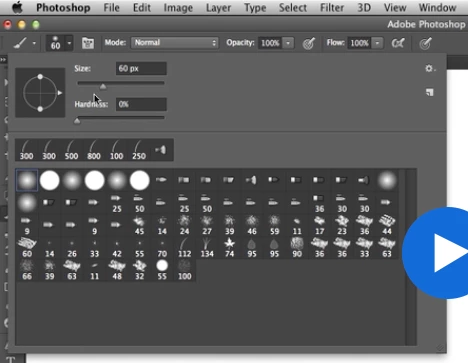
Why is the brush selection in the tutorial so much bigger than the one in my Photoshop?
  • December 28, 2017
  • 1 reply
  • 558 views

that's the tutorial

this is what I have

    This topic has been closed for replies.

    1 reply

    Barb Binder
    Community Expert
    Community Expert
    December 28, 2017

    The top screen shot is from an older version of Photoshop. The Brushes panel was redesigned to use folders in 2018:

    Brushes in CC 2017

    Brushes in CC 2018

    Streamlined brush management

    Enhanced in the October 2017 release

    Working with brush presets is much easier in this release of Photoshop. You can now organize brush presets into folders—including nested folders—in the greatly-streamlined Brushes panel (renamed from Brush Presets in earlier releases).

    You can now choose to work with and manage brush-enabled tool presets and their attributes, accessible only from the Options bar in earlier releases of Photoshop, in the Brushes panel. Any brush-enabled tool preset can be converted into a brush preset; all of its attributes—such as opacity, flow, and blending mode—are preserved. Once you've converted brush-enabled tool presets into brush presets, you can choose to remove them from the tool presets list.

    New features summary | October 2017 release of Photoshop CC

    ~Barb at Rocky Mountain Training
    vsyly24_Author
    Inspiring
    December 28, 2017

    Thanks. I'm used to the old one, can't seem to find all the old brushes in the new folders. In particular, can you direct me to the brushes that look like this?

    Barb Binder
    Community Expert
    Community Expert
    December 28, 2017

    Is this a brush from the tutorial? Can you post a link to the tutorial, and note which minute/second it appears?

    It looks like a basic, round hard brush but it's not using the default settings. You can get this look by picking the first hard round brush in the general folder:

    Then set the color to Black, the Mode to Darken and lower the Opacity. Drag out a line, then reposition you mouse over the end point and click until it gets dark enough.

    ~Barb

    ~Barb at Rocky Mountain Training