
saladsamurai
Inspiring
July 4, 2024
Question

Workflow for changing multiple object colors (virtual house painting) in Photoshop?

  • July 4, 2024
  • 3 replies
  • 1384 views

Hello - I have a CC subscription from my use of Lightroom and have zero Photoshop knowledge (except what I have been learning the last several hours on my own). I am trying to focus in on what I need to learn to accomplish this task of changing the colors of the features of a house.


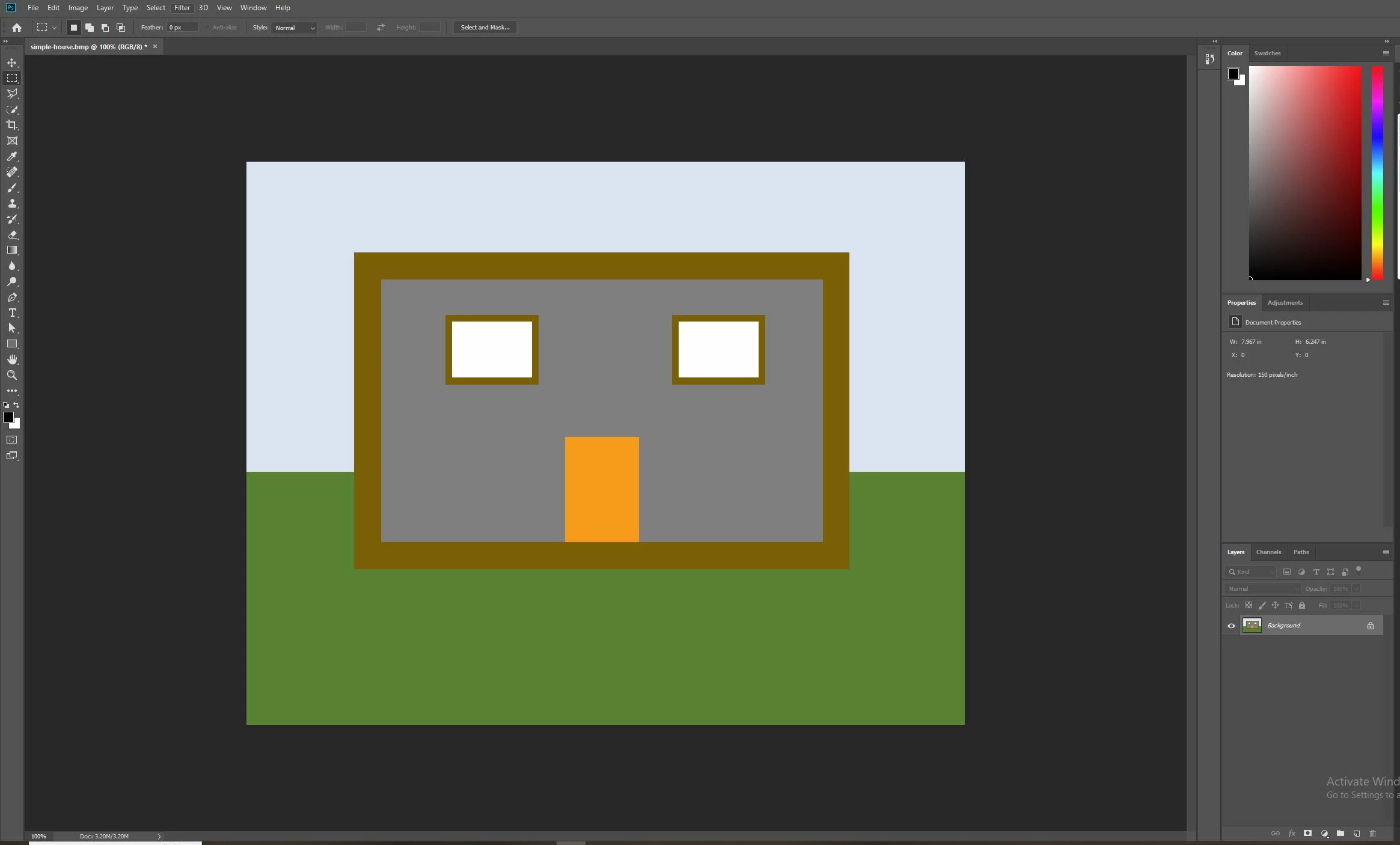
I have created a very simplified version of the problem in the image below and I would like some guidance on what the overall workflow should look like.


The image is that of a house with a gray body, brown trim and an orange door. I would like to be able to change the colors of all three independently. For example, create a red body, black trim and a green door, etc.


I know I will be needing to use selections and masking and likely some groups or layers.


Should I create 3 layers: body-layer, trim-layer, door-layer? If so, how should these be created? New>Layer or by 'duplicating' the background layer? Or should these be groups instead of layers? I am a little lost with all of the options, so any pointers would be appreciated.


Thank you for reading.

-Casey


This topic has been closed for replies.

3 replies

Conrad_C
Community Expert
Community Expert
July 7, 2024

You’ve gotten some great advice, these might help fill in the gaps:


When I do this, I don’t bother duplicating any of the original image; there isn’t any need to. Like you are doing, I do apply Solid Color Fill layers, but I mask off that layer so that it applies only to the parts of the original image to be recolored.


You asked about the blending modes. That is a menu in the Layers panel, so when the layer you want is selected (in my case, Color Fill 1 for the trim), choose a mode from that menu. For recoloring, the Color mode is usually the one to use, as shown in the demo below.


Any other elements that should use the same color can simply be added to that one mask. In the demo below I subtracted the porch trim from the mask for the Color Fill 1 layer with these steps:

1. With any selection tool, select the trim pieces you want to add. I dragged the Object Selection Tool around the bits I wanted, because it’s one of the smarter selection tools (higher chance of getting it right the first time).

2. With the mask of Color Fill 1 selected, I click the paint bucket icon in the Contextual Task Bar and choose Fill with Foreground Color. As long as the foreground and background colors are the mask defaults (white and black), that command will fill the selection with white, subtracting it from the mask so that the color is now applied to that area too. (The animated GIF color quality in the porch trim shadows is bad because the Adobe forum software re-compresses animated GIF; it looks fine in the original I uploaded.)

3. I look at the mask alone by holding down the Alt key (Windows) or Option key (Mac) while clicking the mask. I Alt/Option-click the mask again to go back to seeing the image with the effect of the mask.


Clicking the paint bucket on the Contextual Task Bar is a rather new shortcut for the traditional method of choosing Edit > Fill and then choosing Foreground Color from the Contents menu, and clicking OK. So this way you can skip the dialog box. Another shortcut for Fill with Foreground Color is to press Alt-Backspace (Windows) or Option-Backspace (macOS).


As you can see, if you want to keep this streamlined, minimal, and easy to manage, all you really need is:

  • The original image. 
  • One Solid Color fill layer, with mask, set to Color blending mode, for each set of objects for which you want to have separate color control. 


Which means if you only need to show one color for all trim parts, you might not need to add any more layers than one Solid Color fill layer with a mask. Each trim piece would only need to be its own white cutout in that mask. There might not be a need for duplicates and groups, unless you do need finer control over more color variations for different trim pieces.


This is often good enough for a quick and dirty recolor. If it needs to be precise, you can go back later and edit any masks to clean them up.

saladsamurai
Inspiring
July 8, 2024

@Conrad_C  Thank you for your reply and for the screenshot captures. This method is indeed simpler and I appreciate it. In fact, it is so simple that I can't figure out how to apply the mask. Sorry, PS is not very intuituve to me. Here's what I did:


  1.  Open PS (CC) > File > Open > House.jpg
  2.  Go straight to Layer > New Fill Layer: Solid Color:
  3.  
  4.  I pick some ridiculous color so things are obvious:
  5.  

  6. The solid fill covers the whole image and I can't figure out how to mask the solid layer....I thought it would be obvious, but I tried changing the opacity so I can see the underlying house, then making a selction (with the color layer highlighted) but the typical "mask layer" button has turned to "vector mask" which doesn't seem to do what I want (i.e. mask the an area so that color it is not blue).


Getting close I know it!

saladsamurai
Inspiring
July 8, 2024

@Conrad_C  I'll also mention that I'd love to know how you are selecting so well....I am drawing polygons for days ....


Also I don't seem to have those contextual toolbars like you do 😕😕 

c.pfaffenbichler
Community Expert
Community Expert
July 7, 2024

As an illustration: 

By stacking pixel content with the Adjustment Layers one can do the lower Masks a lot more inexactly in those regions. 

And putting the Groups in a Group allows masking that, too. 

saladsamurai
Inspiring
July 7, 2024

Hi c.pfaffenbichler: I really appreciate your taking the time to reply. This is probably "crawel" for you, but it's all "run" to

me. I am having a lot of difficulty following your replies because there's a lot of implicit knowledge packed into them. I need to get the basics out of what you are describing. Also, I shoudl have mentioned, I am not looking for perfection, I just want a quick and dirty 'what would these colors on this house approximately look like".


I need some click by click help, which I realize is asking a lot, so I uinderstand if you don't have time for that. Using the  1st jpg below (tiny-sample.jpg), here's is where I am at:


  1. Open PS (CC) > File Open tiny-sample.jpg 
  2. Select Background Layer and Copy (result = Layer 1)
  3. Select  Layer 1 > Group Layers (result = Group 1 with Layer 1 indented one level)
  4.  Select Group 1 > Use slection tools to select only the gray siding (2nd screenshot)
  5.  Add Layer Mask (3rd screenshot)


Here is where I start to get lost (assuming I didn't already mess up above, plese let meknow if I did):

The result is this group which has the brown trim masked off. WHat are the clicks that get me to change the color of the gray siding and the brown trim? Here is what I have tried (note that we prbably have slightly differnet version of PS and so my options have slightly differnet names/ways of working):


With Group 1 selected > From file menu: Layer > New Fill Layer > Solid color > Check the box that says "Use previous Layer to create Clipping Mask". There is no "Blend Mode" option that I can see. I change the color of the body to blue as shown in 4th screenshot.


I am not sure if I am on the righ track or not and how to change the trim color next?


-----------------------------------------------

Starting jpg (tiny-sample.jpg)


Selecting gray siding only


Workspace with Layer Mask Added:


c.pfaffenbichler
Community Expert
Community Expert
July 5, 2024

Please post one of the actual images, not a mock-up. 


Using Groups with Layer Masks containing the decontaminated pixel content may offer some advantages. 

saladsamurai
Inspiring
July 6, 2024

Thanks for your reply. I much prefer to take a crawl-before-walk approach and hence the mockup. I am so new to PS that with the real image I am spending 99%of my time wrestling pixels into a selection and I am not getting anywhere else. I don't even know what I am going to do with the selections. I will post the image here for completeness. Every brown piece I consider trim and would change color together.


Thank you.


c.pfaffenbichler
Community Expert
Community Expert
July 6, 2024

»crawl-before-walk« is a prudent approach but I think talking about editing an image without seeing the image can lead to fruitless interactions. 


I recommend putting a copy of the pixel image in a Group, masking that and adding the Adjustment Layers in that. 

Adding the pixel content and not just Adjustment Layers meand that lower adjustments do not need to be masked exactly at those edges and corrections on the mask do not need to be done on two masks.