
Inspiring
February 26, 2019
Answered

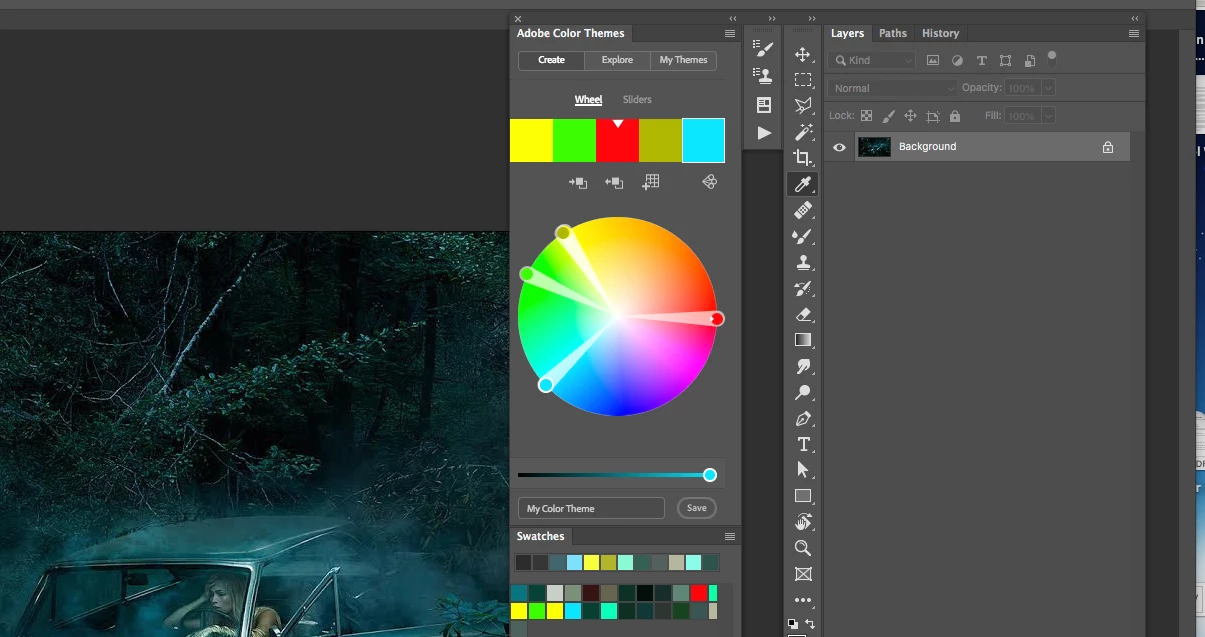
Workspace messed up - panels don't snap - image disappears underneath panels
  • February 26, 2019
  • 2 replies
  • 3431 views

I wanted to move a panel, and the whole workspace came apart.

How all panels float. They attach to each other but not to the top. There is an "x" on the top bar of the top panel.

The image does not stop at the panels, but disappears beneath them.

It's a mess.

The panels don't snap. Always the problem with workspaces, once they fall apart you can't fix them. Or is there a way to snap them to the top and prevent the image to slide underneath the panels?

I checked the Adobe instructions, but they are worthless - there is no solution to make the image stop where the panels begin, and no solution to attach the panels to the top of the frame.

Can this be fixed? Nothing works.

This topic has been closed for replies.
Correct answer D Fosse

The panel or panel group needs to be docked to the side. A floating, undocked panel should float on top of the image.

Grab the panel by the head and drag it until the cursor hits the edge. Not the panel, but the cursor needs to hit the screen edge. Then you will see a blue line lighting up, and you can drop.

2 replies

Derek Cross
Community Expert
Community Expert
February 26, 2019

All you need to do is select Reset Workspace from the Workspaces dropdown menu.

(Then practice docking and undocking your panels, and creating your own Workspaces.)

How to use Workspaces in Photoshop CC

jackt98824064
Participant
February 16, 2023

This worked great for me.  Thank you.

D Fosse
Community Expert
D FosseCommunity ExpertCorrect answer
Community Expert
February 26, 2019

The panel or panel group needs to be docked to the side. A floating, undocked panel should float on top of the image.

Grab the panel by the head and drag it until the cursor hits the edge. Not the panel, but the cursor needs to hit the screen edge. Then you will see a blue line lighting up, and you can drop.

Ocean 11Author
Inspiring
February 26, 2019

Thank you, D Fosse - that was the key information!

I could get it cleared up very quickly and the image no longer slips underneath the panels.

This handling instructions should be in the Adobe manual.