Known Participant
February 15, 2018
Question

Wrapping Text in Photoshop CC

  • February 15, 2018
  • 6 replies
  • 39111 views

Hi, I'm trying to wrap text around a shape in photoshop CC.

I have created a layer with the letter J in it.
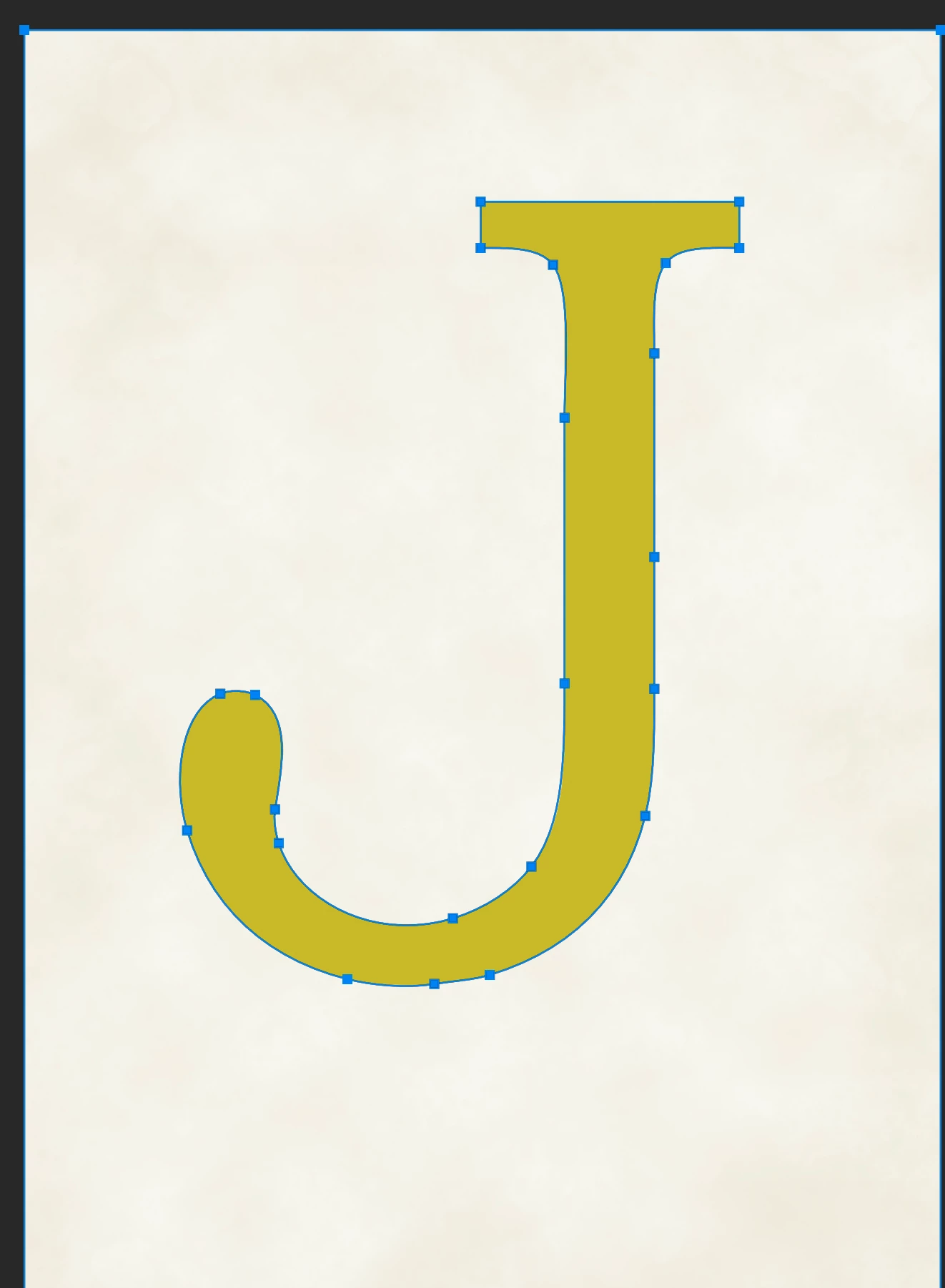
I want to wrap text around the J so that the background is filled and the J is blank. I have tried selecting the area around the J, creating a work path, then going to paths, selecting that work path and then pasting my text into it. The text fills the work path, but goes in front of the J and doesn't wrap around it. It seems to create it's own work path.
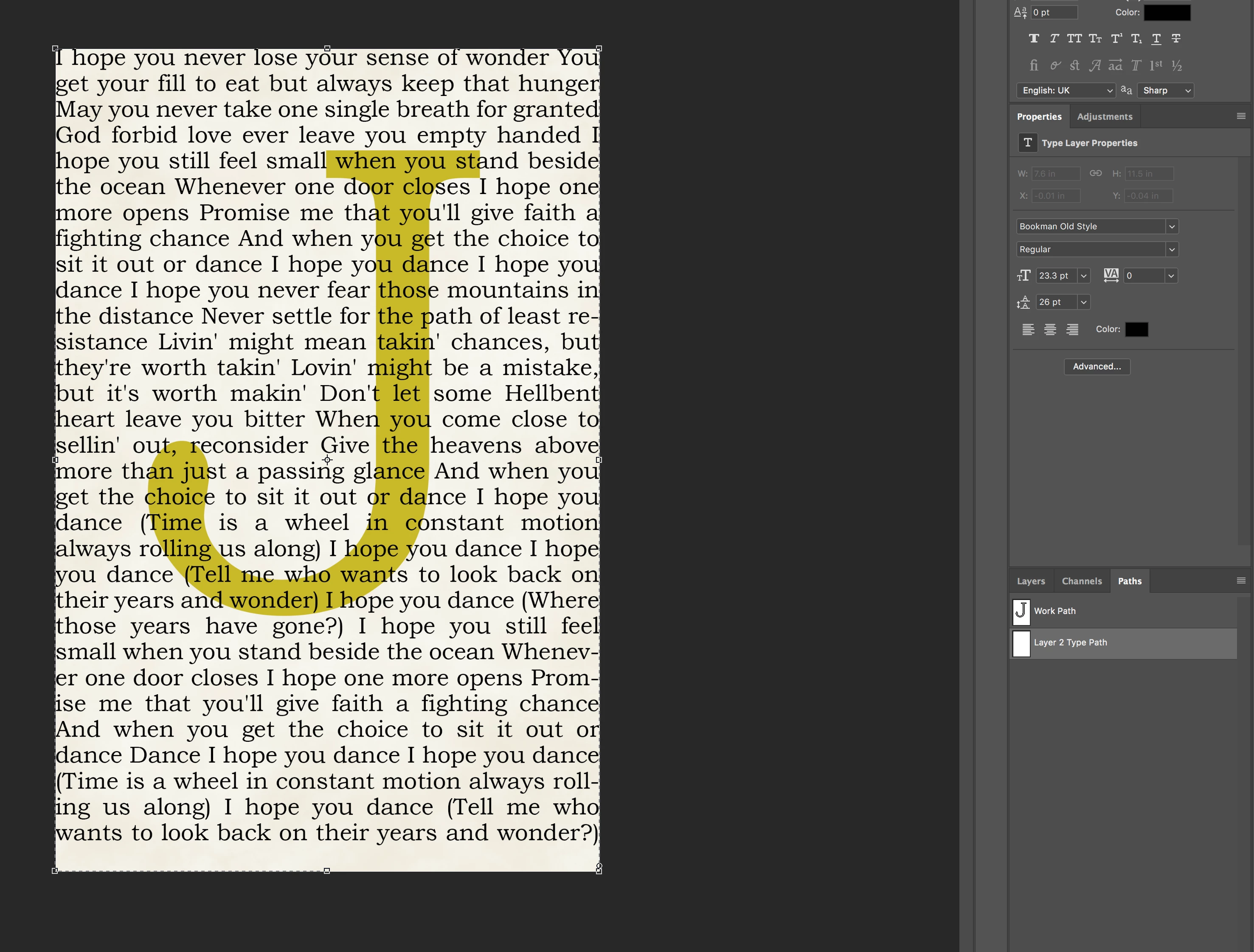
I have watched dozens of videos and read loads of posts, but still can't work out what I'm doing wrong!

    This topic has been closed for replies.

    6 replies

    Participant
    August 9, 2020
    barbara_a7746676
    Community Expert
    Community Expert
    February 15, 2018

    It’s a piece of cake in InDesig. Even illustrato it’s preyy easy.

    sitravelAuthor
    Known Participant
    February 15, 2018

    Hi guys,

    Thank you for your input. Very helpful indeed.

    I do actually have indesign loaded and do use it occasionally. I'm not very familiar with it, but I think it's time to look at that as my solution!

    Trevor.Dennis
    Community Expert
    Community Expert
    February 15, 2018

    sitravel  wrote

    I do actually have indesign loaded and do use it occasionally.

    Wow!  InDesign is quite addictive, and a total no brainer when it comes to page layout beyond working out web page layouts.  If your document has more than page, then it would be crazy to use Photoshop if you have the choice.  I'm sure Steve and the guys on the InDesign forum are as helpful as we 'try' to be.

    Learn how to wrap text around objects in InDesign

    Trevor.Dennis
    Community Expert
    Community Expert
    February 15, 2018

    As you'll worked out, Photoshop is not ideal for page creation.  This would be trivial to do in InDesign or Publisher, which not many people have installed, but something a lot of people do have on their computer is Microsoft Word.  Word can't do the sort of fine control that InDesign can do, but it is straight forward and might be good enough.

    • You need to make your letter J the right sort of size, and save it from Photoshop as a PNG file with the background layer turned off.  This gives you the transparency.
    • Open Word and insert your letter J PNG file.
    • Click on the image and then the Text Wrapping options, and choose Tight.  You'll then be able to position the J

    • Click on the wrapping options again, and then See More at the bottom, and select the Text Wrapping Tab

    • Make sure it is set to Both sides and set the clearance to zero on the left, and a minimal distance on the right.
    • Start typing.  It is a bit clunky, and does not fill the hollow as you can see below, but you might find it easier than messing with Shapes and paths in Photoshop.  You do, of course, need to have Word, and if you have Office installed, you might have Publisher [spit].

    [EDIT]  Word can also do full justification.  (So can Photoshop from the Paragraph panel, but I am not so sure it would manage that alignment on the left edge of the J, and that is making things look nice and tidy).

    barbara_a7746676
    Community Expert
    Community Expert
    February 15, 2018

    As Chuck said, Photoshop does not have a text wrap feature.

    The workaround is to create a rectangle path using the Rectangle tool. In the Options bar, select Path.

    In the Options bar, select Subtract.

    Draw a J shape. It must intersect the rectangle. The two vertical lines at the top of the J could touch. I drew them with space in between so that you could see how they are intersecting. You will probably want to draw the J a little larger than the separate layer that contains the J so that the smaller text doesn't touch the J.

    Then select the Type tool and click inside the rectangle. The Type tool should have a circle around it when your cursor is within the rectangle. Then click and start typing.

    Put the large J on a separate layer.

    Chuck Uebele
    Community Expert
    Community Expert
    February 15, 2018

    I don't think what you want to do is possible. PS can't wrap text around a hole, which is what you're trying to do with the J. I think the best you can do is to split the J along with the text box (as a path) into two parts and then fill with your text and align the lines. With word wrap, it really doesn't look all that good.