
Participant
May 10, 2021
Answered

Yellow grayscale - whites come up yellow

  • May 10, 2021
  • 4 replies
  • 5922 views

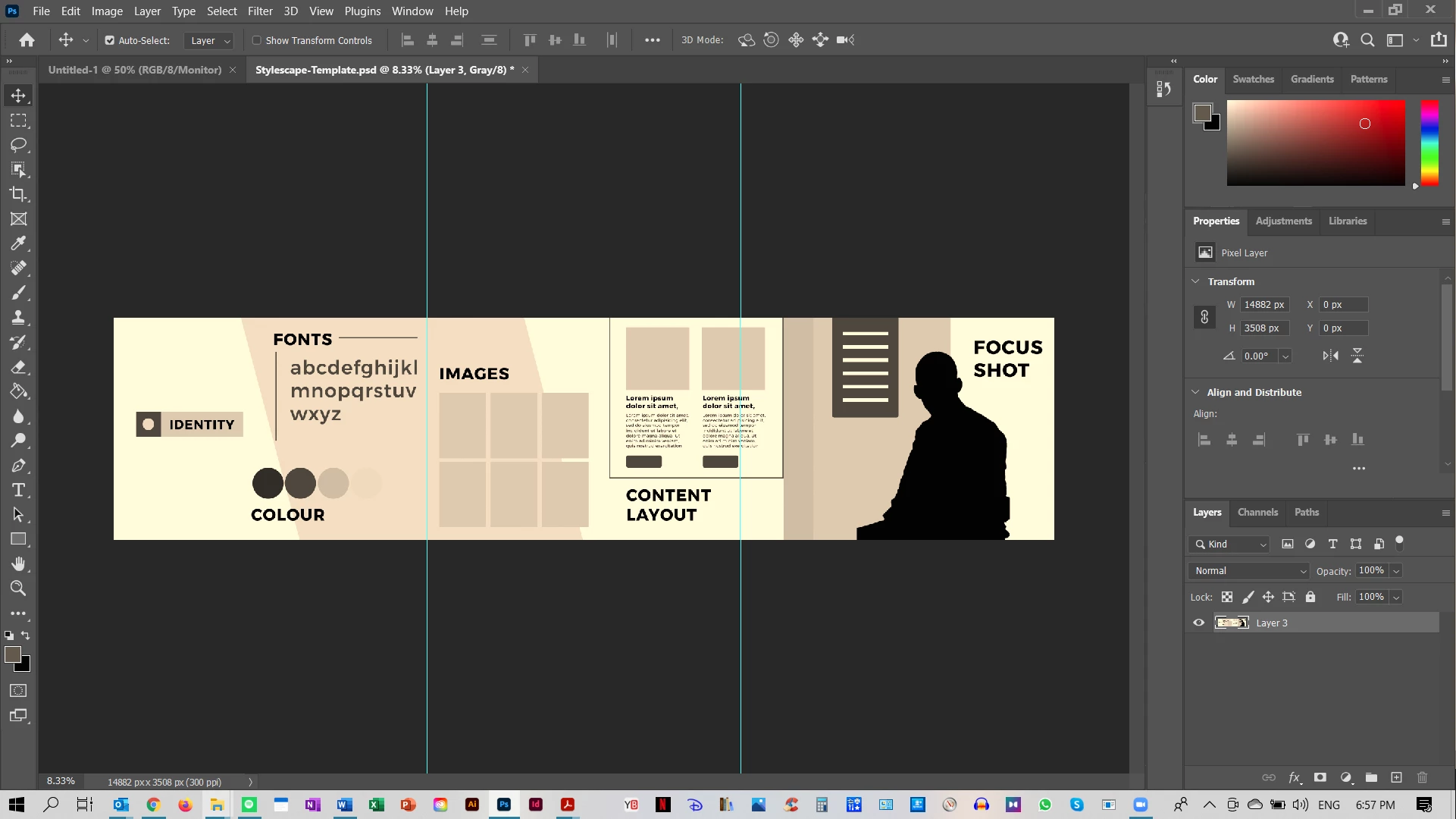
Hey community - I have one of my students who has encountered a problem - when they open files, it comes up yellow - even if it's specified as grayscale like the image attached.  any advice how I can permanently solve this issue? we've tried reinstall and that didn't work, and it's not a screen calibration issue either. This is the latest Photoshop (2021)
This topic has been closed for replies.
Correct answer D Fosse

No, you're doing it all wrong. Don't touch proof. Don't touch anything in Photoshop. If you did, revert and go back.


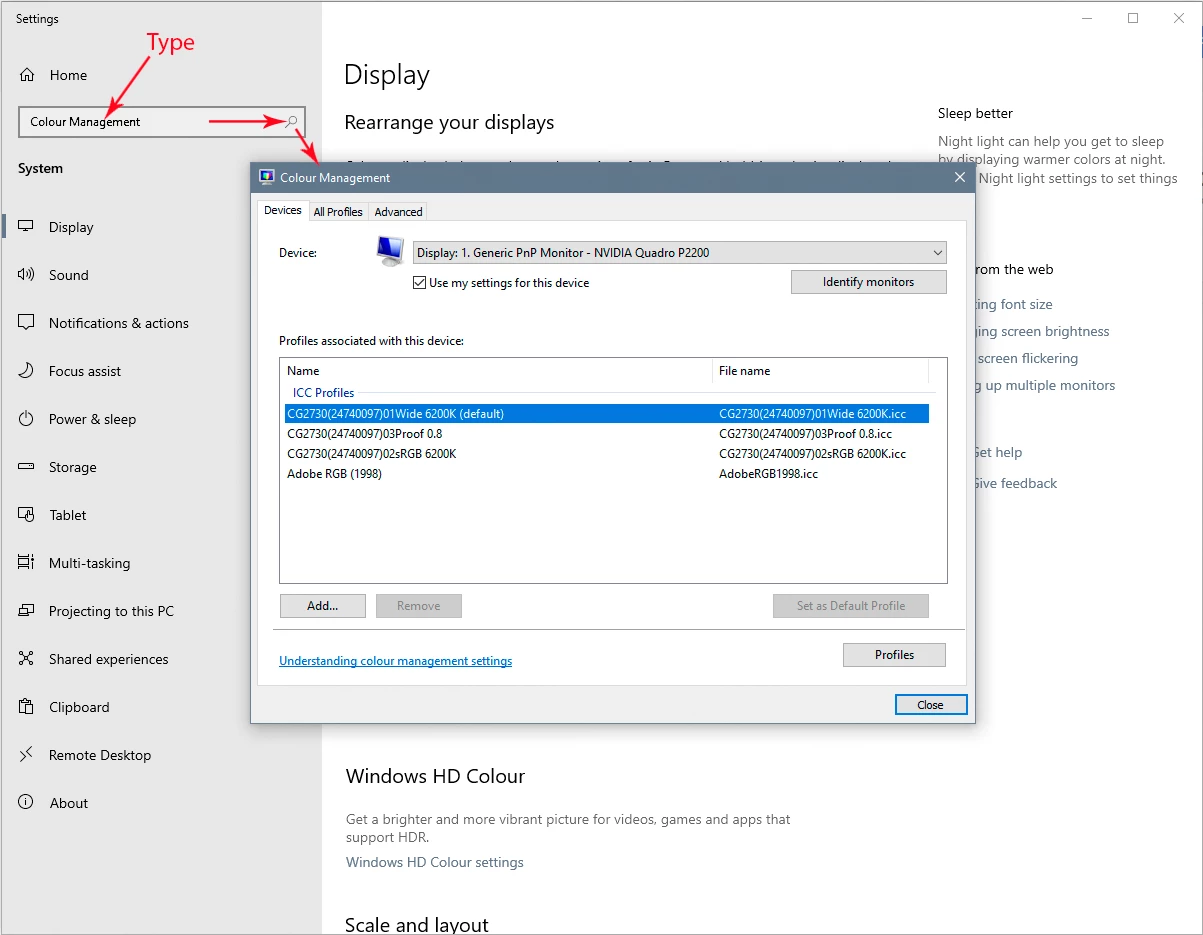
The monitor profile is changed in Windows. The monitor profile is managed by the operating system, and Photoshop just uses whatever it gets from the operating system.


That fact that proof seems to fix it just confirms that the monitor profile is bad. Proofing to Monitor RGB disables all color management and bypasses the (bad) monitor profile.


It's important that you relaunch Photoshop when the profile is changed in the system!


EDIT: the color management dialog is a little trickier to get at than it used to be, as the old "control panel" is in the process of being replaced by the new "settings" panel. But just search for it here. "Color" or "colour" depending on US/UK English Windows:


4 replies

Participant
June 5, 2024

I'm sure this has already been figured out, but it's not a monitor profile issue or bad monitor calibration. If it were, then all of the colors in the GUI would be affected as well. In this case, you want to go into Photoshop Edit>Color Settings and change the Color Engine from the default system engine to Adobe Color (ACE). Problem solved.

D Fosse
Community Expert
Community Expert
June 6, 2024

No, that's a common misunderstanding. Not all elements of the UI are color managed. Only the image, the color picker, color swatches and the histogram are color managed. The rest of the UI is unaffected by a bad monitor profile

@mj
Community Expert
Community Expert
May 10, 2021

Hi @Puntz182 ,


Your screenshot points to it being grayscale.


Check your your Channels Panel. It should have just one channel called Gray.


If you have others, these are referred to as Spot Colors and may explain the yellow color.


Should you not win, please share a screenshot of your Channels panel and Image Menu > Mode please.


hth

mj 


Mohammed Jogie | Morning Star Design | BA CUA |
Adobe ACA | ACE | ACI | ACP | CA | UGM |
MISTD | Ico-D | IxDA | PADI | C&G |
Puntz182Author
Participant
May 10, 2021

nah it's not channels or spot. It's literally when you open up files, nothing else added.

D Fosse
Community Expert
Community Expert
May 10, 2021

It's the monitor profile. No doubt about that.

D Fosse
Community Expert
Community Expert
May 10, 2021

That's a broken monitor profile. Classic symptoms.


If you're not using a calibrator, you'll get profiles from the monitor/laptop manufacturer, distributed through Windows Update. These profiles are very often bad in various ways.


Replace your current monitor profile with sRGB IEC61966-2.1 as a temporary measure. The proper way to deal with it is a calibrator. Relaunch Photoshop when done, the profile is loaded at application startup.

Puntz182Author
Participant
May 10, 2021

ok i'll give it a go

c.pfaffenbichler
Community Expert
Community Expert
May 10, 2021

»it's not a screen calibration issue either.«

Are you sure? 

Can you try using sRGB (just for testing) as the monitor profile? 

Puntz182Author
Participant
May 10, 2021

sRGB gives me the same, Monitor RGB gives me a white, but doesn't permanently stay that way. A "technical expert" said it wasn't likely calibration as the other Adobe products display fine (illustrator/Premiere etc) but as i'm doing more and more research it looks likely.

c.pfaffenbichler
Community Expert
Community Expert
May 10, 2021

Just to make sure: You set sRGB not in Photoshop, but on the OS level?