Participant
April 25, 2019
Answered

Aspect Ratio Problem after Video Import

  • April 25, 2019
  • 1 reply
  • 1173 views

Hi together,

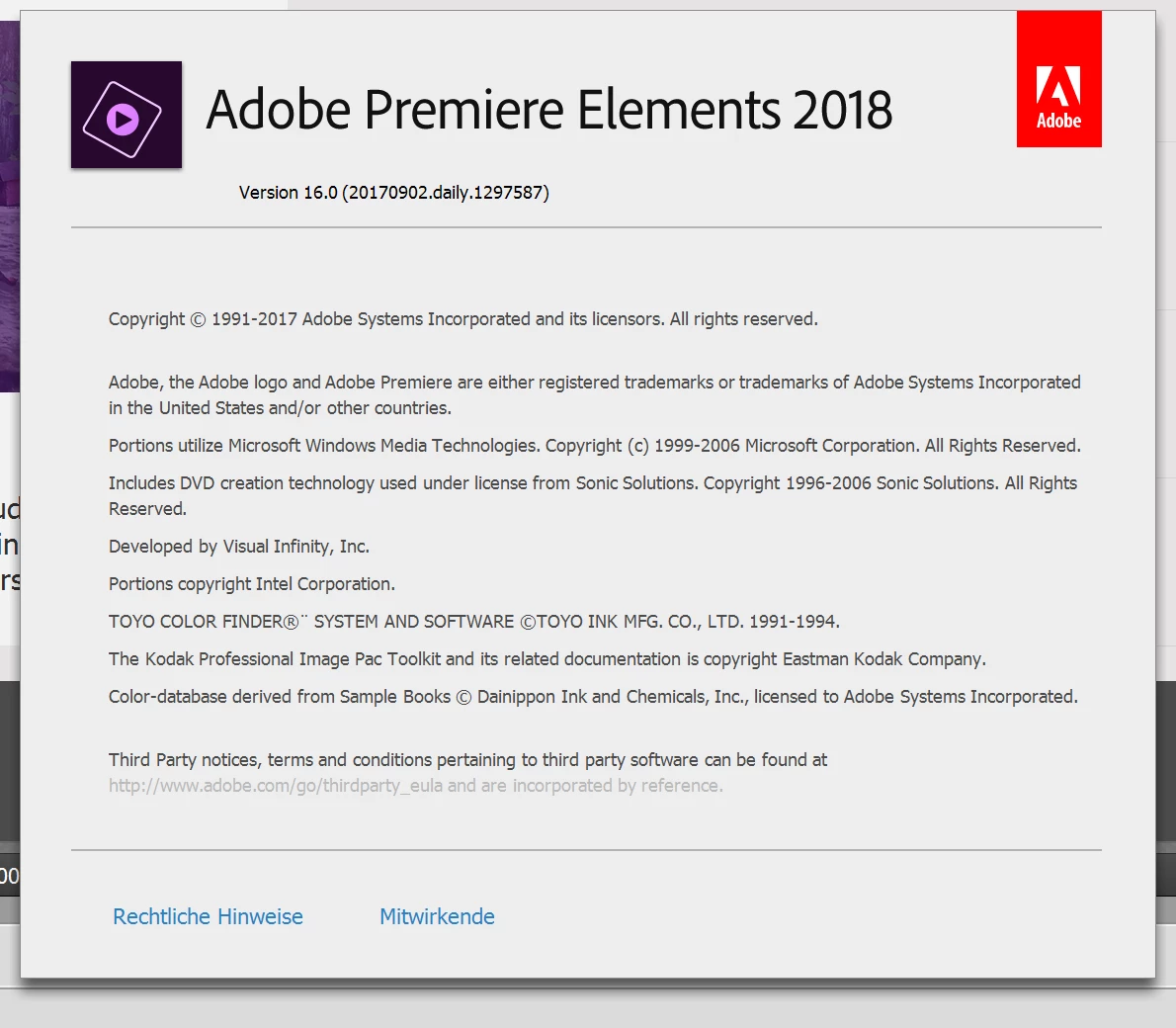
we are opening this discussion for a customer of us and Premiere Elements 2018 is not supportet by Adobe itself...

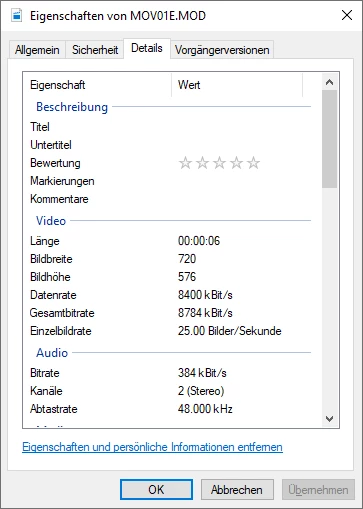
The customer want's to cut a video in 16:9 with PAL material recorded by a DV-cam on SD-Card. (File info below)

Every single video viewed in varios players (Windows Media Player, Win10 Movie & TV, Media Player Classic, etc.) has the correct aspect ratio 16:9 with no bars.

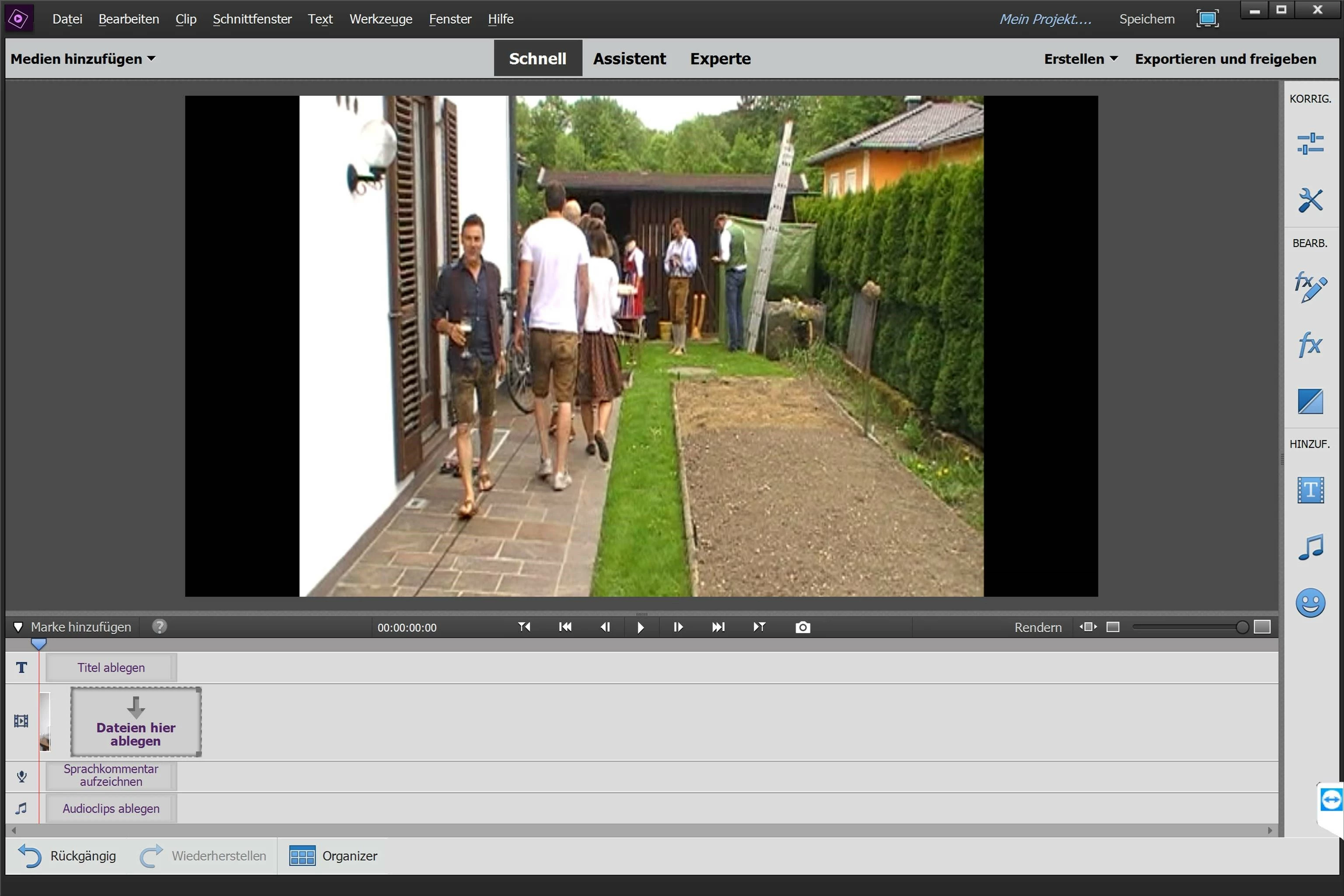
Is the video importet in Premiere Elements 2018 (version details see below) he get's a 16:9 project with a 4:3 and bars left and right (see screenshot below).

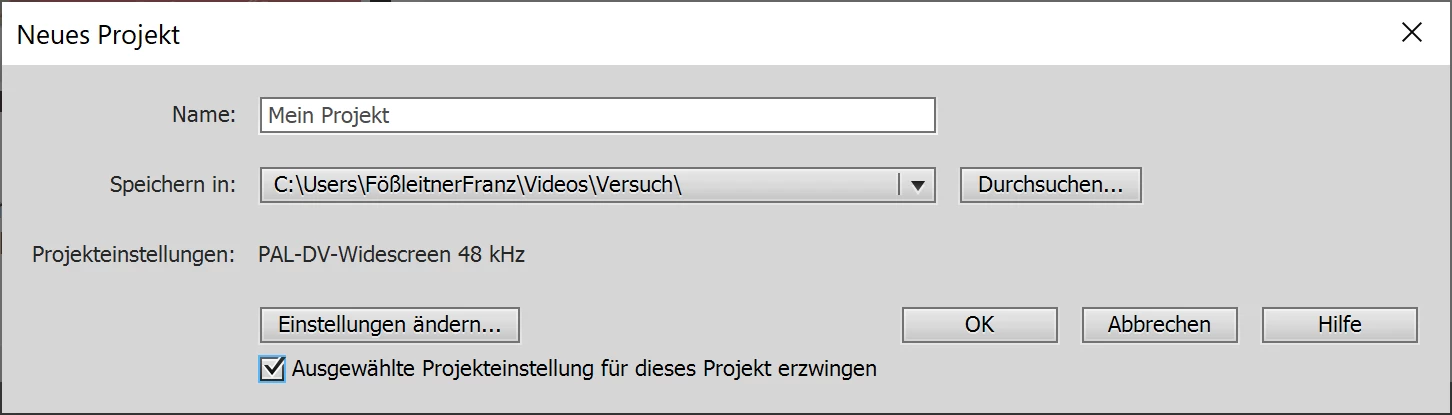
We tried to manual set the project settings and "Force Selected Project Setting" - same result with every Setting...

Kind Regards

Martin Ecker (SCHAUX eU)
    This topic has been closed for replies.
    Correct answer Ann Bens

    Looks like the correct project settings but

    Elements is not seeing the widescreen flag probably because they are mod files.

    Go into the interpret footage a see what aspect ratio is selected; correct if necessary.

    BTW dont put a project in users but rather in Documents if there is no dedicated A/V drive.

    1 reply

    Community Expert
    April 25, 2019

    If you have not, can you open a test project in Expert mode, import a single video clip and slide it to the timeline.  It "should" set the project correctly.

    Can you install MediaInfo, open one of the clips, change to Tree view and post a screen shot?

    Participant
    April 26, 2019

    We already tried to create the project this way. Seen in the screenshot "Neues Projekt", with automatic and all kind of forced settings.

    Every time the same behavior.

    Below the MediaInfo screenshot...

    Legend
    April 26, 2019

    Look under the program's Edit menu. What is listed on the General page under Project Settings?

    It does not look like your Premiere Elements project is set up for a 720x576 video.

    If it is properly set up, right-click on a clip in your Project Media panel and select Interpret Footage. Experiment with some of these settings.

    Finally, it looks as though, when you started a new project, you forced your project settings on it. Try starting a new project without selecting the Force option and add your video clip to it. The program may do a better job of automatically selecting your project settings.