Inspiring
May 31, 2019
Answered

Audio questions

  • May 31, 2019
  • 3 replies
  • 1225 views

1)  Is there a way to make the Audio Mixer default to +6 DB?  As it is I have to do it for every audio clip.

2)  I read somewhere on the web that the application would display an audio trace.  Where/how do I do this?

    This topic has been closed for replies.
    Correct answer Bill Sprague

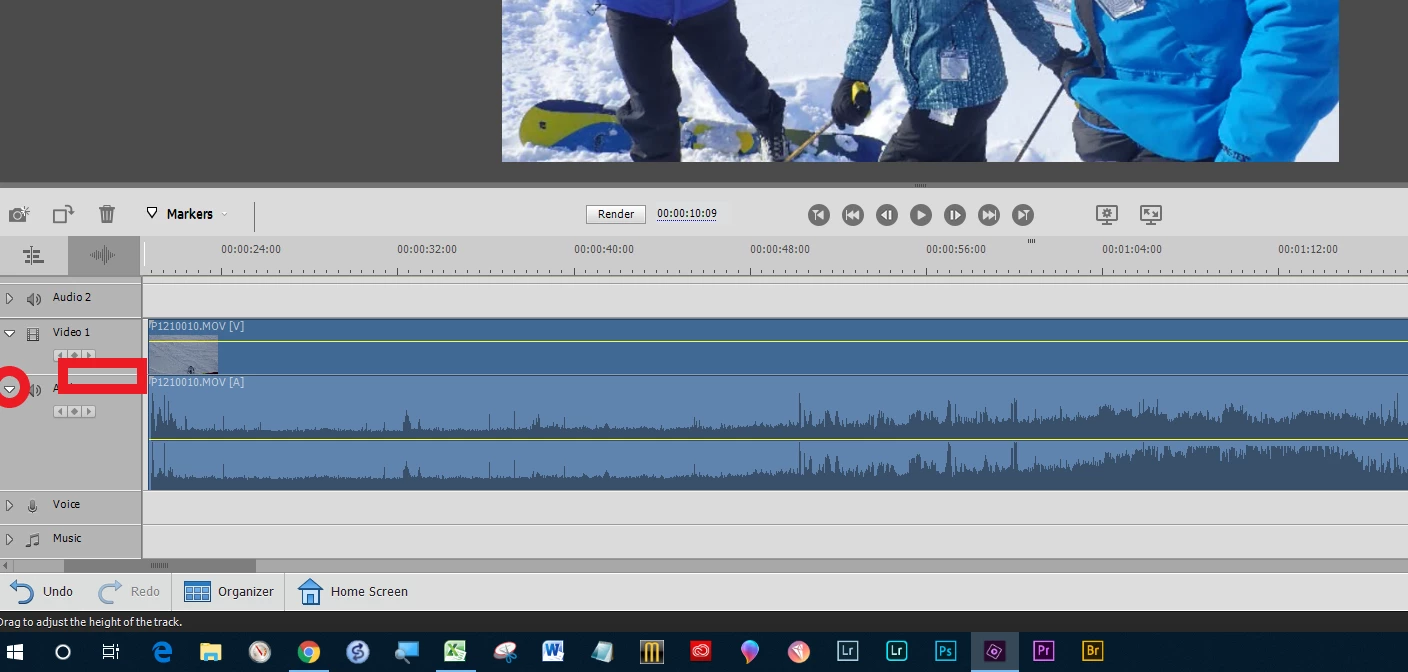
    Click the little arrow inside the red circle to expand the audio line.  Then grab the line inside the rectangle with your mouse and drag the line up. 

    3 replies

    Ann Bens
    Community Expert
    Community Expert
    June 2, 2019

    Input is Gain, output is Volume.

    If your audio comes in too soft you correct that with Gain.

    Set a shortcut for Gain in the Keyboard Customization.

    Select all clips in Project Assets, hit the shortcut and set the Gain to +6 (or whatever desired value).

    Legend
    June 1, 2019

    Have you tried toggling open the track the clicking the triangle on the track header, as Bill suggested in his illustration?

    i_am_jimAuthor
    Inspiring
    June 1, 2019

    Yes, it doesn't give what I want and I've discovered this quick way

    . Windows 10 -- Premiere Elements 2018 -- Photoshop CC
    Legend
    June 1, 2019

    1) Not that I know of.

    2) I don't know what an audio trace is and couldn't find a definition online. What do use this tool for? There may be something similar.

    i_am_jimAuthor
    Inspiring
    June 1, 2019

    I had to call it something and audio trace came to mind.  I meant something like this https://i.stack.imgur.com/lk3zh.png.

    lk3zh.png

    . Windows 10 -- Premiere Elements 2018 -- Photoshop CC
    Bill SpragueCommunity ExpertCorrect answer
    Community Expert
    June 1, 2019

    Click the little arrow inside the red circle to expand the audio line.  Then grab the line inside the rectangle with your mouse and drag the line up.