


Participant
May 31, 2020
Question

Cropped Video

  • May 31, 2020
  • 3 replies
  • 660 views

Hi, hoping someone can help me with this. I've put this in the Premiere section because I couldn't find one for Premiere. I've used Sony Vegas and other versions of Premiere in the past and never come across this issue. I'm currently using Adobe Premiere 2019 (non-Pro) and for some reason when I go to export my video it has resized and there's a huge border around my video. I've attached two screenshots so you can see the timeline versus the export version. Anybody had this issue or know how to fix it? Greatly appreciated! Thanks!
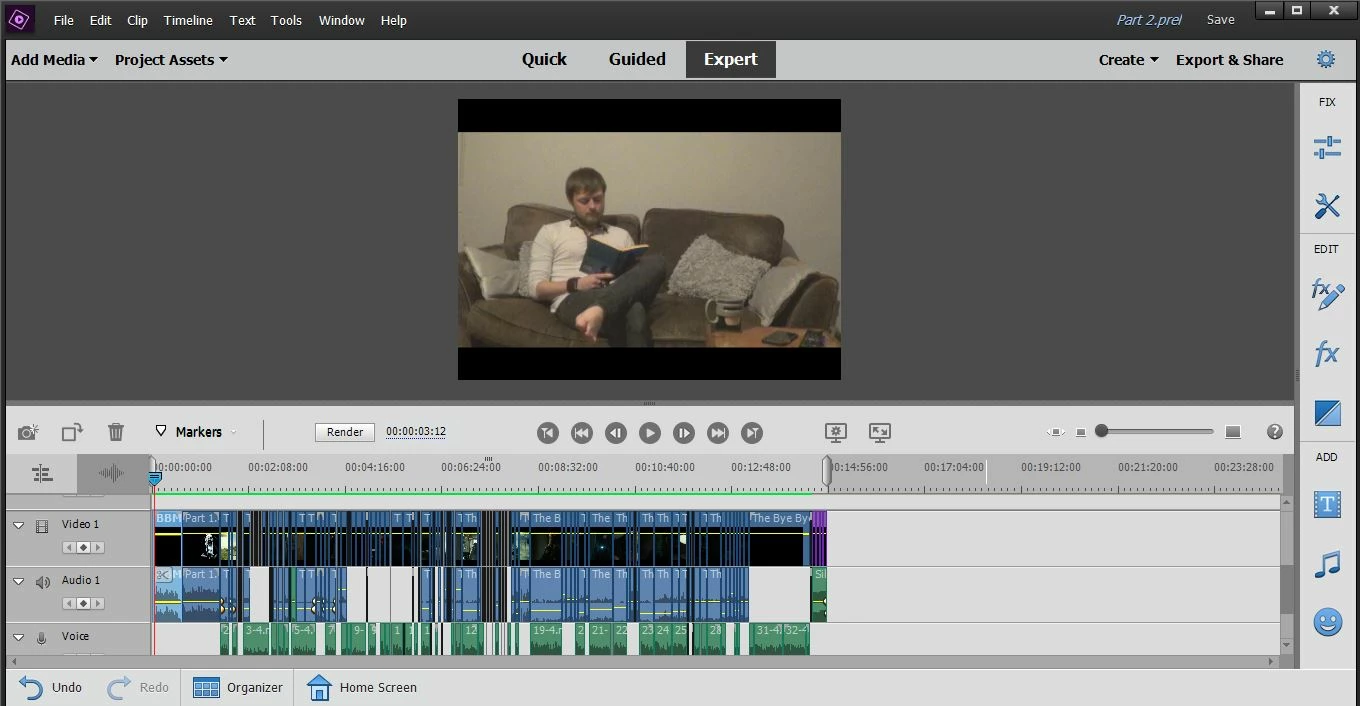
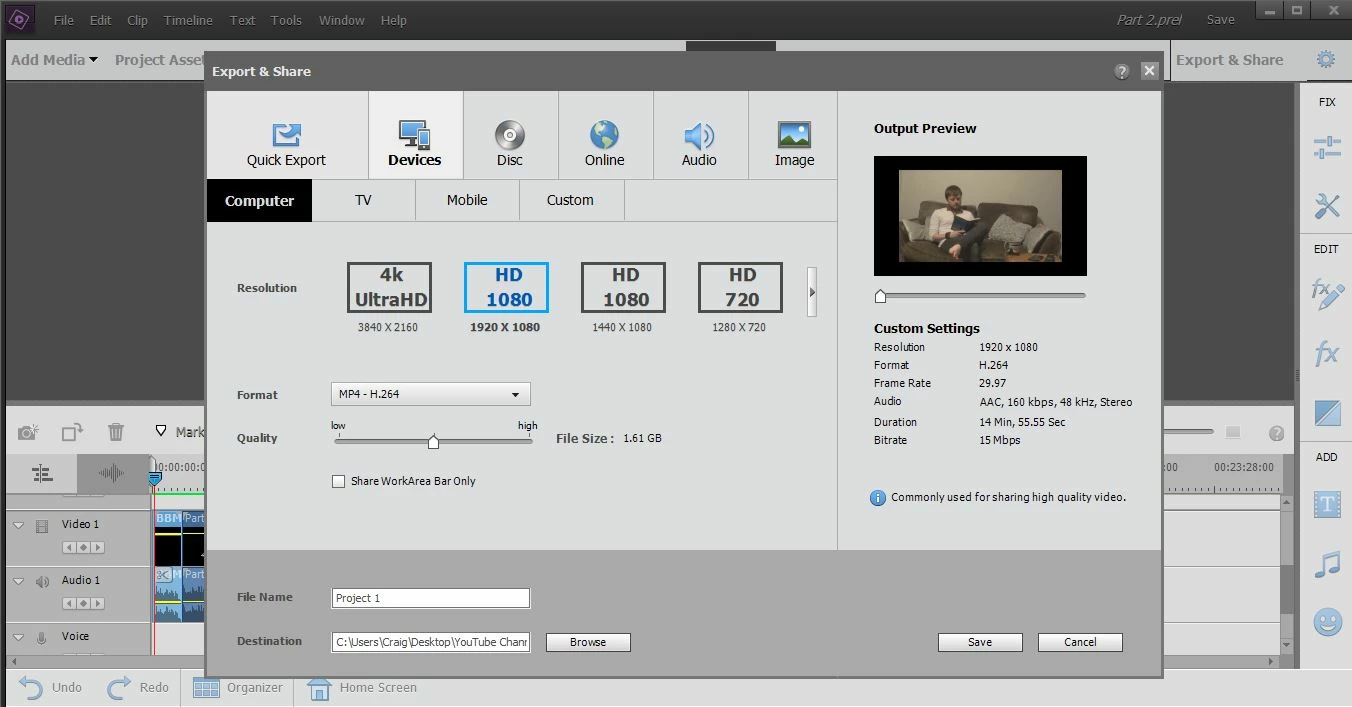
This topic has been closed for replies.

3 replies

Community Expert
June 4, 2020

Premiere Elements does not have the capability to change project setting after the project is started.  The project settings are normally created automatically to match the first clip used.   

Ann Bens
Community Expert
Community Expert
May 31, 2020

Please post screenshot project settings and clip properties.

Legend
June 1, 2020

Per Ann, you project settings are found under the program's Edit menu, on the General page under Project Settings.


You can find out your clip's basic properties by right-clicking on a clip in your project and selecting Properties. If we need more detailed properties, we may need you to open your video in the program MediaInfo. But Ann and I believe we can show you the issue just by comparing your clip properties with your project settings.

Participant
June 1, 2020

Hi Steve,


Thanks for replying. I've attached the Project Settings screenshot and the Clip Properties. Hopefully you can help me. Like I said, I've never had this issue before. If you need more from me, let me know. Thanks!

Ann Bens
Community Expert
Community Expert
May 31, 2020

Moved to Elements forum.