rstimers
Known Participant
February 25, 2018
Answered

Custom Titles in Premiere Elements 2018

  • February 25, 2018
  • 1 reply
  • 3120 views

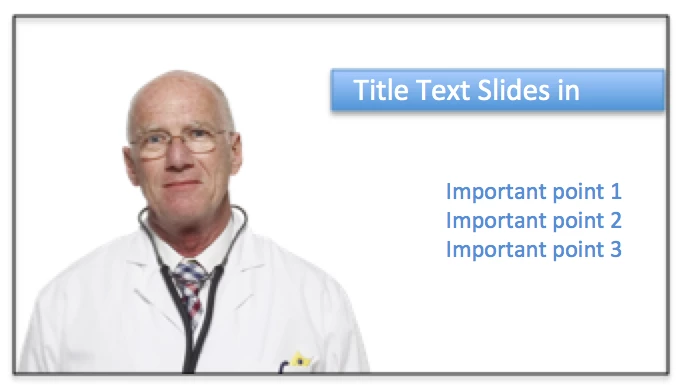
I am enjoying Premiere Elements so far but for the life of me, I can't seem to figure out how to do some of what I would think are the simplest most common things to do in a video editing program.  I am doing an interview-style video and have my subject on the left of the screen leaving whitespace on the right for overlays.  I want to create a custom title that slides in from the right edge that I can keep re-using with different text.  Also, I want to have a vertical list of key points appear on screen as the subject mentions them.  So far, I have created these both but with great painstaking effort and no reusability.  When I "duplicate" my titles in project assets, they lose their positioning and any animation, meaning the "duplicate" is essentially useless to me.  What I want is to create a custom title like the ones in the library of titles that come with the program - is this possible?  Also, there seems to be no way to align or space out multiple titles and if I put all bullet points in one text, I can't animate them individually.  These all seem like they should be the first, most basic functions of a video editing suite so what am I missing?

Here is an example of what I want:  The blue title slides in from right and would have different text each time it's used, the bullets could slide as well but I have them fading in at their location for now. As I mentioned, I want to make something I can re-use.

Thanks,

Rob.
This topic has been closed for replies.
Correct answer Bill Sprague

Thanks! 

Currently, even if I duplicate them, the animation and position is lost so I am really back at square one each time and it will take me weeks to create all my content


This is the resulting video:  https://vimeo.com/257386414

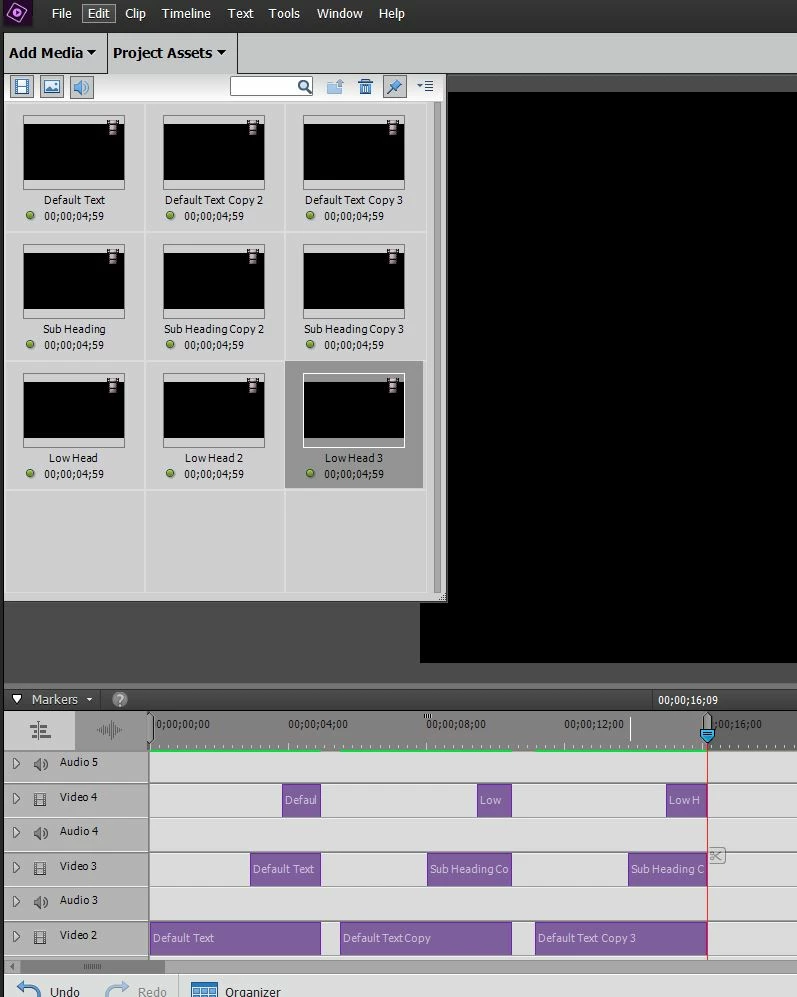
The project looks like this....

Each title in the left column of the Project Assets box was created new from the Classic Default Text.  The titles in the next to columns were created with Duplicate, not copy.  Then renamed to keep track.   The "masters" in the left column were treated with the SlideInByLine Animation effect.  The positioning of the titles from the first column to the next two remains in place.  The text is changed by double clicking the title in the timeline with the playhead positioned above it. 

My curiosity is satisfied that it can be done with disciplined organization of the title clips.   But, I wonder if there is not  other software easier to use for this. 

Good luck with your project!

Bill

1 reply

Community Expert
February 25, 2018

Which title templates are you using.  I want to try it because what you want to do should work. 

rstimers
rstimersAuthor
Known Participant
February 25, 2018

I'm not using a template, I wanted to make one.  What I have so far, I have created just using File, New, Title but it's static one-off.  I have read that you can alter an existing template and save it out as a custom one but when I went down that path, what I want is so far from any of the templates, it didn't seem possible.  I did alter one or two, but I ran into issues with changing animation direction, text location, etc.

Should I be able to completely edit an existing template and fully customize it?

Thanks,

Rob.

Community Expert
February 25, 2018

I think I mis used the word template.  I was referring to title choices.  I think your goal should be pretty simple, but titles can be a little confusing.  I'll try a few things and try to get back.