


Known Participant
December 18, 2017
Answered

Fade Out not working with Time Remapping

  • December 18, 2017
  • 4 replies
  • 3298 views

Using Premiere Elements 16, I have a clip where I slowed the last part down to 1/2 speed using "Time Remapping".  I now want to fade the clip out by right clicking and choosing Fade - Fade Video Out.

The key frame marker is there, and it shows the opacity dipping for the last couple seconds of the clip.  But during playback, it doesn't actually fade.  Other clips (that aren't speed up/slowed down with Time Remapping") fade in/out fine.


What am I missing?

Thanks

-M
This topic has been closed for replies.
Correct answer Bill Sprague

I think you found a "bug".  Mine does the same.   I got it to work a little better by putting in the fade before the time remapping. 

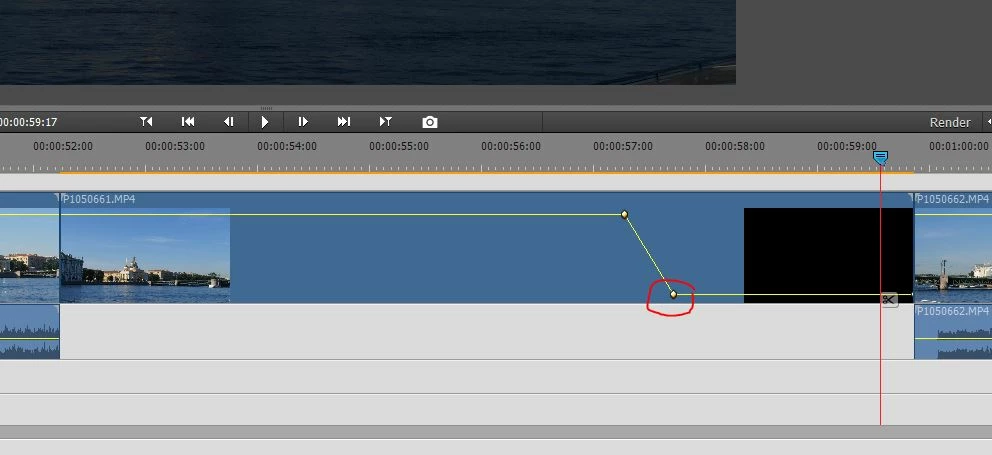
The best work around I came up with is doing the fade and adding an extra keyframe manually.  Then slide the new keyframe back from the end to control the rate.   I put a circle on the manually added keyframe and it will look like this:

4 replies

Participant
December 13, 2023

It's broken differently in the 2023 version. I have a 1 minute clip (originally 3 minutes), and fade in works great, but when I apply fade out, it fades out about 15 seconds in, and is black the rest of the time. 

I worked around it by creating a black video (Project Resources -> Hamburger -> New Item -> Black video) in Video 2, fading that in, and then moving it over the end of my clip. As Video 2 is "in front", it is effectively a fade out.

Ann Bens
Community Expert
Community Expert
December 13, 2023

I can reproduce: keyframe opacity instead.

mhumpAuthor
Known Participant
December 18, 2017

You are correct - it is Premiere Elements 2018.  When I do "Help - About..." It says it is version 16.  Sorry for the confusion...

Well, if it's a bug, hopefully Adobe fixes it I guess.  Seems like maybe there are some work-around I can try.

Thanks for your help.

Peru Bob
Community Expert
Community Expert
December 18, 2017

mhump  wrote

Well, if it's a bug, hopefully Adobe fixes it I guess

I don't think they will.

This has been happening for years with Premiere Pro and we use a similar, but different,  workaround for it.

Bill SpragueCommunity ExpertCorrect answer
Community Expert
December 18, 2017

I think you found a "bug".  Mine does the same.   I got it to work a little better by putting in the fade before the time remapping. 

The best work around I came up with is doing the fade and adding an extra keyframe manually.  Then slide the new keyframe back from the end to control the rate.   I put a circle on the manually added keyframe and it will look like this:

Legend
December 18, 2017

There is no version 16 of Premiere Elements, so I assume you're talking about Premiere Elements 2018.

In any event, I tried applying a Fade Out to clips that have been Time Remapped and got the same results. Apparently Time Remapping disables Opacity settings. (All other effects and adjustments do seem to still work.)

The workaround is to Time Remap a clip and then output this clip as an MP4. Import this MP4 into your project and you'll be able to do any necessary adjustments to it.