


Inspiring
January 21, 2017
Answered

Gaming footage quality decreases after exporting the video

  • January 21, 2017
  • 4 replies
  • 6084 views

Hello!

I'm aware that there have been similar question asked before, but I feel that my case might be a bit different, since I couldn't find a solution to my problem.

So, I have a few questions about exporting on Adobe Premiere Elements 12. I create gaming videos on YouTube. I record console games with Elgato HD (in 720p 60 fps) and PC games with Fraps (in 1080p 60 fps). The raw, non-edited video is in great quality. However, when I export the edited video, my quality drops. It's still good, but not as good as the original footage, which bothers me. I know for sure I have something wrong with my exporting settings, but I can't figure out what. I've tried rising the bitrate, but even when I set it to as high as it's possible, the quality doesn't match the original.

Here are the settings I've used to export my Fraps recorded videos:
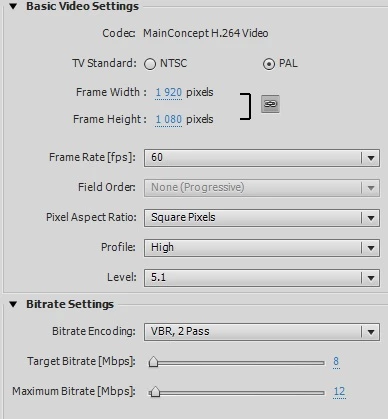
Videos are usually edited to about 20-30 minutes, and with these settings the exporting takes about 2 hours.

But here's the one thing that confuses me. The source.
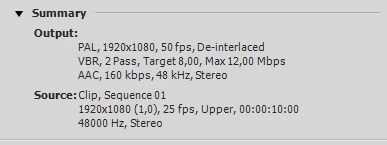
If I've understood correctly, the source means the original footage. Why does it say here it's 25 fps, when it isn't. Here are the video properties:
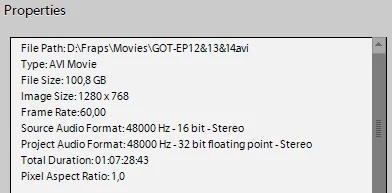
It says it's 60 fps, and it clearly is when I view the footage. So could this be the problem, or have I misunderstood the whole "source" part?

Lastly, here's a side by side pictures of the exported and the raw videos (recorder with Fraps on PC):

Left: Exported

Right: Raw
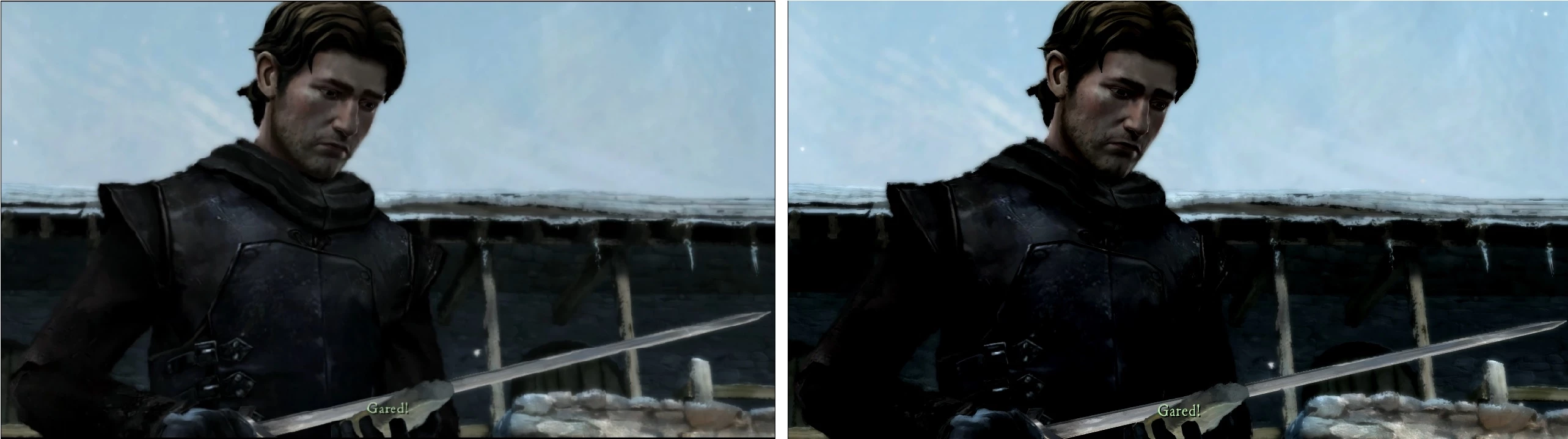
I think the difference is a bit difficult to notice here. The raw one is definitely darker, but I think that is because of the game settings. Another weird thing the exporting does; changes the lighting. The exported one is also smudgier.

So the question is: How do I export the video in its original quality?

Thanks in advance!

- Aino
Correct answer AinoH

Hi! I've solved the problem! Here's an explanation for someone who might be experiencing the same issues.

So my problem with this particular video was the frame size. If you look at the properties of that video, it says it's 1280x768. Fraps records the game on that size because in the game's own graphics settings the size is set to 1280x768.

That's the problem! My monitor is NOT 1280x768. It's 1360x768. I found this out by going on this website, which shows you your monitor size: What is my screen resolution

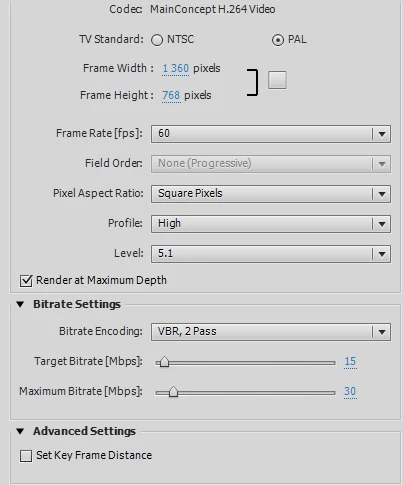
So the next thing I did was I switched the exporting settings from 1920x1080 to match the source footage (1360x768). These are my current exporting settings:

The quality is almost identical to the raw footage. I'm very happy with these settings. As far as I know the Project settings don't matter in this case.

I haven't tested yet, but YouTube will most likely decrease the quality. But I hope this helps the people who've experienced the same exporting problems.

To do list:

1. Check your monitor resolution (What is my screen resolution ).

2. Check that the game is set to have that resolution.

3. Export with the source resolution.

I hope this helps!

- Aino

4 replies

Participant
November 20, 2025

Hi Author, when i upload pictures on my gaming website,

these are turn into blur images, please tell me how to upload high quality images on my site.


Community Expert
November 20, 2025

Ethan,


This is a very old topic and a lot has changed.  Will you please provide more information about how you're recording, what version of Premiere Elements you using to edit and the settings in the project? 

Participant
August 16, 2024

First, double-check your export settings to match the resolution and frame rate of your source footage. For Fraps videos, set your export resolution to 1080p and frame rate to 60 fps. Also, use a high bitrate, but avoid excessive settings that may not improve quality. A useful tip is to use the H.264 format, as it balances quality and file size effectively.

If the quality still isn’t up to par, consider checking if there’s a newer version of Premiere Elements or exploring other video editing software with more advanced export options.

AinoHAuthorCorrect answer
Inspiring
February 8, 2017

Hi! I've solved the problem! Here's an explanation for someone who might be experiencing the same issues.

So my problem with this particular video was the frame size. If you look at the properties of that video, it says it's 1280x768. Fraps records the game on that size because in the game's own graphics settings the size is set to 1280x768.

That's the problem! My monitor is NOT 1280x768. It's 1360x768. I found this out by going on this website, which shows you your monitor size: What is my screen resolution

So the next thing I did was I switched the exporting settings from 1920x1080 to match the source footage (1360x768). These are my current exporting settings:

The quality is almost identical to the raw footage. I'm very happy with these settings. As far as I know the Project settings don't matter in this case.

I haven't tested yet, but YouTube will most likely decrease the quality. But I hope this helps the people who've experienced the same exporting problems.

To do list:

1. Check your monitor resolution (What is my screen resolution ).

2. Check that the game is set to have that resolution.

3. Export with the source resolution.

I hope this helps!

- Aino

Community Expert
January 21, 2017

I don't know anything about your game capture tools.   But, I think I see some inconsistencies.

- One is capturing in 720 and the other in 1080.  So, what are the project settings and how are they being set.

- Upscaling 720 to 1080 will probably look smudgy.

- Other threads about game capture have shown that capturing is done at a variable bit rates.  Editing software, like Premier Elements, can have trouble with that.  You may need to find a way to record at a constant bit rate or convert using something like Handbrake.

-  Your output bit rate seems low.

-  The source summary may be indicating your project settings and that does not match either of the capture devices.

-  How are you determining and setting the output?  Are you trying to match a YouTube specification?

AinoHAuthor
Inspiring
January 21, 2017

Thank you for answering!

These pictures show the settings I use to export Fraps recorded videos, which means they're recorded on PC in 1080p and 60 fps. I record console games with Elgato HD, and the highest possible quality that can be recorded with Elgato is 720p. I use different settings while exporting Elgato captured videos, in fact I use the pre-made settings "MP4 - HD 720p 60 fps". The quality doesn't match the original one with that either, although it's definitely a less noticeable difference than with exporting Fraps videos.

Here is a screenshot of the raw Fraps recorded video properties:

Apologies they're in Finnish, but here the frame size is 1280x768 (kehysleveys=frame width, kehyskorkeus=frame height). Could this factor in? Should I have 1280x768 in export settings instead of 1920x1080? Is the raw video even in 1080p? I am confused.

If changing the export settings doesn't work, I'll try the constant bitrate. Thanks for the tip!

Can you give advice on how to determine how high the bitrate should be? Or is it something that should be just continuously tested? I've tried raising the bitrate to as high as possible, but the quality never matched the original. I quite frankly don't really see a difference in quality when I raise it; only the file size grows.

When trying to change the project settings, it doesn't allow me to change the frame size, and is stuck in 1920x1080. Is it possible to change this? Also, should the display format be "Frames" instead of "25fps Timecode" since the footage is in 60 fps? Sorry, a lot of questions. I quite honestly have never paid any attention to the project settings when editing, and I understand very little of them.

I've gone by the bitrate and H.264 charts here: Recommended upload encoding settings - YouTube Help

Community Expert
January 22, 2017

Project settings are set when you open a new project.  Once the project is underway, they can't be changed.   I forgot how version 12 works, can you list you first steps opening the project?  Are you doing it manually or automatically?

The easy question is the bit rate.  Most 1080p60 cameras shoot at around 35Mbps in the high quality settings.   And you're right, on small screens it may not be visible to the eye.  And YouTube's guide lines should be good.

For what it is worth, getting editing to work well with captured video has often been harder than when the source is from a camera.

My guess is that the problem is getting the output to match the input so that there is not "resizing" going on.    If you can, the project settings should be 1280x768 and the output setting should be the same as well.  Everything should match.

Hope this helps and something works.

Can you give me a link so I can see something you've done on YouTube?

Bill