Participant
October 11, 2020
Question

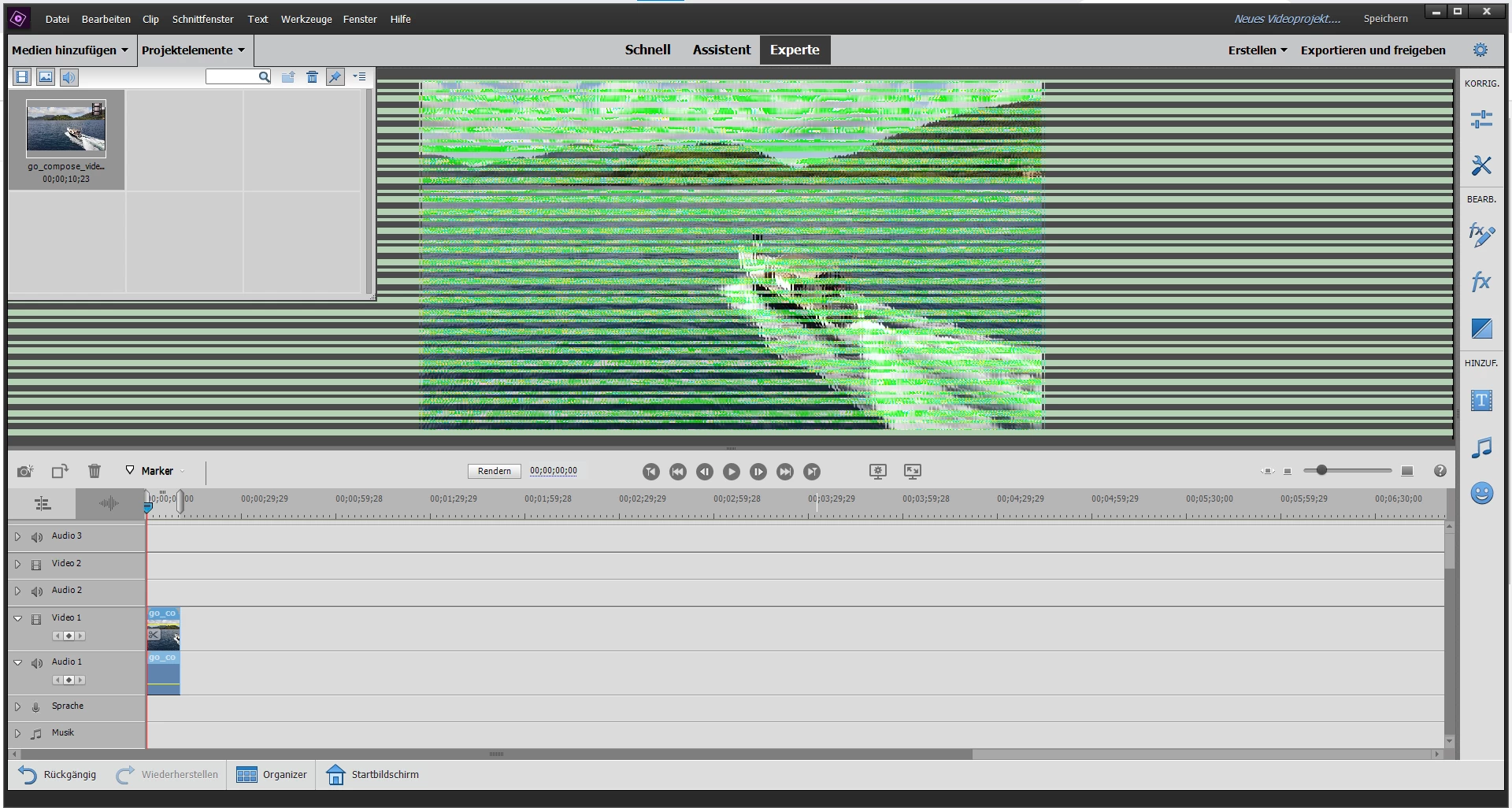
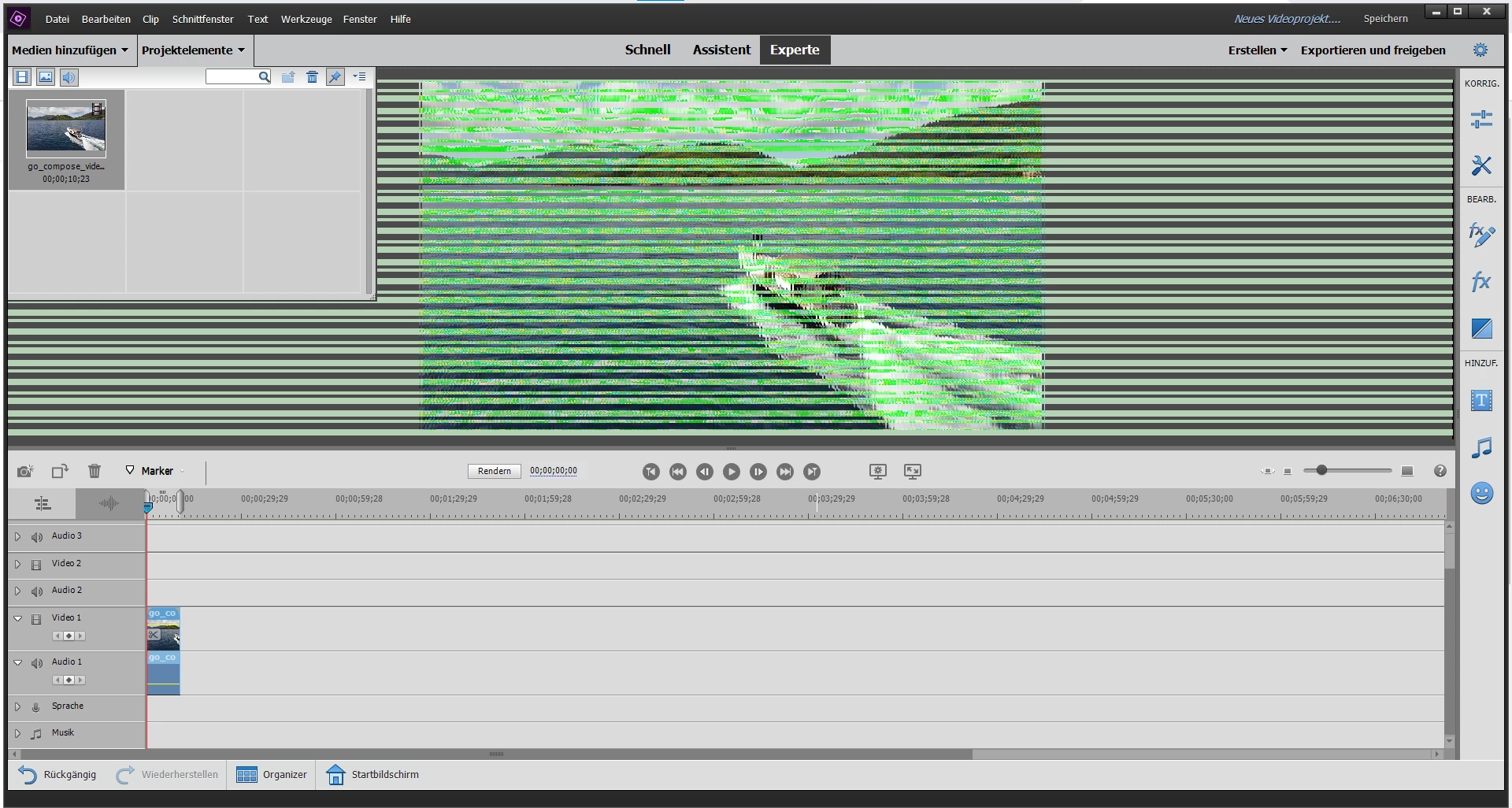
Green Bars across Videos imported in Adobe Premiere Elements 2021, Drivers up-to-date
  • October 11, 2020
  • 2 replies
  • 730 views


Dear Adobe team, dear Adobe community,


since today I use the Photoshop/Premiere Elements 2021 bundle. On Premiere I always have green horizontal stripes in the preview windows of the video (no matter which file: mp4, mpeg, avi, gif...). My system is a new Lenovo Gaming 3 (Gaming 3 15IMH05) with a NVIDIA GeForce GTX 1650 and the latest GeForce drivers (version 456.71). Also all other drivers as well as Windows are up to date and the energy saving mode is switched off.

Can someone help me, because I can't use the program like this.


Best Regards
Kris

This topic has been closed for replies.

2 replies

alankempwets
Participant
October 11, 2020

I had this problem, in the end, Adobe support took control of my computer and installed the Intel driver, there are now options I cannot use and its a bit disappointing that a brand new product cannot use the graphics driver the came with my nw laptop. They also made my programmes run in Windows safe mode nd installed icons on my task bar so I could start the programmes.

Community Manager
October 12, 2020

@alankempwets 

This issue generally happens because of an incompatible GPU driver version on your machine.

Can you please try to rollback driver version for Nvidia GPU on your machine? or you can download this version from NVIDIA official site and install it: https://www.nvidia.com/en-us/drivers/results/161304/

Steps to rollback are :

1. Search and open Device manager

2. Click on Display adapters

3. Right-click on NVIDIA GeForce GTX 1650

4. Click Properties -> Driver

5. Click Rollback driver


Let us know if it helps.


Can you please also share below mentioned things here:

1. Screenshot of PRE preferences. Steps are given below:

     a. Launch PRE

     b. Click edit -> Preferences -> General

     c. Take a screenshot and share here

2. What all GPU do you have on the machine?


Thanks, Gaurav
Participant
June 6, 2021

 I did both and neither help it also I can't even click roll back

Adobe Employee
October 11, 2020

Hi,

The problem you are facing might be because of the latest driver update. You can try rolling back to the previous driver version and see whether that resolves the issue.


Also, you can try turning off the following options from preferences and then try importing the files again:

  1. Go to Preferences>>General.
  2. Uncheck the checkbox "Use Hardware Acceleration".
  3. Uncheck the checkbox "Use GPU accelerated effects, transitions...".
  4. Restart the product.


Let me know if this was helpful.


Thanks,

Anubhav