


Shlomke23
Participating Frequently
October 19, 2020
Answered

Green lines on Premiere Elements 2021 playback screen

  • October 19, 2020
  • 3 replies
  • 2936 views

I have a new Dell XPS 17, Windows 10, with Nvidia GeForce RTX 2060, Studio Driver Version: 456.38 - Release Date: Thu Sep 17, 2020. In Films & TV APP all kinds of files (1080p, 4K) are running smoothly.

Unfortunately, in Premiere Elements 2021 playback screen I get green horizontal lines and the video is running behind them. Please look at the attached screenshot.

Any advice which can help to get rid of this bug will be appreciated.
This topic has been closed for replies.
Correct answer Mutu

Unfortunately, didn't help.


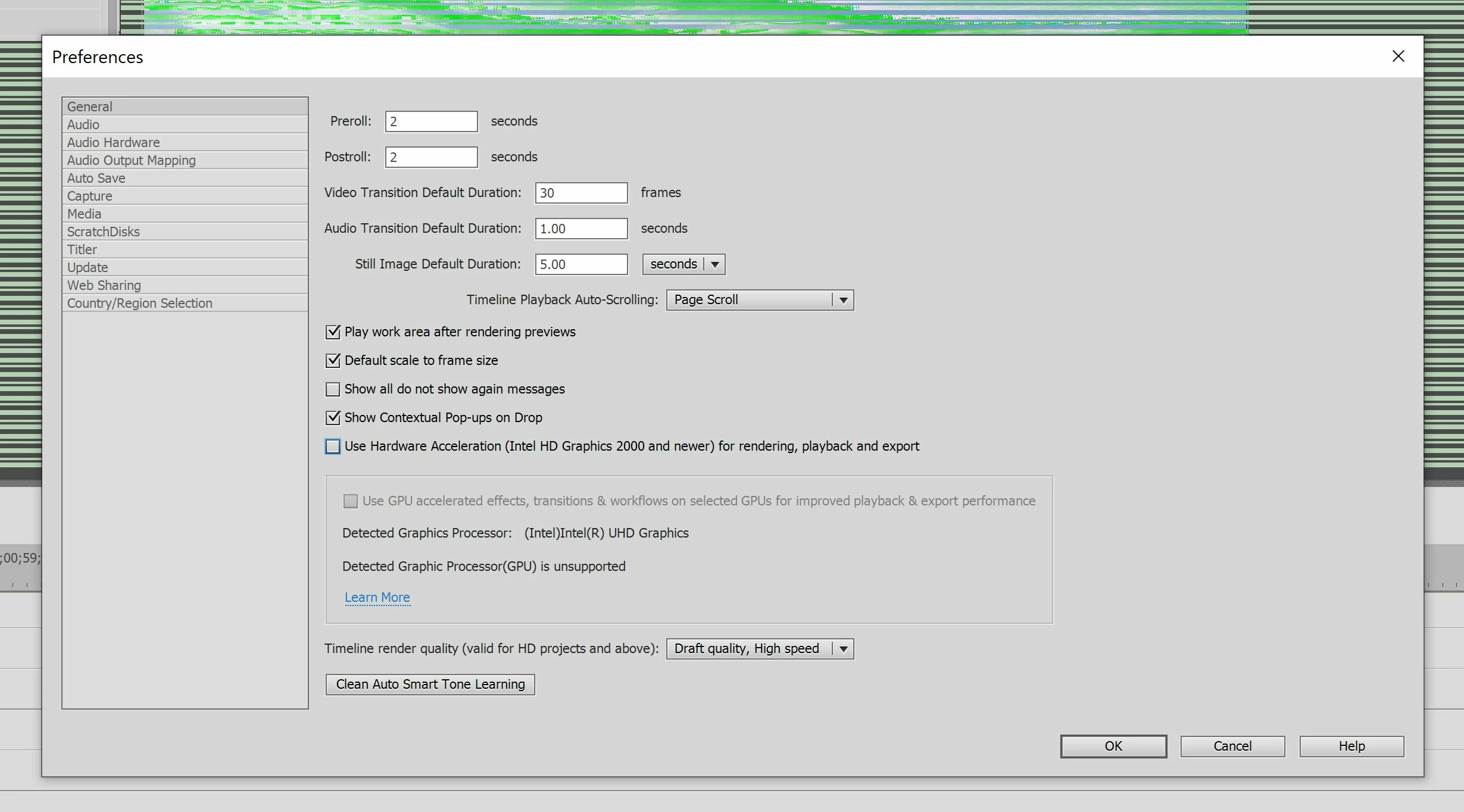
I don't have 2021 (still on 2020), but in my experience with earlier versions, if you also have an integrated GPU (Intel), PrE defaults to that even if you have Nvidia GPU. Screenshot clearly shows that PrE detected only the Intel GPU, so you could try opening the NVidia settings (I have older drivers, but I presume that there's still "Manage 3D Settings" and under that "Program Settings") and customize them to (force)use NVidia with PrE. Don't know if that'll work with 2021. That's just my guess...

3 replies

Community Manager
October 21, 2020

Hi @Shlomke23 

This issue generally happens due to driver version of Graphics card.

Please update the driver version from official site of Nvidia.

Thanks, Gaurav
Shlomke23
Shlomke23Author
Participating Frequently
October 21, 2020
Dear Gaurav,

Thank you for your answer. Unfortunately, after I found the problem, I did updated to the last version from Nvidia website and it didn’t solve it. The version appears in my original message is the mostly updated. What else can I do??

Kindest Regards,
Shlomo Yasur
TechnoLotus
+972-54-2597776
Community Manager
October 21, 2020

Please try the below steps:

1. Click Edit

2. Go to preferences -> General

3. Uncheck "Use GPU Acceleration...." checkbox. (Please also share a screenshot of this here)

4. Click ok

5. Close PRE

6. Relaunch ad see if issue goes away.


If the issue will resolve after the above steps then you need to roll back to some previous driver version of the GPU card and try.


Thanks, Gaurav
Peru Bob
Community Expert
Community Expert
October 19, 2020

Also,

Peru Bob
Community Expert
Community Expert
October 19, 2020

Please use the free MediaInfo and post a screenshot the properties of your media in tree view:
https://mediaarea.net/en/MediaInfo

If the file is variable frame rate, use Hand brake to convert to constant frame rate:
https://handbrake.fr/downloads.php
Here is a tutorial:
https://www.youtube.com/watch?time_continue=34&v=xlvxgVREX-Y