jefflackey
Known Participant
December 20, 2016
Answered

How to modify JPG size without constraint of aspect ratio?

  • December 20, 2016
  • 2 replies
  • 449 views

Moving to Premiere Elements 15 from Cyberlink Powerdirector. Bumbling along, but one thing I need to be able to do and can't figure it out:

I have a jpg/bmp that I use as a watermark on some videos, but I need to adjust the size, location, and shape of where it overlays on the video depending on the video clip. I can see how to easily move the object, and I can grab a corner or side and resize it, but it will only resize proportionally. I.e. if I just want to make it wider but not taller it won't let me do that.

In Powerdirector there was an option when modifying an object like this said "maintain aspect ratio" and I could unclick the box and do what I need to do. This is a bit of a deal killer if I can't do this simply. I assume I just don't know how.

Thanks!

    This topic has been closed for replies.
    Correct answer Bill Sprague

    You challenged me!   I think I have the answer. 

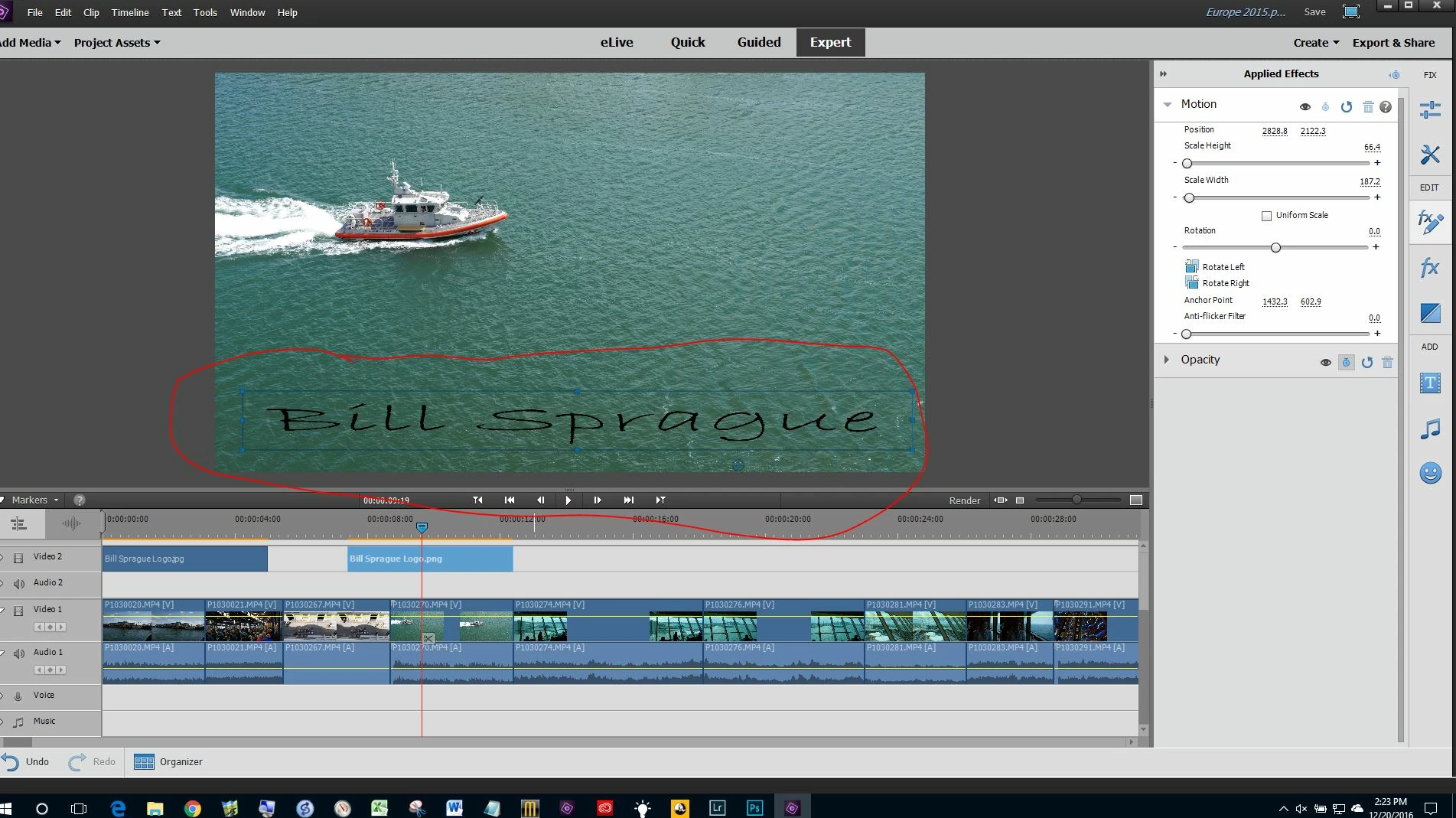
    Assuming the JPEG/BMP is on a track above the video, it can be controlled separately.

    • Put the JPEG/BMP on the timeline above the video and select it.
    • Put the CTI over it so you can see what is going on
    • Select the "fx/pencil" box, third down on the far right.
    • Select "Motion"
    • Uncheck the "Uniform Scale" box
    • Grab the corners of the clip in the monitor and make it whatever shape you want.

    2 replies

    jefflackey
    Known Participant
    December 20, 2016

    Thanks! I would not have looked there but that is exactly what I am looking for! Still puzzled by a number of things such as when I freeze frame (which is what appears to be the way to take a screen shot of the current frame) why it shows letterbars under and above frame and the object added in a different location than what shows on Premiere's screen (and the jpg taken shows what's on Premiere's screen!) but one bite of the elephant at a time!

    Thank you!

    Community Expert
    December 20, 2016

    jefflackey wrote:

    Thanks! I would not have looked there but that is exactly what I am looking for!

    Please mark this as "Correct".  I get points!

    .... puzzled by .... when I freeze frame (which is what appears to be the way to take a screen shot of the current frame) why it shows letterbars under and above frame and the object added in a different location than what shows on Premiere's screen (and the jpg taken shows what's on Premiere's screen!) but one bite of the elephant at a time!

    Thank you!

    Please start a topic on "Puzzled by Freeze Frame".  I will try to help. 

    jefflackey
    Known Participant
    December 21, 2016

    I did mark it as correct! And I will do that - thanks.

    Bill SpragueCommunity ExpertCorrect answer
    Community Expert
    December 20, 2016

    You challenged me!   I think I have the answer. 

    Assuming the JPEG/BMP is on a track above the video, it can be controlled separately.

    • Put the JPEG/BMP on the timeline above the video and select it.
    • Put the CTI over it so you can see what is going on
    • Select the "fx/pencil" box, third down on the far right.
    • Select "Motion"
    • Uncheck the "Uniform Scale" box
    • Grab the corners of the clip in the monitor and make it whatever shape you want.