


Participant
May 18, 2017
Answered

How to output a video that is 15 fps in Elements, so the result is not choppy

  • May 18, 2017
  • 3 replies
  • 1868 views

I have a 4 minute long video converted from an old 8mm movie.  I would like to take the first minute of the video, and save it as a separate video.  The properties of the original video indicate it is 15 frames per second (fps).   What settings do I need to make in Share and Export so that the output video also runs at 15 fps . . . . or if I have to output it at the standard 25 fps, what do I need to do to avoid the extreme chop that occurs?
    This topic has been closed for replies.
    Correct answer frankc2393965

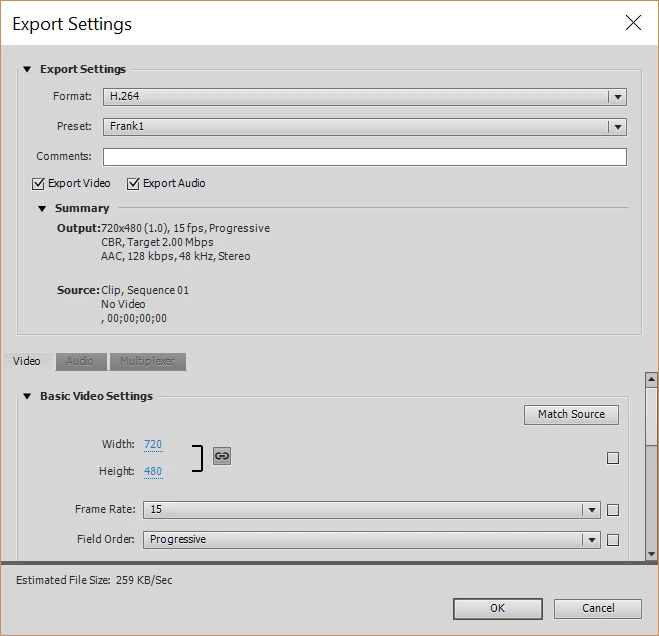
    Thanks for the replies!  At the same time, I found one potential solution to my problem by using the export settings shown below when outputting the trimmed tape.  That is, this custom H.264 export in Premiere Elements allows me to match the input 15 fps, thereby eliminating the chop in the higher standard output fps.  However, the quality of the output at 720 x 480 *might* be less than optimal.  I can't say for sure, because the input - although described as being much higher - was a conversion of an old Super 8mm movie tape, whose quality wasn't that great to begin with.   In any case, this does provide a solution I can live with.

    3 replies

    Participant
    May 22, 2017

    Ann,

         Premiere Elements gives me the original properties as 1920 x 1080; see the screenshot below.  When I look at the original and new video on my laptop screen in Premiere Elements, they "look" the same - but I guess I should hook up my laptop to a relatively large HD TV and play each with a standard video player to see if they still look the same.  If they do, I imagine it was because the original video comes from a 50 year old Super 8mm film whose quality is poor by today's standards to begin with.  I've attached a 1920 x 1080 screenshot from Premiere Elements of the first frame in the video to show you what the original's quality looks like.  Thanks for your interest in this subject.

    Ann Bens
    Community Expert
    Community Expert
    May 19, 2017

    You could try to interpret the footage to 15 frames in the Project Assets or

    try Frame Blending on the timeline.

    would not go the 30 fps route as mixing so called ntsc framerate in a pal sequence is usually a pita.

    Inspiring
    May 19, 2017

    I would try to find options for 30 fps interlaced. But don't know if this exist in PRE.

    Otherwise you have to experiment with time stretch stuff, I suppose.

    frankc2393965AuthorCorrect answer
    Participant
    May 20, 2017

    Thanks for the replies!  At the same time, I found one potential solution to my problem by using the export settings shown below when outputting the trimmed tape.  That is, this custom H.264 export in Premiere Elements allows me to match the input 15 fps, thereby eliminating the chop in the higher standard output fps.  However, the quality of the output at 720 x 480 *might* be less than optimal.  I can't say for sure, because the input - although described as being much higher - was a conversion of an old Super 8mm movie tape, whose quality wasn't that great to begin with.   In any case, this does provide a solution I can live with.

    Ann Bens
    Community Expert
    Community Expert
    May 20, 2017

    What is your original sequence resolution?

    If you export with above setting its neither 4:3 or widescreen. Its 3:2.

    Elements cannot crop on export.