Participating Frequently
May 26, 2017
Answered

Make a gif using Premiere Elements 15

  • May 26, 2017
  • 3 replies
  • 5949 views

Hi,

I would like to make a gif file using Premiere Elements 15.  Is this possible?  If so, how?

Thanks.

jd

    This topic has been closed for replies.
    Correct answer Bill Sprague

    jdiek  wrote

    Hi,

    I would like to make a gif file using Premiere Elements 15.  Is this possible?  If so, how?

    Thanks.

    jd

    Yes.  Premier Elements 15 has it all built in.

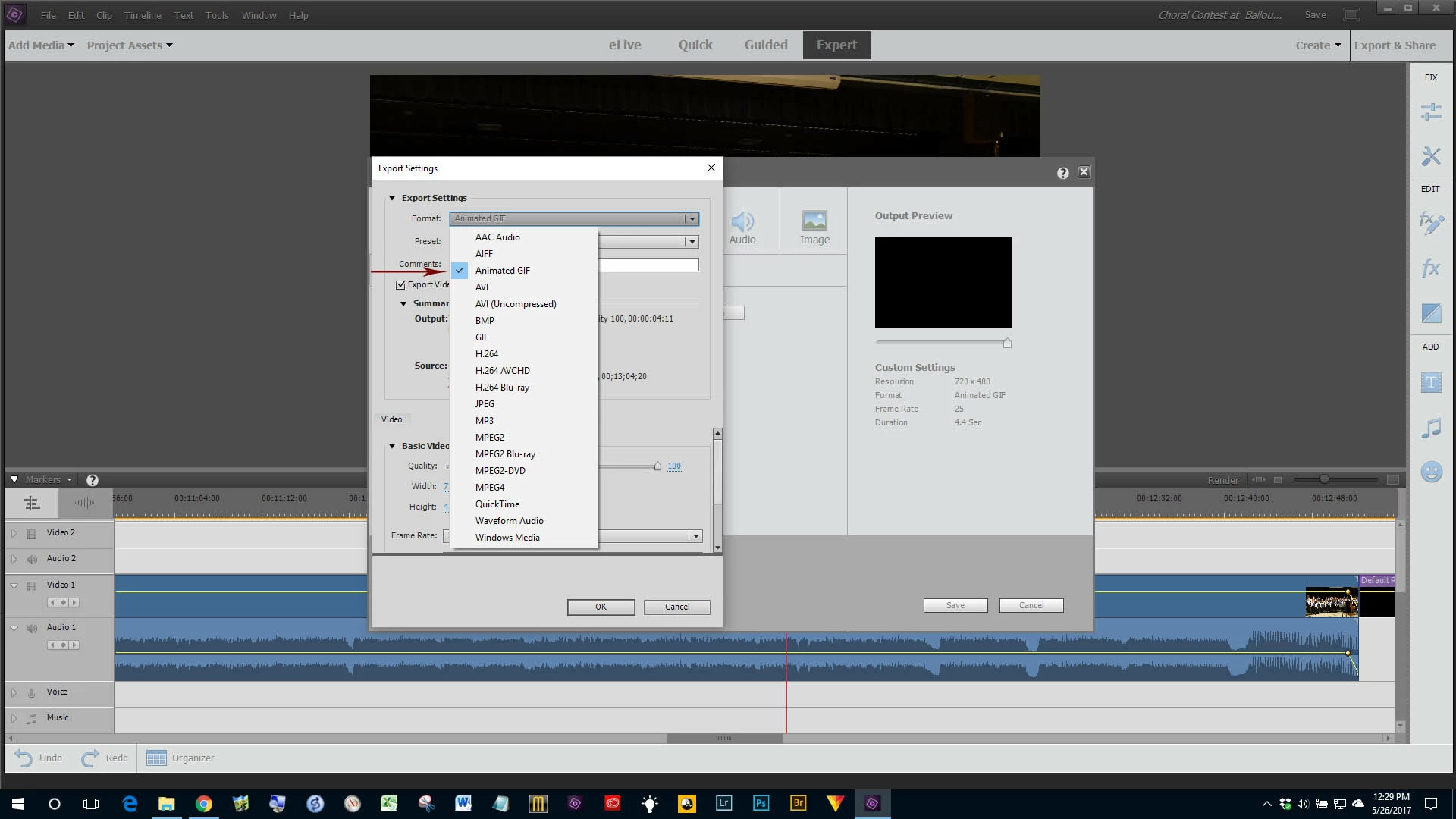
    Set the work area bars to what you want in your GIF.  Then Export&Share  >  Devices  >  Custom > Advanced Settings (a button) > select the drop down menu under Format and pick Animated GIF.   Click OK.  It saves a preset for future use.  Be sure to check the "Share Work Area Only" box.  Pick a name and destination folder.  Click the Save button.

    Good luck and please come back with a progress report!

    Bill

    3 replies

    jdiekAuthor
    Participating Frequently
    May 26, 2017

    Thank you Bill!!!!  Soo easy, but I have a black frame at the end before it loops.  Did I miss something???

    jd

    Community Expert
    May 26, 2017

    I'd never tried an animated GIF until now.  So, my one test does not do a black frame at the end.  Not sure what to say.

    jdiekAuthor
    Participating Frequently
    May 26, 2017

    I used different settings and it wasn't there.  Not sure.

    Bill SpragueCommunity ExpertCorrect answer
    Community Expert
    May 26, 2017

    jdiek  wrote

    Hi,

    I would like to make a gif file using Premiere Elements 15.  Is this possible?  If so, how?

    Thanks.

    jd

    Yes.  Premier Elements 15 has it all built in.

    Set the work area bars to what you want in your GIF.  Then Export&Share  >  Devices  >  Custom > Advanced Settings (a button) > select the drop down menu under Format and pick Animated GIF.   Click OK.  It saves a preset for future use.  Be sure to check the "Share Work Area Only" box.  Pick a name and destination folder.  Click the Save button.

    Good luck and please come back with a progress report!

    Bill

    Peru Bob
    Community Expert
    Community Expert
    May 26, 2017
    jdiekAuthor
    Participating Frequently
    May 26, 2017

    Hi, my Photoshop Elements is not set up the way in the link you posted.  I cannot find out what to do to make the frames.  Is there another link for that?

    Thanks,

    jd