
Participating Frequently
March 30, 2022
Answered

Media clip number sequence and duration.

  • March 30, 2022
  • 2 replies
  • 516 views

Hello, I’m using Adobe Premiere Elements 15 and seeking solution to two matters:


  • When adding media clips (numbered JPEGs) to the project at the video segment, the clips load but not in number order.  Seeking a recommended solution to have the clips load in number order and a way to edit for the number sequence.
  • Seeking guidance on how to edit the clip duration from the standard 5 seconds to either 4 or 3 to seconds.  Looking to change the clip duration in batch (entire project) verses a few clips at a time.


Thank you in advance, Louis.   
This topic has been closed for replies.
Correct answer Bill Sprague

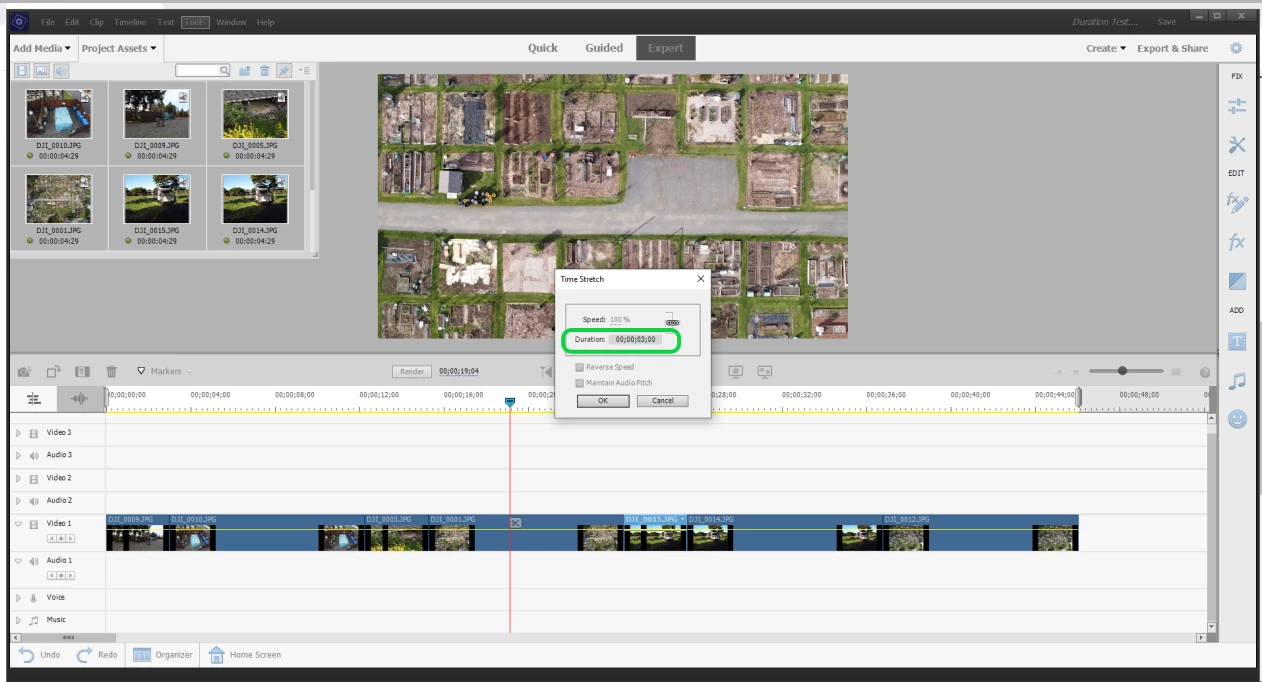
Adding to Steve's tips, you can use the Time Stretch tool from the Tool menu or Ctrl+R.    You can do this after the stills have been added to the timeline.  


Select the still images you want to change on the timeline.  It can be all of them (Ctrl+A) or a selection using Shift and mouse clicks.  After you have selected the images files, open the Time Stretch Tool.  


Oddly, the percentage field is not directly editable.  But you can hover the mouse over the duration field, left click and "scrub" left to right.  The percentage field responds and all the selected clips will be changed by the amount indicated. 


2 replies

Bill SpragueCommunity ExpertCorrect answer
Community Expert
March 30, 2022

Adding to Steve's tips, you can use the Time Stretch tool from the Tool menu or Ctrl+R.    You can do this after the stills have been added to the timeline.  


Select the still images you want to change on the timeline.  It can be all of them (Ctrl+A) or a selection using Shift and mouse clicks.  After you have selected the images files, open the Time Stretch Tool.  


Oddly, the percentage field is not directly editable.  But you can hover the mouse over the duration field, left click and "scrub" left to right.  The percentage field responds and all the selected clips will be changed by the amount indicated. 


Participating Frequently
March 31, 2022

Good evening, just seeking further guidance; having a matter with adding media in number sequence.  I’ve imported the project, changed the project assets to display in list view, clicked on head name and made sure all extensions were the same (JPG).  For some reason the project loads out of number sequence, 1-390.

Any suggestions…thanks in advance!


Legend
March 31, 2022

That looks like alpha-numeric order to me. 


But if not, try switching to Grid View and then using the Sort command.

Legend
March 30, 2022

1. Once the files are in your Project Media panel, click the Panel Options button in the upper right of this panel and select a Sort option. This will arrange your stills in alpha-numeric order.


2. BEFORE you add your still photos to your project, go to the program's preferences (under the Edit menu on a PC) and, on the General page, set the duration for your still photos.  This change will affect any stills you add after you change this preference.

Participating Frequently
March 30, 2022

Steve, thank you so my for the reply.  Right on time...