Participant
October 17, 2018
Answered

No 4K option in new project settings

  • October 17, 2018
  • 2 replies
  • 1161 views

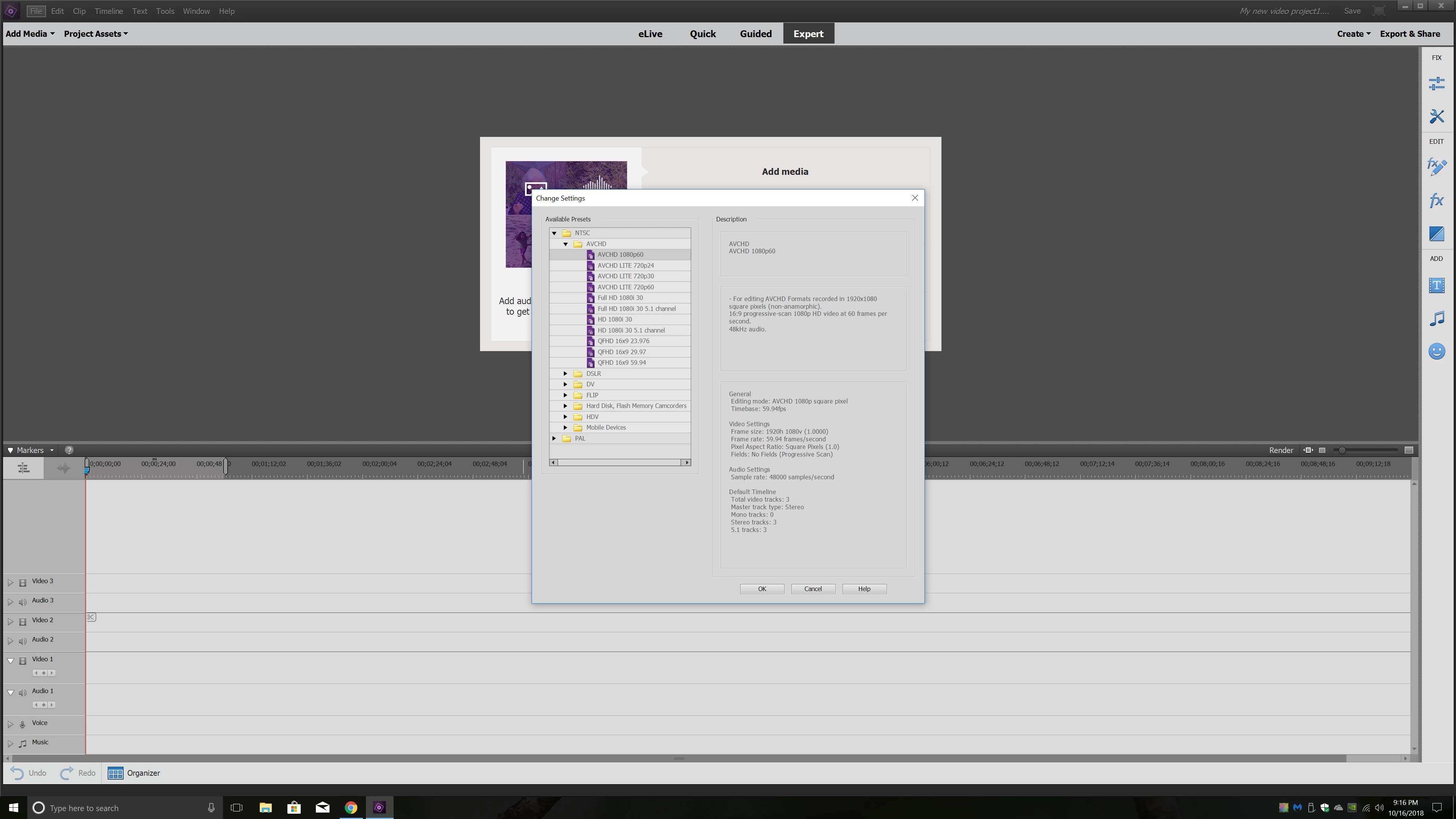
Hello.  I am having trouble editing my 4k Gopro footage.  I have Premiere Elements 15 with the latest updates.  When I try to select 4k for my project settings it does not show up. Here is a screen shot of the settings menu.  There is no option for 4k.  Is 4k not available on this program?  It does give me the option to export in 4k.  I imported the files.  They play back kind of choppy until I render them.  After I render them they play smoothly as expected, but the quality is horrible.  Like 360 resolution!  What gives?  I have a new computer with a 1 TB SSD, I7 CPU 3.6ghtz, 32 GB RAMand a NVidia GeForce GTX 1050 Ti 4GB GDDR5 graphics card so I don't think it's my computer. 
    This topic has been closed for replies.
    Correct answer Steve Grisetti

    The QFHD options are 3840x2160 4K.

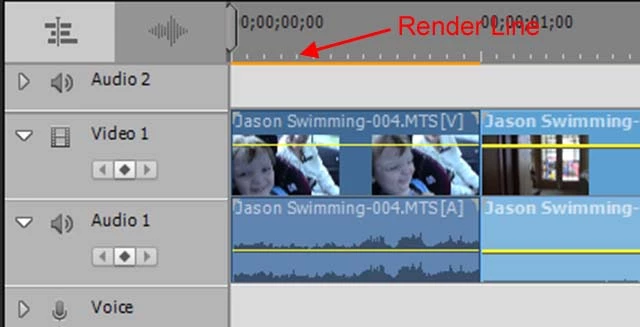
    You don't say what the exact specs and format of your 4K video is. But if you have correctly matched your project settings to your video specs, you will NOT see a yellow-orange render line above the first clip you add to your timeline. Is that the case in your project?

    A mismatch between project settings and video specs can result in poor program performance.

    2 replies

    Participant
    October 17, 2018

    Thank you for the suggestions.  I was not familiar with QFHD, but I tried selecting that in my project settings.  So far that has resolved my problems of poor quality playback. Now the preview quality is much better.  Thank you for the help!

    Steve GrisettiCorrect answer
    Legend
    October 17, 2018

    The QFHD options are 3840x2160 4K.

    You don't say what the exact specs and format of your 4K video is. But if you have correctly matched your project settings to your video specs, you will NOT see a yellow-orange render line above the first clip you add to your timeline. Is that the case in your project?

    A mismatch between project settings and video specs can result in poor program performance.

    Community Expert
    October 17, 2018

    Trying to add to Steve's answer, consider letting Premiere Elements automatically make your project settings.  Do that by ignoring the choices on the menu you posted.  Instead open the project and slide a "primary" clip to the timeline.  Premiere Elements will match that clip with appropriate project settings. 

    With the right settings, the clips should not get the yellow line or need rendering unless editing adjustments are made.