

Florian from ITTT
Participant
November 17, 2020
Answered

Organize (Delete and Backup) Presets

  • November 17, 2020
  • 1 reply
  • 1081 views

Dear Community

I created some Presets for Effects for Clips. I want to delete some of and - more importantly - backup those presets since I have to move them to a new PC.
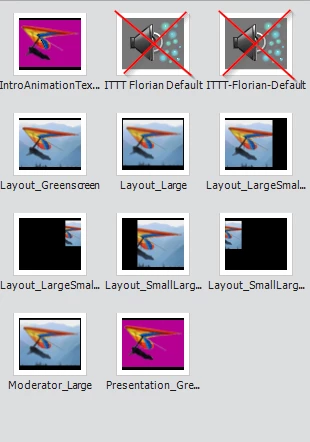
I searched my Harddrive for this presets (with no success) and I can't find any way in Premiere Elements to do this, nor in Elements Organizer, nor do I found any Information in Adobe Help or Google.


Can anybody point me in the right direction, please?


Thank you so much,

Best,

Florian
This topic has been closed for replies.
Correct answer Florian from ITTT

Hi Steve

thank you so much. You pointed me in the right direction.

I had a closer look at the file- It's basically a rather "flat" database (not to well formatted, if I may add that and an adobe-developer reads that) in an XML-File. If you edit the index at (almost) the top of the file, you can remove the presets you don't want. You then have to manually edit the index-values, so it is ascending, starting from "0". I suggest, that you leave the remaining payload further down in the xml-file to avoid breaking references between different objects-settings. It would REALLY be helpful, if Adobe just added a very simple "Delete" in the context, as I assume, that most video-editors are not also software-developers as I am.

IMPORTANT: create a backup of the file first, because if you make a typo: Premiere Elements will recreate the whole file and you loose ALL your presets.

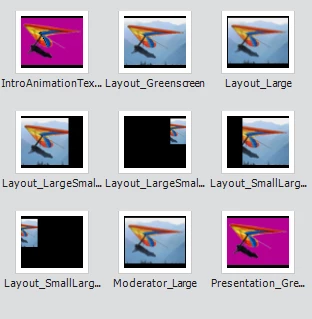
Here's the proof that it worked:


1 reply

Florian from ITTT
Participant
November 17, 2020

P.S: I am using Premiere Elements 20.

Legend
November 17, 2020

I have not found a way to delete a custom preset.

But the custom presets are located (on Windows 10) in Users/[Username]/AppData/Roaming/Adobe/Premiere Elements/18.0 in a data file called Effects Presets and Custom Items.prfpset. I don't know of a way to open and edit this file though.

Florian from ITTT
Florian from ITTTAuthorCorrect answer
Participant
November 17, 2020

Hi Steve

thank you so much. You pointed me in the right direction.

I had a closer look at the file- It's basically a rather "flat" database (not to well formatted, if I may add that and an adobe-developer reads that) in an XML-File. If you edit the index at (almost) the top of the file, you can remove the presets you don't want. You then have to manually edit the index-values, so it is ascending, starting from "0". I suggest, that you leave the remaining payload further down in the xml-file to avoid breaking references between different objects-settings. It would REALLY be helpful, if Adobe just added a very simple "Delete" in the context, as I assume, that most video-editors are not also software-developers as I am.

IMPORTANT: create a backup of the file first, because if you make a typo: Premiere Elements will recreate the whole file and you loose ALL your presets.

Here's the proof that it worked: