
Participant
March 15, 2022
Answered

Parts of video with applied effects are "shaking" after exporting

  • March 15, 2022
  • 2 replies
  • 292 views

Hello, I am working on a bit longer porject of about 30-45 minutes in Adobe Premier elements 2018. I am dividing the project into smaller segments of 5-10 minutes so the program would not get overloaded. First couple of projects came out without problems, but from the third one onwards I have noticed that certain problems, despite the fact that I did not change anything in the project settings (I am exporting them all in standard settings  for .mp4 1920x720, 24 frames). During the preview phase there are no problems, but after I export the file, parts of tthe video are "shaking" up and down (just  a few pixels but enough that it is noticable). The parts in question are photographs on which I have added basic effects (some small tweaks in position and scale). I have tried to shorten the segments even more - on just one or two photographs but the export result is shaky again.

I am very grateful for any help you can provide me


Thank you in advance
This topic has been closed for replies.
Correct answer Bill Sprague

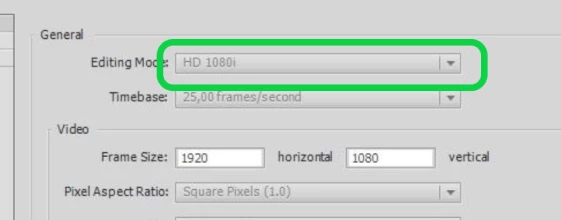
The likely problem is the "i" for interlaced.  It needs to be "progressive".  Interlaced is left over from broadcast tube TV!  You can start the project over and be sure the first item on the timeline is a 1080p clip.  If you've got a lot of work in the project you can try Steve's "hack" in his YouTube.  https://www.youtube.com/watch?v=4eyx0tkzkuc&t=55s


2 replies

Legend
March 16, 2022

Can you post a segment that exhibits this behavior on YouTube or Vimeo and link to it so we can see what's going on?

Participant
March 16, 2022

Here is the link - first 5 seconds is an inserted photograph without applied effects and the next 5 seconds effects are applied and it is shaking up and down

https://www.youtube.com/watch?v=L8bk_pPL9XE

Thank you very much in advance

Bill SpragueCommunity ExpertCorrect answer
Community Expert
March 16, 2022

The likely problem is the "i" for interlaced.  It needs to be "progressive".  Interlaced is left over from broadcast tube TV!  You can start the project over and be sure the first item on the timeline is a 1080p clip.  If you've got a lot of work in the project you can try Steve's "hack" in his YouTube.  https://www.youtube.com/watch?v=4eyx0tkzkuc&t=55s


Community Expert
March 15, 2022

I've not experienced this!  I'm guessing there may be a settings mismatch.  

What are the project settings?  (Screen shot?)  What are the specs of the source footage and what did it come from?   Why is your "standard setting" 1920x720?   Is that the same as your source files?   Mine is 1920x1080 to match most current screens.  The ideal situation is to have the source video, project and output all match.  If your computer is less than "very powerful", resizing the photos to near the pixel size of the project can make things work better.  


Would it be possible to do your small tweaks to position and scale in a photo editor prior to import?  

Participant
March 16, 2022

Hello and thank you for your quick reply. As I said, the trouble is in the pictures - no matter what resolution they are in (for example - 3200x1800). What puzzles me even more is that problem started all of a sudden, without me changing any of the setting, only going to the "new project" after being done. I tried clearing cache. I tried making new project and animated a completely new picture/file in it and it again came out shaking". Last thing remaining I can think of is to try and reinstal the program and hope the problem will go away.