Inspiring
January 25, 2018
Answered

Premiere Elements 14 won't burn DVD - gets stuck at 4%

  • January 25, 2018
  • 8 replies
  • 2946 views

I have a very simple project.

1:20 of video.

I have it set up as two menu items.

Three clips on the 1st item, 1 on the second.

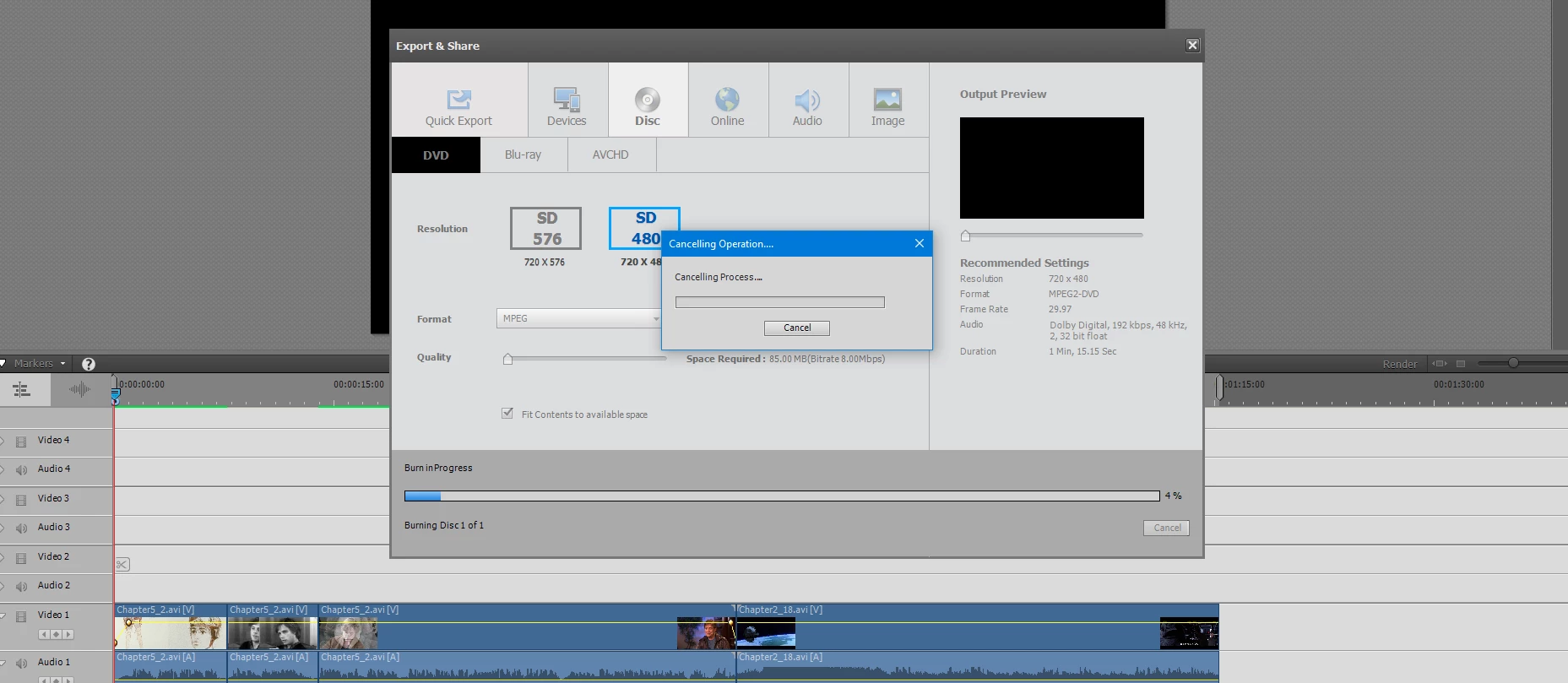
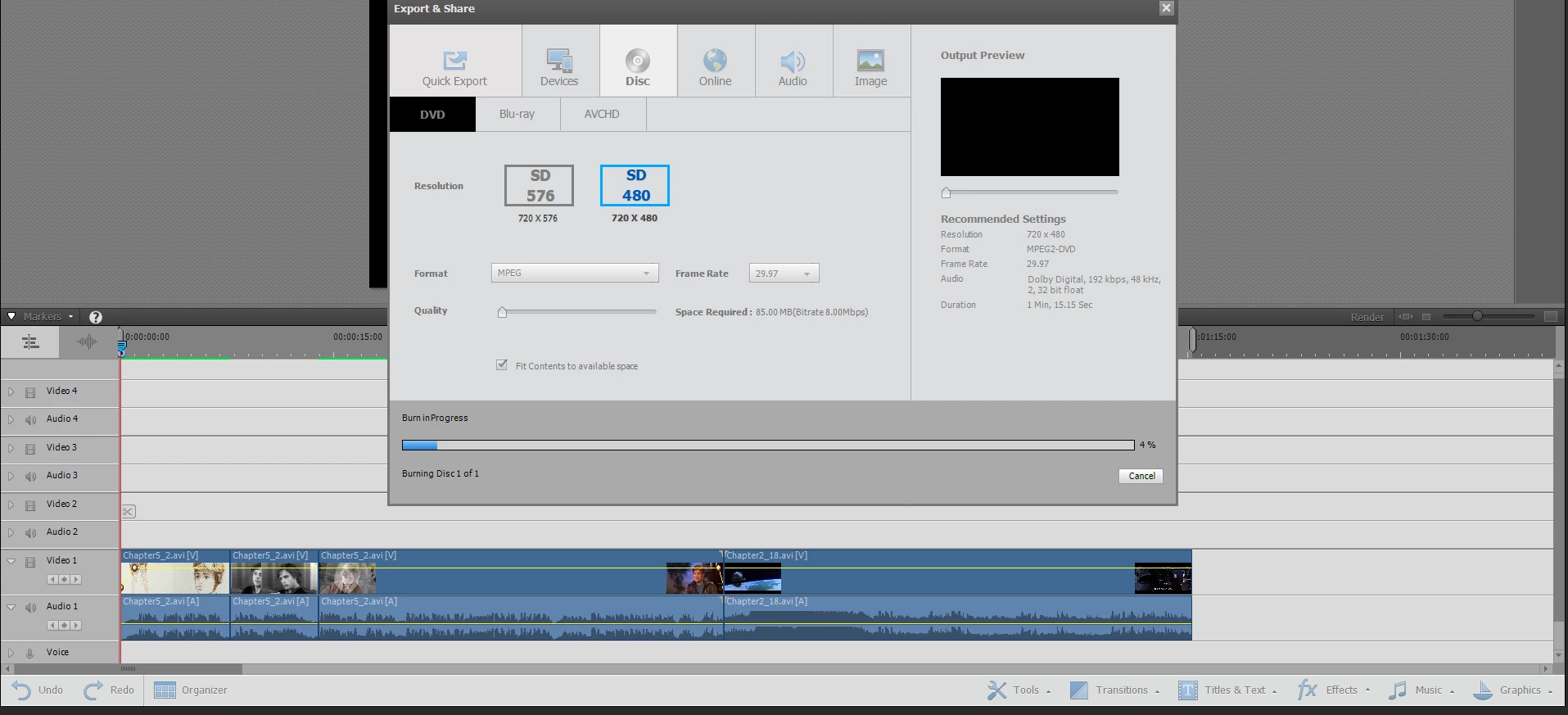
I try to burn to DVD and after going through the first pass, during the burn phase the progress bar gets to 4% and then stop.

The burn light on the DVD never flashes.

I then can't cancel.

I uninstalled then reinstalled the program, but I get the same result.

    This topic has been closed for replies.
    Correct answer masteryoda21

    As I said two posts ago, Where do you get the information that my firmware is out of date?

    I checked, my firmware wasn't out of date.

    I solved the problem.

    Here is the solution:

    • After a while I began to suspect that the markers might be the problem.   So I deleted all the markers and the video burned to DVD perfectly (also ISO to hard disc).
    • I then added the first Main menu marker and it didn't burn.
    • Then I removed that marker,
      • giving me none and
      • added the Stop marker for the first scene and
      • the Main menu marker for the second scene, and
    • it burned perfectly.

    Case solved.

    So I was right about:

    • Adobe Premier handling the video I used okay
    • My DVD drive firmware not being the problem
    • And using the correct resolution

    Steve Grisetti and Ann Bens, I understand and appreciate that you are only trying to help to the best of your abilities, but why are you both so arrogant in being wrong?  Completely wrong!   Especially since I wrote multiple times that the burning failed on ISO to hard drive, which by passes the DVD drive.   So the problem couldn't be a DVD firmware issue.

    Steve, you had a great idea about using the burned device video and testing that and I thank you for that idea.

    The remaining question is why does the first Main Menu marker cause the program burn to DVD to fail? 

    (This is a bug in the program).

    I might be doing something wrong here, but I have done this before with success.

    At 0:00:00.00 (the beginning of the video), I set a Main Menu marker.

    In this case is causes burn failure to DVD or ISO.

    In any case, my problem is solved.

    Thank you to everyone who contributed.

    8 replies

    Participant
    March 18, 2021

    I am having trouble burning a DVD with adobe premiere 14. It burns the disc with a region restricition so that it will play on some DVD players, but not others. I have burned discs in the past with the exact same settings and not had this issue so I am not sure what has changed and why it is putting a region restriction on the disc now. 


    Carolyn27765192shfb
    Participant
    January 1, 2023

    This was exactly my problem! I had a 20 minute movie and was trying to create an ISO image in Premier Elements 2022. I had a main marker at the beginning and at 2 other places in the movie.  I had a scene marker right after the 1st main marker and at other places in the 1st part of the movie. When creating the ISO image, it would encode the menus and the media but when it got to burning the ISO image, it stopped at 2%. I moved the file to another location (based on another thread) and that didn't work either. Same result. I deleted the first main menu marker from the beginning of the movie and left the scene markers and the other main menu marker, and the ISO image burned just fine! Strange solution but it worked! Thank you!!!!!

    Legend
    January 30, 2018

    We are detectives. And all we can do is work from the evidence provided.

    There was and still is every indication that your issue was firmware related. (Based on my 13 years working on this forum.)  If we can't otherwise duplicate your issue, that's all we can assume. I'm just never sure what to do when people argue with me. Usually when someone comes for help they want the benefit of your experience.

    Sorry if that's arrogant. But, short of my coming to your house and sitting down at your computer, all we can do is work from the information you provide us.

    Legend
    January 30, 2018

    As I said two posts ago, go to your computer manufacturer's web site (Dell, HP, whatever) and look up your computer model on their support page. You'll find the latest factory-approved firmware there.

    masteryoda21AuthorCorrect answer
    Inspiring
    January 30, 2018

    As I said two posts ago, Where do you get the information that my firmware is out of date?

    I checked, my firmware wasn't out of date.

    I solved the problem.

    Here is the solution:

    • After a while I began to suspect that the markers might be the problem.   So I deleted all the markers and the video burned to DVD perfectly (also ISO to hard disc).
    • I then added the first Main menu marker and it didn't burn.
    • Then I removed that marker,
      • giving me none and
      • added the Stop marker for the first scene and
      • the Main menu marker for the second scene, and
    • it burned perfectly.

    Case solved.

    So I was right about:

    • Adobe Premier handling the video I used okay
    • My DVD drive firmware not being the problem
    • And using the correct resolution

    Steve Grisetti and Ann Bens, I understand and appreciate that you are only trying to help to the best of your abilities, but why are you both so arrogant in being wrong?  Completely wrong!   Especially since I wrote multiple times that the burning failed on ISO to hard drive, which by passes the DVD drive.   So the problem couldn't be a DVD firmware issue.

    Steve, you had a great idea about using the burned device video and testing that and I thank you for that idea.

    The remaining question is why does the first Main Menu marker cause the program burn to DVD to fail? 

    (This is a bug in the program).

    I might be doing something wrong here, but I have done this before with success.

    At 0:00:00.00 (the beginning of the video), I set a Main Menu marker.

    In this case is causes burn failure to DVD or ISO.

    In any case, my problem is solved.

    Thank you to everyone who contributed.
    Ann Bens
    Community Expert
    Community Expert
    January 30, 2018

    Just trying to help, but if you think we are arrogant I am out.

    Legend
    January 29, 2018

    Is your latest firmware from your computer manufacturer's site? (Not Windows supplied, not from the burner's site.)

    If so and it's still not burning directly from Premiere Elements -- I don't know why, but the firmware is clearly the problem. It's not interfacing with the program.

    BTW, "brand new" computers often have firmware that is several months out of date. That's why, as soon as you get a computer, you should go to the manufacturer's web site and download the updates.

    Inspiring
    January 29, 2018

    Where do you get the information that my firmware is out of date?

    Ann Bens
    Community Expert
    Community Expert
    January 29, 2018

    New of the shelf computers have 'old' drivers/firmware as there is a time gap between assembly and latest drivers etc.

    So if you really want your computer up to date first thing you have to do is to check all drivers/firmware including the bios with the manufactures.

    Legend
    January 29, 2018

    Since your transcoding seems to be going fine but things are bugging up in the burn process, I'd re-consider Bill's suggestion that it's a firmware issue.

    This can sometimes be resolved by going to your computer's manufacturer's site (Dell, HP, whatever) and downloading the latest drivers for your disc burner from them.

    If that doesn't do it, the simplest solution is to select the option to burn your DVD to an ISO file. Once you've created an ISO file, you can use your DVD burner software (or ImgBurn) to create a DVD from that ISO.

    Inspiring
    January 29, 2018


    Thank you for the suggestion, but I have the latest firmware and how can it be the DVD firmware when I burn to ISO on the Hard Drive?

    When I burn to ISO on the hard drive, the DVD drive isn't even accessed.

    This is a brand new computer that I got in September of 2017.

    Legend
    January 28, 2018

    Meantime, if you'd like to shortcut this thing, you can go back to my post a few days ago.

    Did you say you could output an MP4 of the entire timeline?

    If so, open a new project and use that MP4 as your movie. (You can even make a copy of your current project, delete all the video that's currently on the timeline and put the MP4 there instead. That way you can still use the same DVD menu, etc., you've already set up.)

    Doing this eliminates any issues caused by your current timeline media. And assuming there's nothing going on firmware or hardware-wise, it should produce a DVD quite easily.

    Inspiring
    January 29, 2018

    That is a great idea.

    I tried that.

    I took the mp4 created by outputting my edited video to a device.

    I then imported that video.

    I then tried to burn the outputted video to an iso image on my hard drive.

    The process hangs on the second screen.  Burning to ISO image.

    I used both an existing project and then tried with a brand new project.

    Great idea though.

    Legend
    January 25, 2018

    I'm not sure how you got an AVI from a DVD. Did you convert the file? If so, you may have a created an AVI with a difficult codec to edit.

    You add black video by choosing the option under the Project Assets' panel options in the upper right of the panel.

    Strange that you can create a BluRay but not a DVD. Can you output a 720x480 MP4 of the timeline?

    Inspiring
    January 26, 2018

    I used Pavtube BDMagic to digitize the video.

    I have burned the sample video and it plays fine.   I do not belong to any of your supported sites to upload the video.

    I have also included a screen shot of the Export & Share dialog, which you will notice has not populated itself.   This behavior happens from time to time.

    I added the black video, as you instructed, but it still won't burn to DVD.

    Inspiring
    January 26, 2018

    I am on a Windows 10 system.

    Inspiring
    January 25, 2018

    Blue-ray burns fine, the problem is with burning DVD.

    Inspiring
    January 25, 2018

    Here is a screenshot of the markers.

    Legend
    January 25, 2018

    You can NOT have a break in the timeline with no video in Premiere Elements. Add black or blank video in the gap.

    That may or may not resolve your issue. There may also be something going on with your AVI video. Is this video from a miniDV camcorder, captured over a FireWire connection?