


Participant
December 17, 2017
Answered

Premiere Elements 2018 MPG4 thumbnails look normal but preview screen washed out

  • December 17, 2017
  • 2 replies
  • 396 views

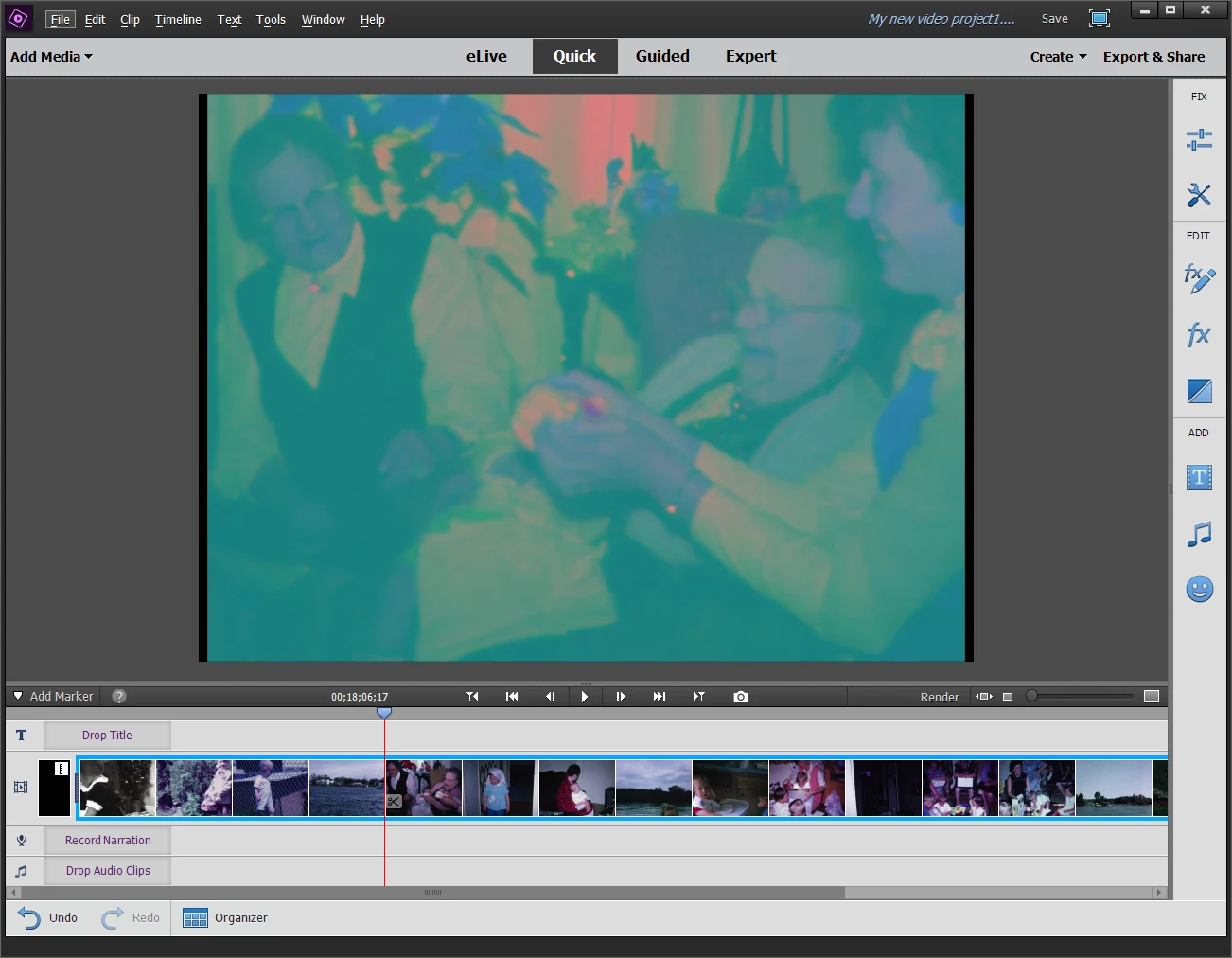
Was just starting to learn and use this program; i added a home movie that I converted to MP4 froma DVD and when I added it to my timeline, the thumbnails look fine, but the preview video looks so awful that I can't work or edit it ( As shown below ). How can the thumbnails render fine but not the preview video?
    This topic has been closed for replies.
    Correct answer Bill Sprague

    I don't know why they can't.

    Your title says "MPG4".  Your text says "MP4".  Which is it?  What did you use to make the conversion from DVD?

    Can you try changing the setting for "Hardware Acceleration" and "Time line render quality" on the General page in Preferences.

    Can you try pressing the "Render" button.

    Do you get the same in Expert?

    2 replies

    Community Expert
    December 17, 2017

    Wonderful.  I'm glad it was easy this time!  Thanks for posting that it worked. 

    Bill SpragueCommunity ExpertCorrect answer
    Community Expert
    December 17, 2017

    I don't know why they can't.

    Your title says "MPG4".  Your text says "MP4".  Which is it?  What did you use to make the conversion from DVD?

    Can you try changing the setting for "Hardware Acceleration" and "Time line render quality" on the General page in Preferences.

    Can you try pressing the "Render" button.

    Do you get the same in Expert?

    Participant
    December 17, 2017

    Well that was a great answer; I was looking for places to try and disable rendering things, but did not see that one. After I unchecked it, and restarted the preview video not looks good.

    I was also having problems when I went to click on render; it would work but then crash at the end. It looks like that might be fixed as well.

    Thanks a lot for the help, I appreciate it.


    Larry