
Participating Frequently
July 10, 2022
Question

Problem: Certain imported project videos gets pixelated

  • July 10, 2022
  • 9 replies
  • 1154 views

Hey all


I have an annoying problem and I cannot find any help on the Internet, so I am asking here to help me troubleshoot.


I am working on a video where I have recorded all my "footage" using OBS Studio to an MP4 1920x1080 30fps video.


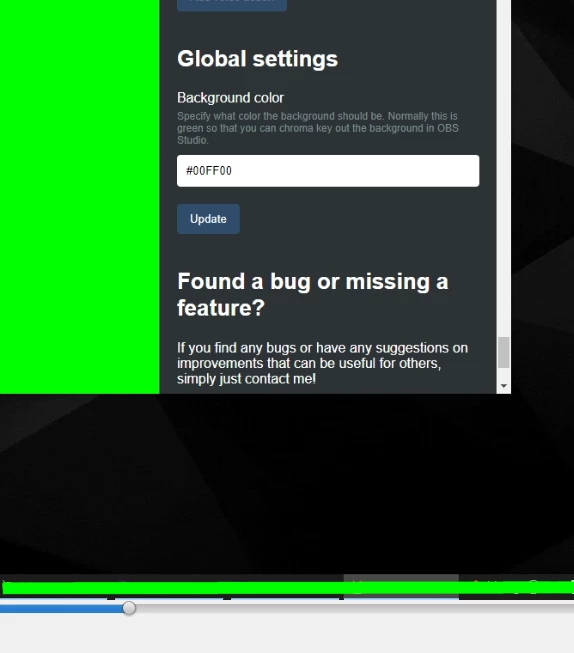
When I watch each individual raw video footage in VLC, they are 1:1 of how my screen looks like and I can easily read the text:


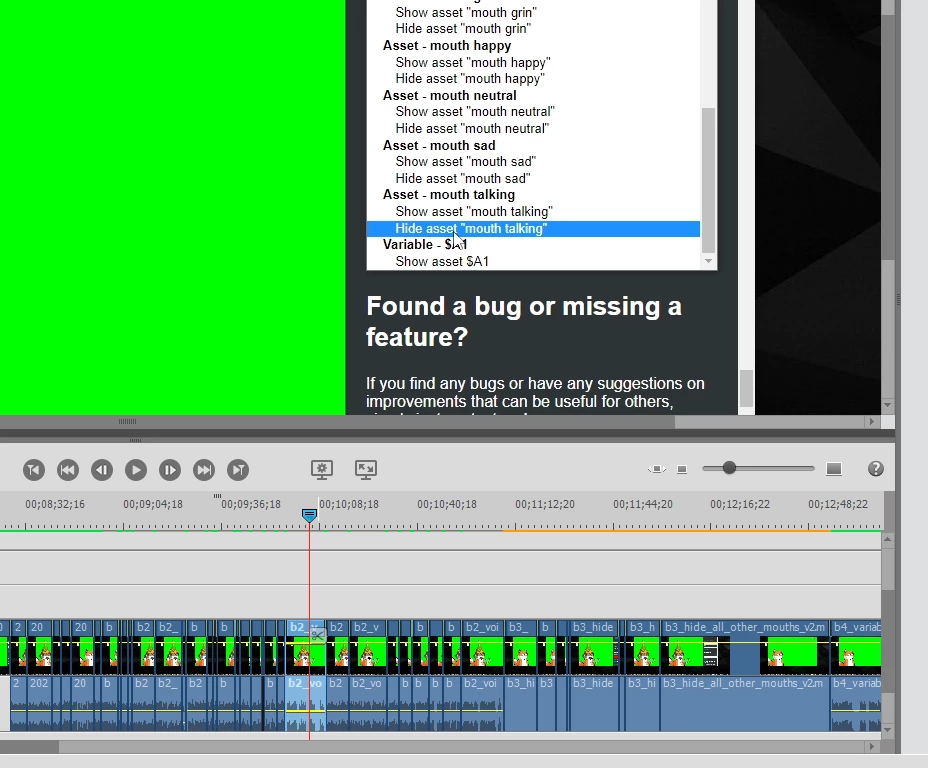
However, when I import these videos (which are all in the same format) into Adobe Premiere Elements, some are rendered as expected:


But for some reason, other videos are imported very pixelated:
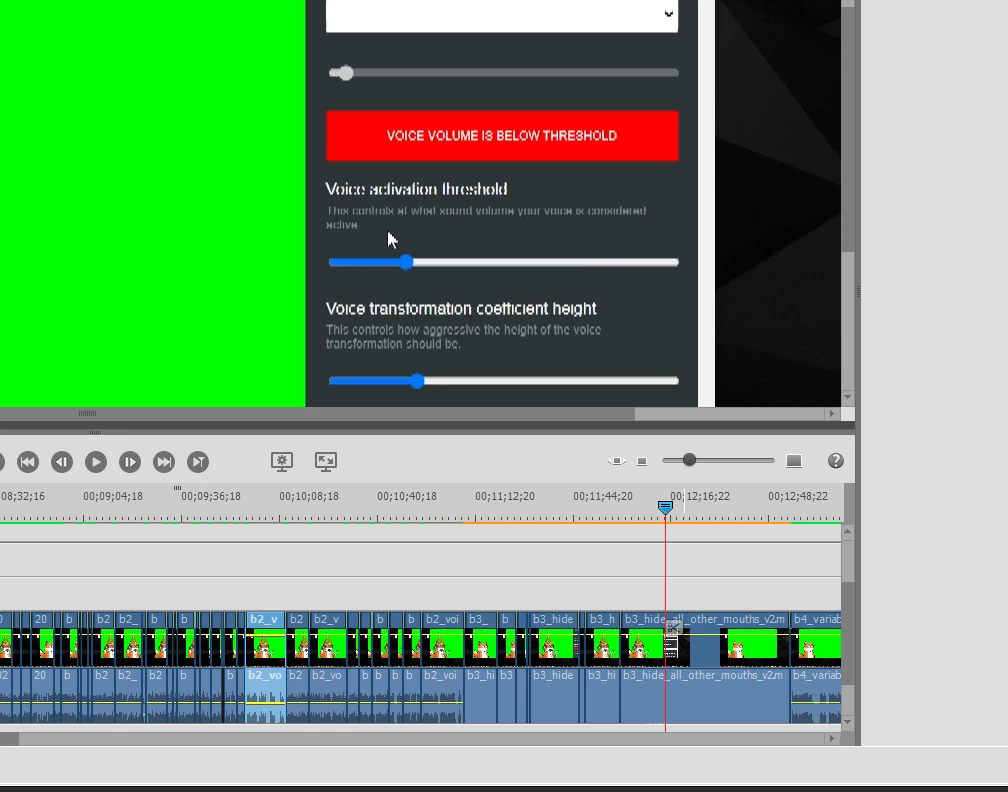
 

And the exported video gets this problem as well.


I have tried;

- Reanalyzing the video

- Moved the raw video to a new location and then in Premiere retarget it

- "Replaced Footage" with a copied version

- Rendered the video preview frames


I have no effects on either video, I've just been splitting.


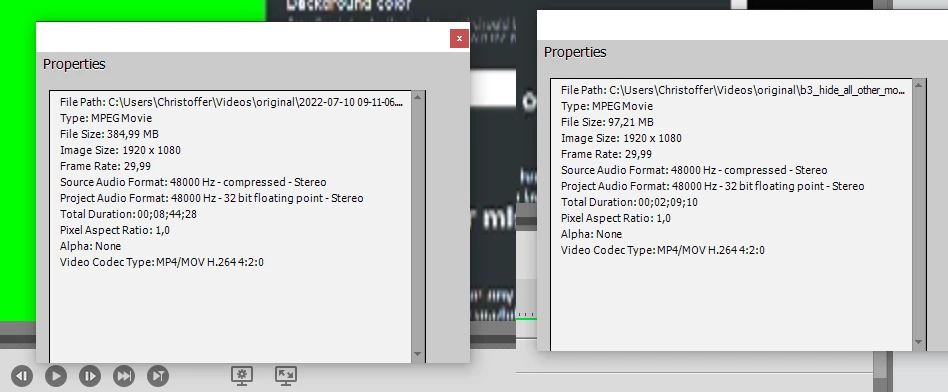
And if I check properties of a working video vs a pixelated video, they display the same data:
 

However, If I start a brand new project and import the pixelated video, everything is fine.

It seems like over time of splitting, it just becomes broken.


Does anyone recognize this problem and/or what else can try?


This topic has been closed for replies.

9 replies

Participating Frequently
July 14, 2022

I just did two tests using the MP4 video I attached above.


One with hardware acceleration on and one with hardware acceleration off.


Both didn't work.


Participating Frequently
July 12, 2022

Here is one of the clips that Premiere Elements always breaks and makes pixelated after Render:


2 minute video.


https://drive.google.com/file/d/19bW5_e5MmfPtPJ157XaYSe0GNbKIF1DA/view?usp=sharing


I am really curious if anyone here could download and add this to their own Premiere Elements and see if it gets pixelated or not.


(and if it does, does anyone know how to re-encode it so it will work in Premiere Elements)

Ann Bens
Community Expert
Community Expert
July 12, 2022

This is an original clip? Straight from OBS?

No pixelation in 2022.

Post screenshot project settings.

What is your playback resolution.

Can you change the audio to say pcm?

Participating Frequently
July 12, 2022

I just tried Handlebreak and tried to convert one of the clips that always gets pixelated to a constante framerate and bit rate, without luck.


Participating Frequently
July 11, 2022


I have "re-encoded" a clip that gets broken in Premiere Elements 18 multiple times.


For example, I have imported it into Movie Maker and then exported it, which fails.

I have re-encoded it multiple times with FFMPEG using various settings, which fails.


I have even managed to import the clip to Premiere Elements 18, and exported it perfectly immediently, but if I import the clip into Premiere Elements, press Render, then it becomes pixelated in preview and output.


If the problem is truely that the video is not compatible, then I will gladly re-encode it to whatever.

But the problem seems to be that Premiere Elements 18 is breaking the clip with its Render function.


I can give a link to the MP4 here if anyone here wants to try themselves.


Here is a detailed output from MediaInfo of various versions of the clip I have tried.

Ann Bens
Community Expert
Community Expert
July 11, 2022

Try Handbrake and make sure its contstant framerate.

Can you upload a original short clip to test?

Ann Bens
Community Expert
Community Expert
July 11, 2022

In the preferences, there is a setting for H.264 acceleration: turn that off.

Participating Frequently
July 11, 2022

I have "re-encoded" a clip that gets broken in Premiere Elements 18 multiple times.


For example, I have imported it into Movie Maker and then exported it, which fails.

I have re-encoded it multiple times with FFMPEG using various settings, which fails.


I have even managed to import the clip to Premiere Elements 18, and exported it perfectly immediently, but if I import the clip into Premiere Elements, press Render, then it becomes pixelated in preview and output.


If the problem is truely that the video is not compatible, then I will gladly re-encode it to whatever.

But the problem seems to be that Premiere Elements 18 is breaking the clip with its Render function.


I can give a link to the MP4 here if anyone here wants to try themselves.


Here is a detailed output from MediaInfo of various versions of the clip I have tried.


Original

General
Complete name : C:\Users\Christoffer\Videos\original\video\1_upload_v3.mp4
Format : MPEG-4
Format profile : Base Media
File size : 404 MiB
Duration : 9 min 13 s
Overall bit rate mode : Variable
Overall bit rate : 6 129 kb/s
Writing application : Lavf58.76.100

Video
ID : 1
Format : AVC
Format/Info : Advanced Video Codec
Format profile : High
Format level : 4
Format settings, CABAC : Yes
Format settings, Reference frames : 4 frames
Codec ID : avc1
Duration : 9 min 13 s
Source duration : 9 min 13 s
Bit rate : 6 000 kb/s
Width : 1 920 pixels
Height : 1 080 pixels
Display aspect ratio : 16:9
Frame rate mode : Constant
Frame rate : 30.000 FPS
Color space : YUV
Chroma subsampling : 4:2:0
Bit depth : 8 bits
Scan type : Progressive
Bits/(Pixel*Frame) : 0.096
Stream size : 380 MiB (94%)
Source stream size : 396 MiB (98%)
Writing library : x264 core 163 r3060 5db6aa6
Encoding settings : cabac=1 / ref=1 / deblock=1:0:0 / analyse=0x3:0x113 / me=hex / subme=2 / psy=1 / psy_rd=1.00:0.00 / mixed_ref=0 / me_range=16 / chroma_me=1 / trellis=0 / 8x8dct=1 / cqm=0 / deadzone=21,11 / fast_pskip=1 / chroma_qp_offset=0 / threads=18 / lookahead_threads=6 / sliced_threads=0 / nr=0 / decimate=1 / interlaced=0 / bluray_compat=0 / constrained_intra=0 / bframes=3 / b_pyramid=2 / b_adapt=1 / b_bias=0 / direct=1 / weightb=1 / open_gop=0 / weightp=1 / keyint=250 / keyint_min=25 / scenecut=40 / intra_refresh=0 / rc_lookahead=10 / rc=cbr / mbtree=1 / bitrate=6000 / ratetol=1.0 / qcomp=0.60 / qpmin=0 / qpmax=69 / qpstep=4 / vbv_maxrate=6000 / vbv_bufsize=6000 / nal_hrd=none / filler=1 / ip_ratio=1.40 / aq=1:1.00
Color range : Limited
Color primaries : BT.709
Transfer characteristics : BT.709
Matrix coefficients : BT.709
mdhd_Duration : 553567
Codec configuration box : avcC

Audio
ID : 2
Format : AAC LC
Format/Info : Advanced Audio Codec
Codec ID : mp4a-40-2
Duration : 9 min 13 s
Bit rate mode : Variable
Bit rate : 121 kb/s
Maximum bit rate : 320 kb/s
Channel(s) : 2 channels
Channel layout : L R
Sampling rate : 48.0 kHz
Frame rate : 46.875 FPS (1024 SPF)
Compression mode : Lossy
Stream size : 8.00 MiB (2%)
Title : Track1
Default : Yes
Alternate group : 1


MovieMaker version (notice the bit rate is not variable)

General
Complete name : C:\Users\Christoffer\Videos\original\video\1_upload_v4_moviemaker.mp4
Format : MPEG-4
Format profile : Base Media / Version 2
File size : 176 MiB
Duration : 9 min 13 s
Overall bit rate : 2 661 kb/s
Encoded date : UTC 2022-07-10 13:58:15
Tagged date : UTC 2022-07-10 13:58:15

Video
ID : 1
Format : AVC
Format/Info : Advanced Video Codec
Format profile : Baseline
Format level : 4
Format settings, CABAC : No
Format settings, Reference frames : 2 frames
Format settings, GOP : M=1, N=30
Codec ID : avc1
Duration : 9 min 13 s
Bit rate : 2 505 kb/s
Width : 1 920 pixels
Height : 1 080 pixels
Display aspect ratio : 16:9
Frame rate mode : Variable
Frame rate : 29.970 FPS
Minimum frame rate : 29.970 FPS
Maximum frame rate : 30.000 FPS
Color space : YUV
Chroma subsampling : 4:2:0
Bit depth : 8 bits
Scan type : Progressive
Bits/(Pixel*Frame) : 0.040
Stream size : 165 MiB (94%)
Encoded date : UTC 2022-07-10 13:58:15
Tagged date : UTC 2022-07-10 13:58:15
mdhd_Duration : 553887
Codec configuration box : avcC

Audio
ID : 2
Format : AAC LC
Format/Info : Advanced Audio Codec
Codec ID : mp4a-40-2
Duration : 9 min 13 s
Bit rate mode : Constant
Bit rate : 153 kb/s
Nominal bit rate : 192 kb/s
Channel(s) : 2 channels
Channel layout : L R
Sampling rate : 48.0 kHz
Frame rate : 46.875 FPS (1024 SPF)
Compression mode : Lossy
Stream size : 10.1 MiB (6%)
Encoded date : UTC 2022-07-10 13:58:15
Tagged date : UTC 2022-07-10 13:58:15
mdhd_Duration : 553899


Premiere Elements 18 version before pressing Render

General
Complete name : C:\Users\Christoffer\Videos\original\video\1_upload_v4_before.mp4
Format : MPEG-4
Format profile : Base Media / Version 2
File size : 340 MiB
Duration : 9 min 13 s
Overall bit rate mode : Variable
Overall bit rate : 5 157 kb/s
Encoded date : UTC 2022-07-10 14:24:31
Tagged date : UTC 2022-07-10 14:27:19
TIM : 00:00:00:00
TSC : 30000
TSZ : 1001

Video
ID : 1
Format : AVC
Format/Info : Advanced Video Codec
Format profile : Main
Format level : 4.2
Format settings, CABAC : Yes
Format settings, Reference frames : 4 frames
Format settings, GOP : M=4, N=29
Codec ID : avc1
Duration : 9 min 13 s
Bit rate : 4 995 kb/s
Width : 1 920 pixels
Height : 1 080 pixels
Display aspect ratio : 16:9
Frame rate mode : Constant
Frame rate : 29.970 FPS
Color space : YUV
Chroma subsampling : 4:2:0
Bit depth : 8 bits
Scan type : Progressive
Bits/(Pixel*Frame) : 0.080
Stream size : 330 MiB (97%)
Language : English
Encoded date : UTC 2022-07-10 14:24:31
Tagged date : UTC 2022-07-10 14:24:31
Color range : Limited
Color primaries : BT.709
Transfer characteristics : BT.709
Matrix coefficients : BT.709
Codec configuration box : avcC

Audio
ID : 2
Format : AAC LC
Format/Info : Advanced Audio Codec
Codec ID : mp4a-40-2
Duration : 9 min 13 s
Source duration : 9 min 13 s
Bit rate mode : Variable
Bit rate : 157 kb/s
Maximum bit rate : 249 kb/s
Channel(s) : 2 channels
Channel layout : L R
Sampling rate : 48.0 kHz
Frame rate : 46.875 FPS (1024 SPF)
Compression mode : Lossy
Stream size : 10.4 MiB (3%)
Source stream size : 10.4 MiB (3%)
Language : English
Encoded date : UTC 2022-07-10 14:24:31
Tagged date : UTC 2022-07-10 14:24:31


One of the FFMPEG version

General
Complete name : C:\Users\Christoffer\Desktop\ffmpeg\output_1_uploaded_ffmpeg_122.mp4
Format : MPEG-4
Format profile : Base Media
File size : 404 MiB
Duration : 9 min 13 s
Overall bit rate : 6 129 kb/s
Writing application : Lavf58.76.100

Video
ID : 1
Format : AVC
Format/Info : Advanced Video Codec
Format profile : High
Format level : 4
Format settings, CABAC : Yes
Format settings, Reference frames : 4 frames
Codec ID : avc1
Duration : 9 min 13 s
Source duration : 9 min 13 s
Bit rate : 5 999 kb/s
Width : 1 920 pixels
Height : 1 080 pixels
Display aspect ratio : 16:9
Frame rate mode : Constant
Frame rate : 30.000 FPS
Color space : YUV
Chroma subsampling : 4:2:0
Bit depth : 8 bits
Scan type : Progressive
Bits/(Pixel*Frame) : 0.096
Stream size : 380 MiB (94%)
Source stream size : 396 MiB (98%)
Writing library : x264 core 163 r3060 5db6aa6
Encoding settings : cabac=1 / ref=1 / deblock=1:0:0 / analyse=0x3:0x113 / me=hex / subme=2 / psy=1 / psy_rd=1.00:0.00 / mixed_ref=0 / me_range=16 / chroma_me=1 / trellis=0 / 8x8dct=1 / cqm=0 / deadzone=21,11 / fast_pskip=1 / chroma_qp_offset=0 / threads=18 / lookahead_threads=6 / sliced_threads=0 / nr=0 / decimate=1 / interlaced=0 / bluray_compat=0 / constrained_intra=0 / bframes=3 / b_pyramid=2 / b_adapt=1 / b_bias=0 / direct=1 / weightb=1 / open_gop=0 / weightp=1 / keyint=250 / keyint_min=25 / scenecut=40 / intra_refresh=0 / rc_lookahead=10 / rc=cbr / mbtree=1 / bitrate=6000 / ratetol=1.0 / qcomp=0.60 / qpmin=0 / qpmax=69 / qpstep=4 / vbv_maxrate=6000 / vbv_bufsize=6000 / nal_hrd=none / filler=1 / ip_ratio=1.40 / aq=1:1.00
Color range : Limited
Color primaries : BT.709
Transfer characteristics : BT.709
Matrix coefficients : BT.709
mdhd_Duration : 553567
Codec configuration box : avcC

Audio
ID : 2
Format : AAC LC
Format/Info : Advanced Audio Codec
Codec ID : mp4a-40-2
Duration : 9 min 13 s
Bit rate mode : Constant
Bit rate : 121 kb/s
Channel(s) : 2 channels
Channel layout : L R
Sampling rate : 48.0 kHz
Frame rate : 46.875 FPS (1024 SPF)
Compression mode : Lossy
Stream size : 8.00 MiB (2%)
Default : Yes
Alternate group : 1


Participating Frequently
July 10, 2022

To make things even confusing, the problem seems to be when Premiere Elements renders the certain videos.


On the image below the bar is orange and clear.

After Render, the bar becomes green but the video becomes totally pixelated.


I get the same problem with Premiere Elements 2022 Trail Version.


Legend
July 10, 2022

We can't help you without the complete MediaInfo report we asked for.

Participating Frequently
July 10, 2022

Wasn't this what you wanted I posted earlier?


Participating Frequently
July 10, 2022

Windows 10 Pro

Adobe Premiere Elements 2020 (version 18)


Some of the clips have a gray bar and are rendered 1:1, as they were recorded.

Some have a green bar and they become pixelated in preview & export.


All clips are recorded using the same OBS Studio with the same setting.


Ann Bens
Community Expert
Community Expert
July 10, 2022

Clips are variable framerate. Need to set OBS to constant framerate (not bitrate).

Variable framerate is known to give issues.

Or try to interpret the footage that is 29,99 to 30 frames in Elemensts

Dont know is you are intending to use the audio but with variable framerate it tends to go out of sync.

Participating Frequently
July 10, 2022

I tried intepreting all the videos that becomes pixelated to all the different types (including 30fps), unfortunately it did not work.


As a quick experiment, I also imported one of the videos into Movie Maker and re-exported it as a MP4 and then "", Premiere Elements is still confirming it into a pixelated version. This is the MediaInfo of the Movie Maker version.


Participating Frequently
July 10, 2022

Update 2: I have noticed that all imported clips that are pixelated, has this green bar above it in the timeline.


The video that does not get pixelated are gray, but all the videos that are pixelated in the preview and exported has green.


Does anyone know what this is and why it would make the video pixelated?


Legend
July 10, 2022

It could be that OBS is producing files that aren't fully compatible with Premiere Elements.


Open one of those OBS MP4s in the free download MediaInfo. In MediaInfo, set View to Text and then copy the text of this report and paste it to this forum. With this detailed report, we can better advise you.


Also please advise us which version of the program you're using on what operating system.

Participating Frequently
July 10, 2022

Also, if I open up "Open in Clip Monitoring", the clip seems fine there:


So, for some reason, in the timeline, the file gets pixelated. Both in preview but also in the exported version.