


Question
Remove trial version watermark: Where do I find "Delete Rendered Files for All Projects"?
Hi,
I would like to remove the trial version watermark from my video. I purchased the full version of Premiere Elements and read this thread, saying that one is supposed to click on "Delete Rendered Files for All Projects": https://community.adobe.com/t5/premiere-elements/how-to-remove-trial-version-watermark-on-premiere-elements-15/m-p/8957468?page=1#M7284
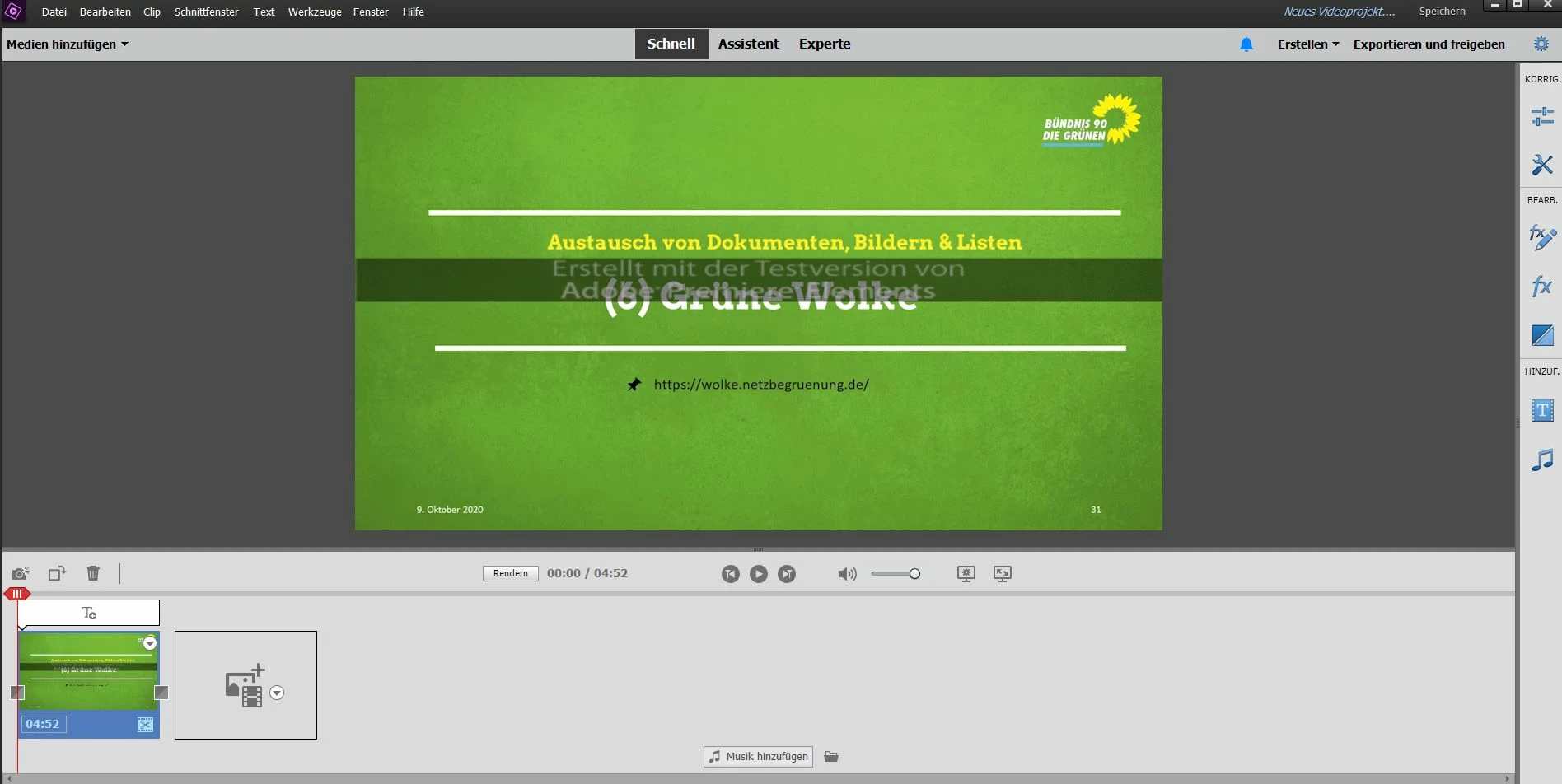
The problem is that I can't find any button to click on that's called ""Delete Rendered Files for All Projects" (my version is in German, but I can't find anything correspondent). Can somebody help me?
Here's a screenshot:
Thank you for your help in advance.
 AdChoices