
December 15, 2016
Answered

((( REMOVING BLACK BARS ON TOP BOTTOM AND SIDES OF VIDEOS
  • December 15, 2016
  • 7 replies
  • 25113 views

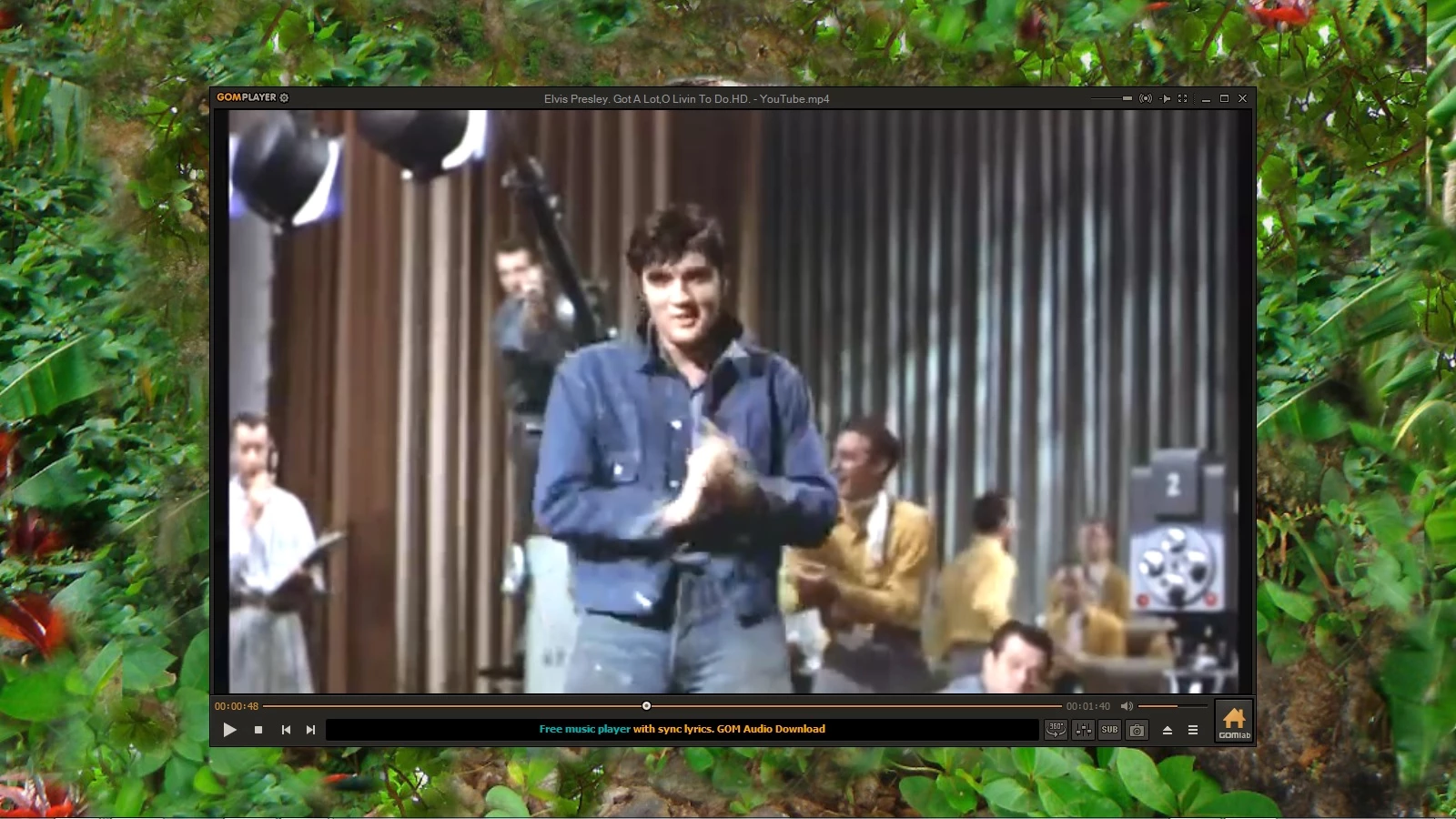
Above you should find the original video in a screenshot frame

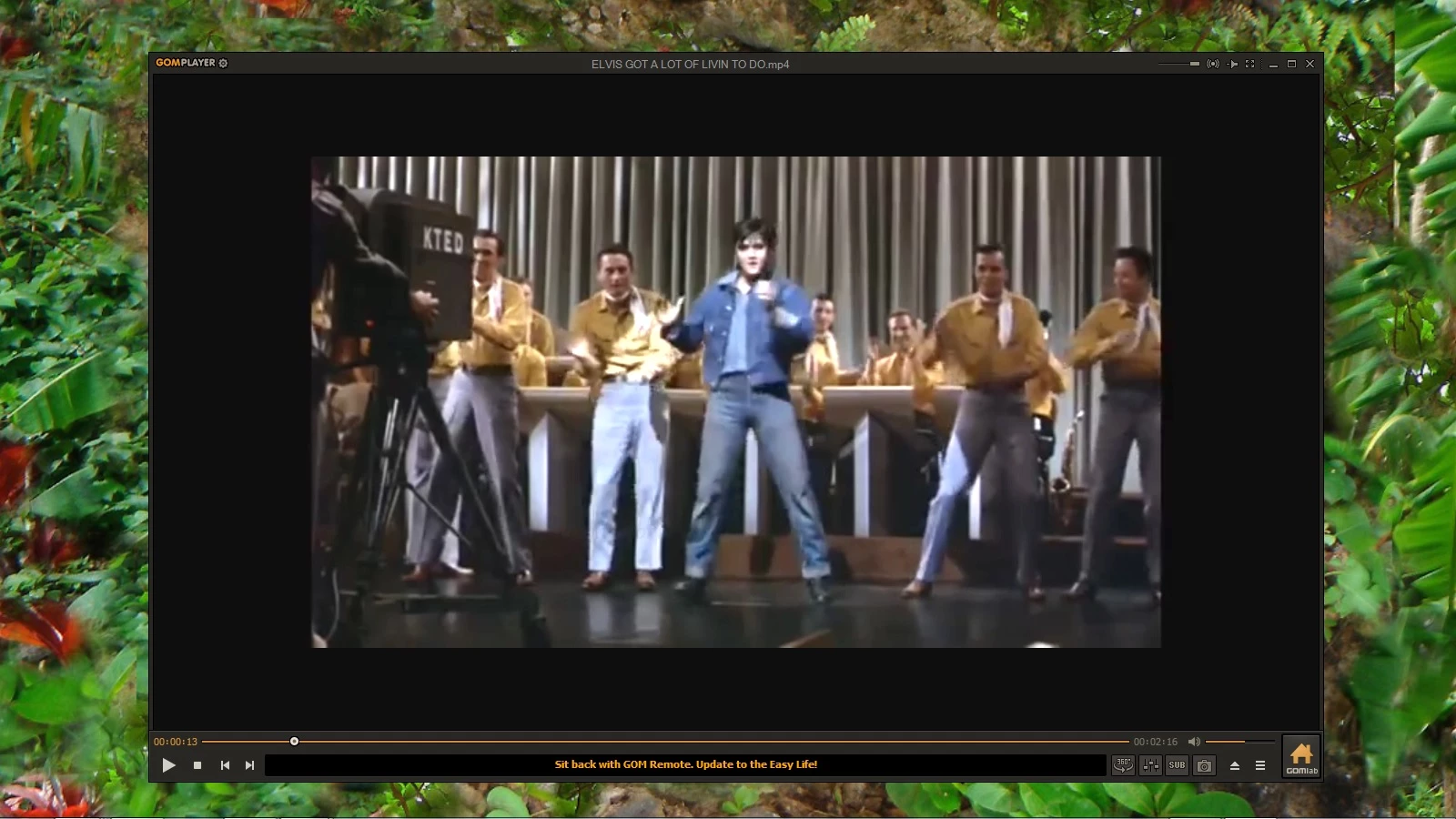
Below you should find the video after working on it in Adobe Premiere Elements 14 and saving it in

HD 720    MP4 - H 264  High quality.

I want it to fill the video player like the original without black bars on the sides and the top.

I sure hope someone can help me as this is very annoying when it rarely happens with videos I work on.

Thanks!!

Trying to explain this over the phone or in a chat box would have been very difficult.

I saved 1000 words with each screenshot.
    This topic has been closed for replies.
    Correct answer pgauba

    Hi,

    Your file is 640x360 with pixel aspect ration 1 and in Premiere elements there is no setting for this dimension.

    To get the output without black borders, follow the below mentioned steps and you will get the exact video -

    1. Go to File - New Project

    2. Enter Project Name and click on Change settings

    3. Expand the PAL option under available Presets option

    4. Expand AVCHD

    5. Select AVCHD LITE 720p25 and click on ok button

    6. Select the "Force selected Project settings on this Project" option

    7. Click on ok button

    8. Import your files in this project and add in timeline

    9. Now you can save it to HD 720    MP4 - H 264  High quality

    10. You will get the results without black borders.

    Please let me know if it works or not.

    Thanks,

    Pankaj Gauba

    7 replies

    Participant
    June 14, 2020

    didn't work


    Participant
    February 25, 2021

    Can't he just go to "Allied Effects" "Motion" the scale up?

    Participant
    June 14, 2020

    how to save video to HD 720    MP4 - H 264  High quality

    Legend
    December 19, 2016

    The chat service is still here. It can be reached right through the program or via the web site.

    Contact Customer Care

    December 19, 2016

    If I can't upload the images in the chat windows I don't think they can help me much in this matter.

    Surely there must be a solution. Then again...maybe not.

    Oh well....

    It's not like my life is on the line. I just wish I could fix this problem for all time!!

    pgaubaCorrect answer
    Adobe Employee
    January 4, 2017

    Hi,

    Your file is 640x360 with pixel aspect ration 1 and in Premiere elements there is no setting for this dimension.

    To get the output without black borders, follow the below mentioned steps and you will get the exact video -

    1. Go to File - New Project

    2. Enter Project Name and click on Change settings

    3. Expand the PAL option under available Presets option

    4. Expand AVCHD

    5. Select AVCHD LITE 720p25 and click on ok button

    6. Select the "Force selected Project settings on this Project" option

    7. Click on ok button

    8. Import your files in this project and add in timeline

    9. Now you can save it to HD 720    MP4 - H 264  High quality

    10. You will get the results without black borders.

    Please let me know if it works or not.

    Thanks,

    Pankaj Gauba

    Legend
    December 17, 2016

    What is listed in this new project on the General page of Project Settings, under the Edit menu?

    Meantime, your Elvis video is 25 fps rather than the NTSC (American) standard of 30 fps. You still haven't said where this video came from or how you ripped it to an MPEG file, but it is definitely problematic.

    December 17, 2016

    I keep doing what you tell me to do it doesn't work and you keep asking me to do more complicated stuff.

    I got it from YouTube and I ripped it with Real Player Downloader

    Elvis Presley. Got A Lot,O Livin To Do.HD. - YouTube

    December 17, 2016

    ISN'T THERE ANYONE ELSE HERE WITH A DIFFERENT SUGGESTION?

    Sure would appreciate it.

    Legend
    December 17, 2016

    The Image Size in your last picture is the resolution of your video: 640x360. That's 16:9.

    Your project settings are set up for 640x480 video. That's 4:3 video.

    In other words, your video is 1.77% as wide as it is tall -- yet your project settings are for a video frame that is 1.33% as wide as it is tall. That's why your video is not filling your video frame, and it's why you're seeing black bars along the top and bottom.

    Normally the program will automatically create project settings that match your video, based on the first clip on your timeline. However, this video has some unusual characteristics, probably based on how you created it. Is this video ripped from YouTube or ripped from a DVD or copied from a VTR? All of those methods can create files that don't often jibe well with Premiere Elements.

    You can try manually setting up a project. Start a new project and on the New Project screen, click Settings and select the preset for AVCHD Lite 720p25 (assuming you're using the PAL TV system). That's not an exact match, but at least your video will fill your video frame.

    December 17, 2016

    I live in America. I don't believe we tend to use the PAL system here, do we?

    December 17, 2016

    I tried what you have suggested and am still having problems.

    Any other suggestions?

    Legend
    December 16, 2016

    If you right-click on the Elvis video and select Properties, what does it show you as the video's resolution?

    December 17, 2016

    I keep doing what you ask and continue to not see anything saying "resolution"

    Legend
    December 16, 2016

    What is the resolution of the Elvis video you're using as your source video?

    Under the program's Edit menu, what is listed on the General page under Project Settings?

    December 16, 2016

    I don't see anything in that menu that says resolution