
Participant
October 23, 2023
Answered

Video appearing corrupted in workspace but fine in preview

  • October 23, 2023
  • 2 replies
  • 657 views

Hi All,


I have been trying to solve my problem for several weeks. When importing some GoPro footage into Premiere Elements, it is not read or decoded properly. Please see the annotated screen shot below:
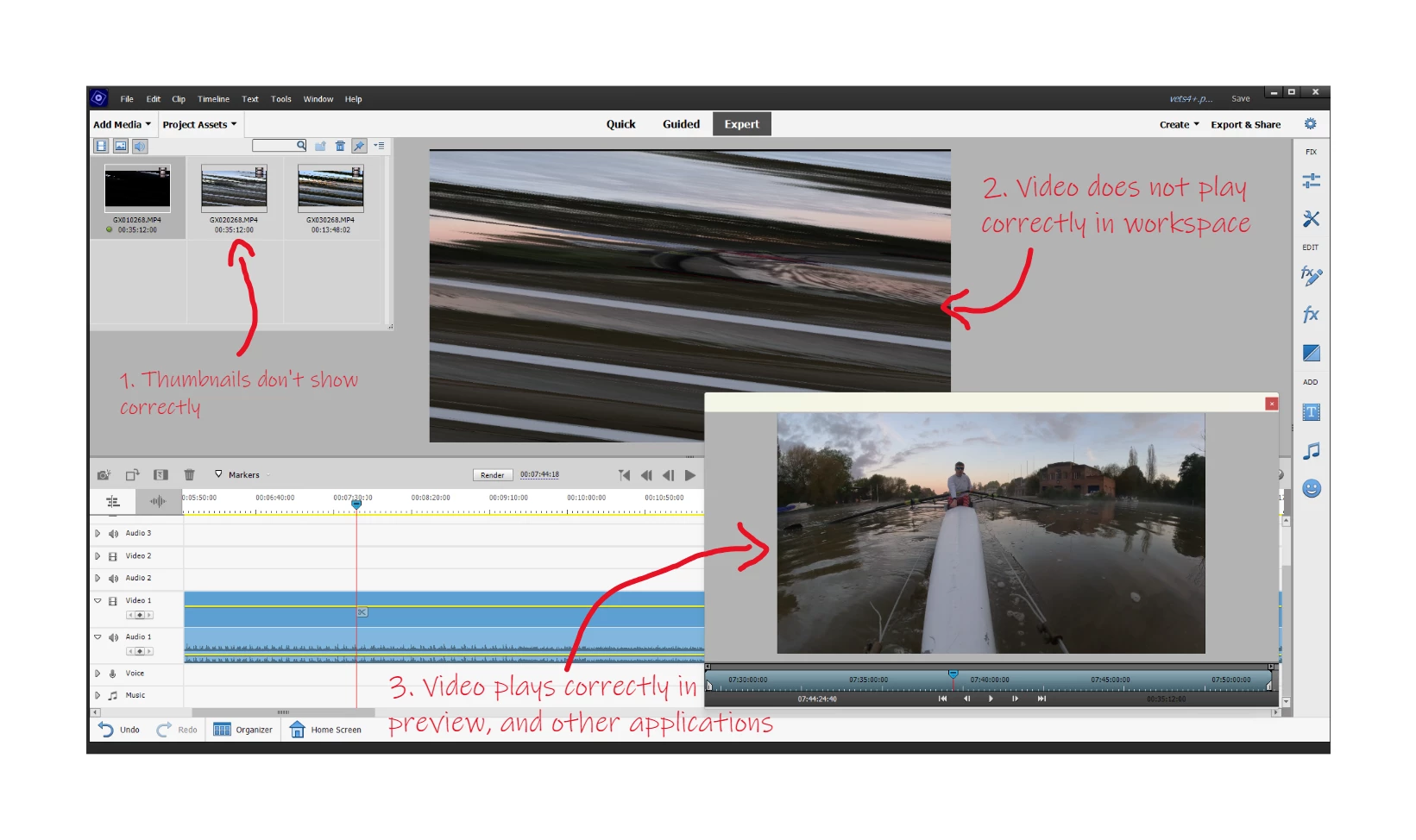
The files play correctly in all programs, even Premiere itself, however they don't play correctly when they are added into the workspace. Any tips would be very much appreciated.


Editing Device

Razer Blade 15

Intel Core i9-11900H

32 GB of RAM

GeForce RTX 3080 Laptop GPU

Windows 11 Home 22H2 OS Build 22621.2428

Adobe Premiere Elements Version 21.0

Premiere Elements Project: QHD 50 fps, force settings onto project

Files

2.7k 50 fps

GoPro Hero 11 Black

10 bit colour depth

High bit rate


Thanks,


Damien

This topic has been closed for replies.
Correct answer Bill Sprague

First guess is that you may need a Nvidia graphics card driver update.  The "studio" version is preferred over the "gamer" version.   Second guess is that the GoPro codec doesn't match the project.   GoPro's tend to use some unique video formats (codecs) to achieve their unique features.  They may not all work well with Premiere Elements.  You might have sucess with useing the (free) Handbrake program to convert to the universal H.264 codec. 

2 replies

Inspiring
October 23, 2023

I think this is the same problem as here:

Re: HEVC videos look scrambled in preview images a... - Adobe Community - 11380726


APE has a problem with 2.7 resolution and they haven't fixed it for very long time as many other problems......

Bill SpragueCommunity ExpertCorrect answer
Community Expert
October 23, 2023

First guess is that you may need a Nvidia graphics card driver update.  The "studio" version is preferred over the "gamer" version.   Second guess is that the GoPro codec doesn't match the project.   GoPro's tend to use some unique video formats (codecs) to achieve their unique features.  They may not all work well with Premiere Elements.  You might have sucess with useing the (free) Handbrake program to convert to the universal H.264 codec. 

zamonsAuthor
Participant
October 23, 2023

Changing my NVIDIA driver from game ready to studio did not solve the issue. However, re-encoding the file in with handbrake did. Thanks for your help!

Inspiring
October 23, 2023

Did you re-encode to different resolution?