


Participant
Oct 13, 2021 5:27 PM UTC
Answered

Missing media on Premiere Rush for Desktop

Hello, 


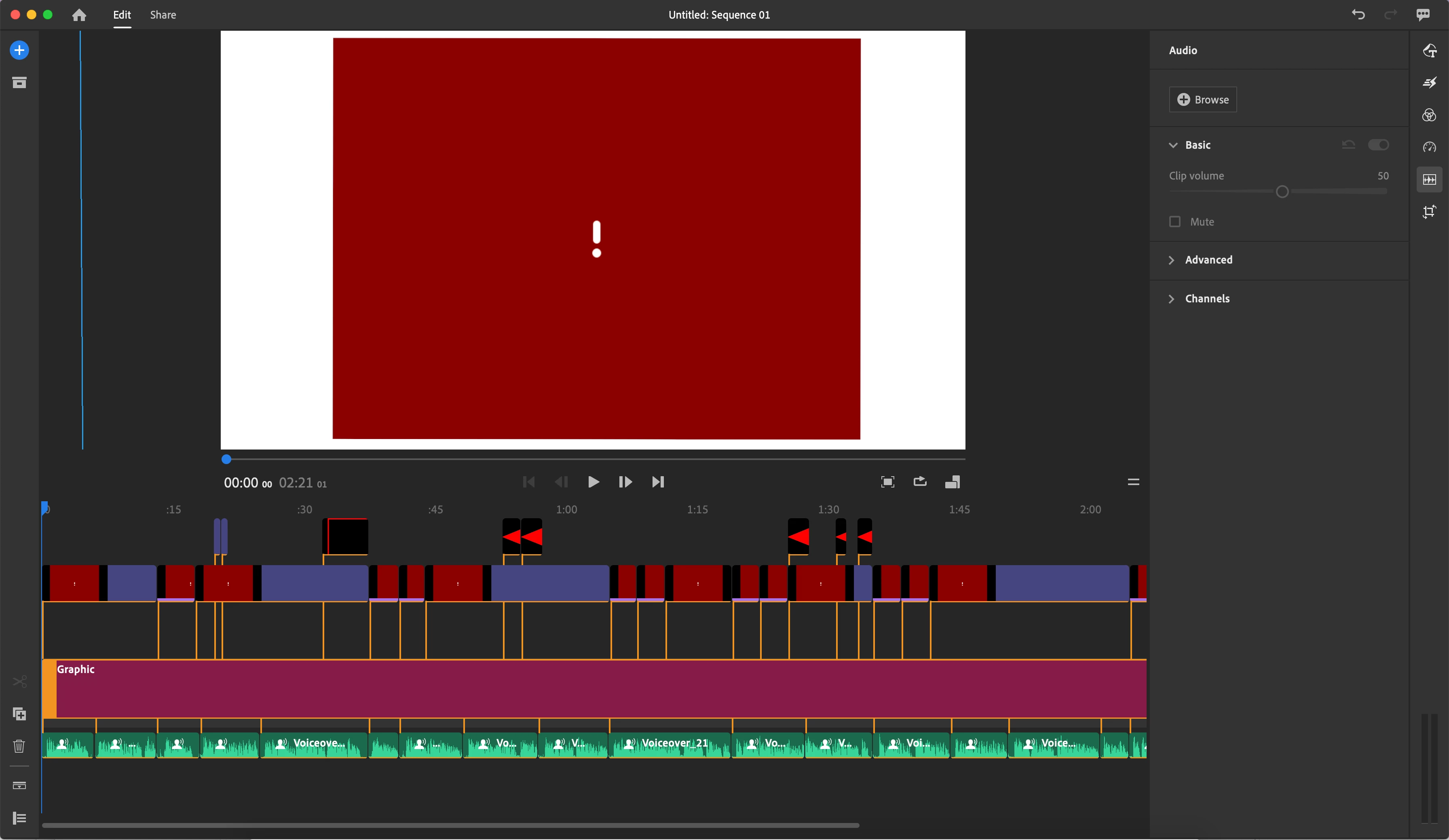
I have made a video on Premiere Rush for Desktop (I do not use the mobile version). I successfully exported the video a couple times, but I went to make another change and I am getting all my media coming up with a red box with a ! in the middle. I don't think I have changed anything, but this is what my screen now looks like. All of these red boxes correspond to one image that is being moved across the screen with pan shifts and zooms. I also do not use sync. How can I get my media back?


Thank you!
 

This topic is closed to new replies. Start a new post to keep the conversation going.
Lara35065570f359Correct answer
Participant
Jan 27, 2024 12:05 AM UTC

YOU JUST SAVED ME !!!!    10 hours of work ! 

THANK YOU 🙏

13 replies

Lara35065570f359Correct answer
Participant
Jan 27, 2024 12:05 AM UTC

YOU JUST SAVED ME !!!!    10 hours of work ! 

THANK YOU 🙏

Translate
Participant
Nov 17, 2022 1:04 PM UTC

was having same issue going from iphone to pc - tried creating video on iphone using iphone photos uploaded to DropBox and solved problem, did not have to click 'find and connect' download was automatic - much faster too


was not having same issue going from creating videos on pc and viewing on iphone 

Translate
dinakt12Author
Participant
Oct 13, 2021 5:32 PM UTC

I have figured it out! For anyone in the future that has this problem, go to project assets. Find the media that does not have a preview available and click to link it with the location of that image/media on your computer. The path to the media must have gotten lost somewhere. 

Translate
Participant
Nov 8, 2021 8:26 PM UTC

Hello, i don't understand... I have the same problem....

Translate
Participant
Feb 4, 2022 5:39 PM UTC

In the Adobe Rush project, on the left side of your screen, click on the file box icon -- those are the assets. Then find the missing asset, click the 3 dots in the lower right corner of the missing asset, and click "find and connect."


Translate