joejamesphoto
Participant
October 18, 2018
Answered

Only Using integrated graphics

  • October 18, 2018
  • 3 replies
  • 9998 views

By default rush is using the intel graphics. I have a fully functional GTX 1080 that is NOT being used at ALL. How do I configure this?

    This topic has been closed for replies.
    Correct answer Rameez_Khan

    Hi josephj22824825 ,

    Welcome to the Rush community.

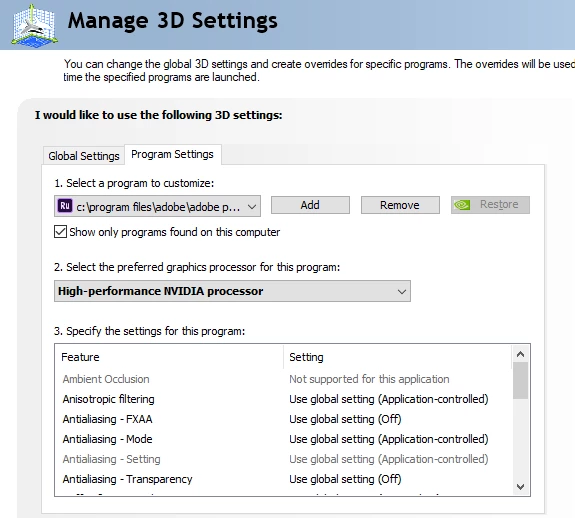
    I don't think you can do that from the Rush interface but you might be able to do that from the NVIDIA Control Panel.

    1. Open the NVIDIA Control Panel
    2. Go to Manage 3D Settings > Program Settings
    3. Click Add to add Premiere Rush CC in the list of applications
    4. After Rush has been added to the list, select the preferred graphics processor as High-performance NVIDIA processor
    5. ​Click ​Apply

    Hope this helps.

    Rameez

    3 replies

    Participating Frequently
    April 20, 2023

    I see the problem with both Rush and Pro in Win10 after updating Windows to 22H2. Now 5 years later.

    caroline_edits
    Community Manager
    Community Manager
    November 5, 2018

    Hey there, josephj22824825!

    Have the graphics been working for you? Let us know if there's anything else we can do for you!

    Caroline

    Participant
    March 24, 2019

    I have the same issue since Adobe Premiere Rush CC has been released.

    I have two graphics cards:

    Intel HD Graphics 630 - Driver version: 25.20.100.6566 DCH

    NVIDIA GeForce GTX 1080 Ti - Driver version: 25.21.14.1967 (NVIDIA 419.67) DCH (NVIDIA Creator Ready Driver)

    and

    Windows 10 Version 1809 (OS Build 17763.379)

    When I start Adobe Premiere Rush, Task Manager shows it is using GPU1 (NVidia), but as soon as I open a project, all processing occurs on GPU0 (Intel).

    You can see on this screenshot when I started Adobe Premiere Rush CC:

    As soon I as close Adobe Premiere Rush CC, GPU 0 Utilization will go back to 0.

    I don't have that setting in NVIDIA Control Panel, but I did manually select High Performance card for Adobe Premiere Rush CC in Windows settings:

    Still, when I open the project in Premiere, it switches from NVIDIA to Intel GPU.

    I happened also with previous NVIDIA Drivers so I thought now, that I installed Creator Ready drivers that Adobe Premiere Rush CC will also take advantage of GPU but it does not.

    Anything else for me to try?

    Participant
    March 26, 2019

    I am also having this same issue.

    Set the app to use the nvidia discrete GPU but it still isn't fully using it.

    I am exporting a video right now and it is using 100% of the integrated GPU.

    Rameez_Khan
    Rameez_KhanCorrect answer
    Legend
    October 18, 2018

    Hi josephj22824825 ,

    Welcome to the Rush community.

    I don't think you can do that from the Rush interface but you might be able to do that from the NVIDIA Control Panel.

    1. Open the NVIDIA Control Panel
    2. Go to Manage 3D Settings > Program Settings
    3. Click Add to add Premiere Rush CC in the list of applications
    4. After Rush has been added to the list, select the preferred graphics processor as High-performance NVIDIA processor
    5. ​Click ​Apply

    Hope this helps.

    Rameez

    Participant
    April 19, 2021

    this does not work.


    I have an intel discrete and an Nvidia 2060


    Premiere Pro uses the Nvidia GPU for encoding no problem


    Premiere Rush ONLY USES THE discrete GPU. even trying to force the Nvidia via windows settings (High Performance) and the Nvidia Control panel settings (Rush only uses Nvidia). both of these settings are slected and Rush still only encodes with the intel discrete GPU


    very frustrating for such an expensive subscription