



Premiere Rush Guided Workflow — Importing and organizing footage
Importing and organizing footage
Importing and organizing footage is very straightforward in Adobe Premiere Rush. After Launching Rush, you need to click the "Create New Project" button. Name the project in the lower left corner of the applicaton under "Project Name," then press the Return key to save the name. The Media Browser is automatically launched. You're ready to import!
Additional Resources: Create a new project
Within the Media Browser, and from the Assets panel to the left, browse to the hard drive containing your media. Once you click the media drive, folders containing your media appear in the Media Browser. Click once to open a folder.
You should now see the clips you want to appear in your Timeline in the Media Browser. For each piece of media, click them in the order you wish them to appear in the Timeline. Numbers appear over the top of each clip as an overlay. If you are not sure of the exact order, don't worry, you can change that later.
Important Note: The first clip you choose will guide the way your sequence (your timeline) is set up and how you will eventually export your movie. Be strategic in choosing the first clip before creating your sequence. Here's how it works:
- Choose a HD clip as your first clip to set up a HD sequence.
- Choose a 4K clip as your first clip to set up a 4K sequence.
- The sequence will still carry over the original settings from that first clip you originally chose.
- Keep in mind that you can change the first clip later, if need be.
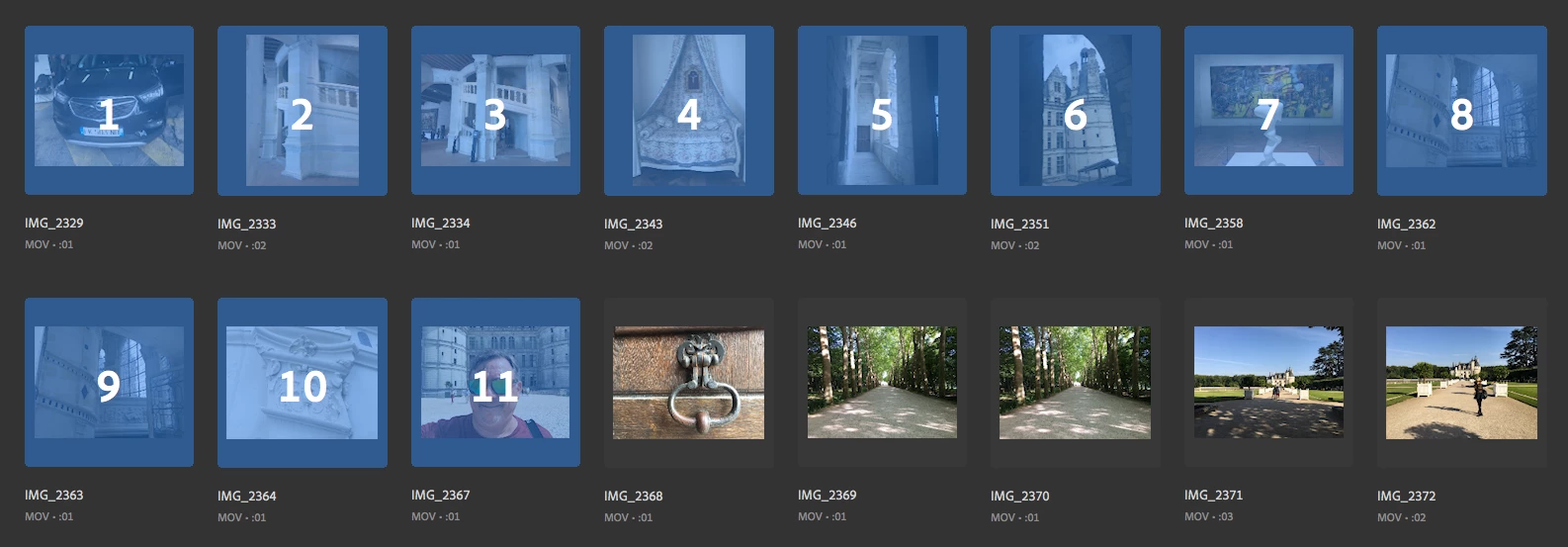
If you have made a mistake and do not want to include a clip you already selected, just click the clip once more and it will be removed from the selection. For example, I didn't want the clip of the black car to appear in the Timeline, so I just clicked it once more to remove it from my selection.
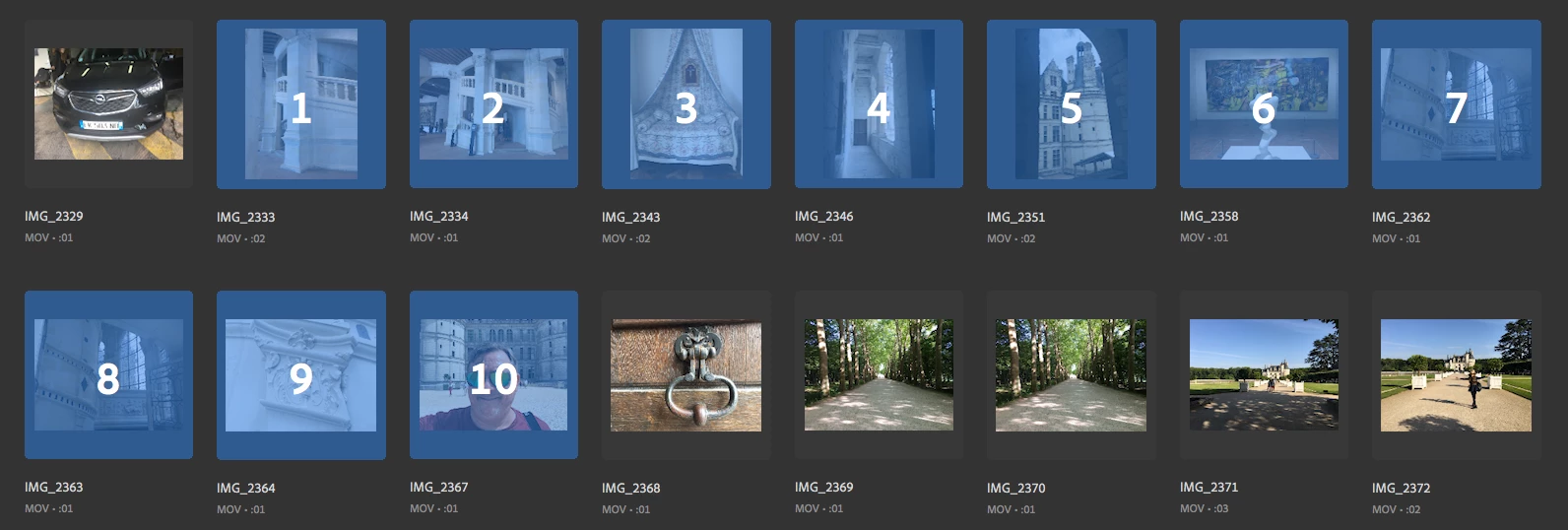
After the order is chosen, it's time to create a sequence. For info on that, click here.
Mobile Guide:
Adobe Premiere Rush workflow on iOS
Adobe Premiere Rush workflow on Android
Details from the User Guide:
 AdChoices