
Participant
September 27, 2019
Answered

Stacked Clips in Adobe Rush

  • September 27, 2019
  • 6 replies
  • 12574 views

Hey everyone, 


I'm new to video editing, and I don't understand how the stacked clips work in Adobe Rush. Is there a way to remove the connection? When I try and move a clip that seems to be attached (stacked) to other clips (see the little orange lines), it won't move or it will move a bunch of other clips as well. 


1) How are clips bunched together ie stacked? 

2) Is there a way to remove these stacks, so that certain clips can be moved/removed etc independently? 


and lastly 


3) When I move a clip in between two existing clips, instead of moving all the clips further out in the timeline, it seems to just delete footage from the clip I'm dropping the new clip over. Is there a way to avoid this? 


Thank you for the help! Overall Rush is a pretty rad way to create quick edited videos. 


Troy 
    Correct answer artichoked

    SOLVED!

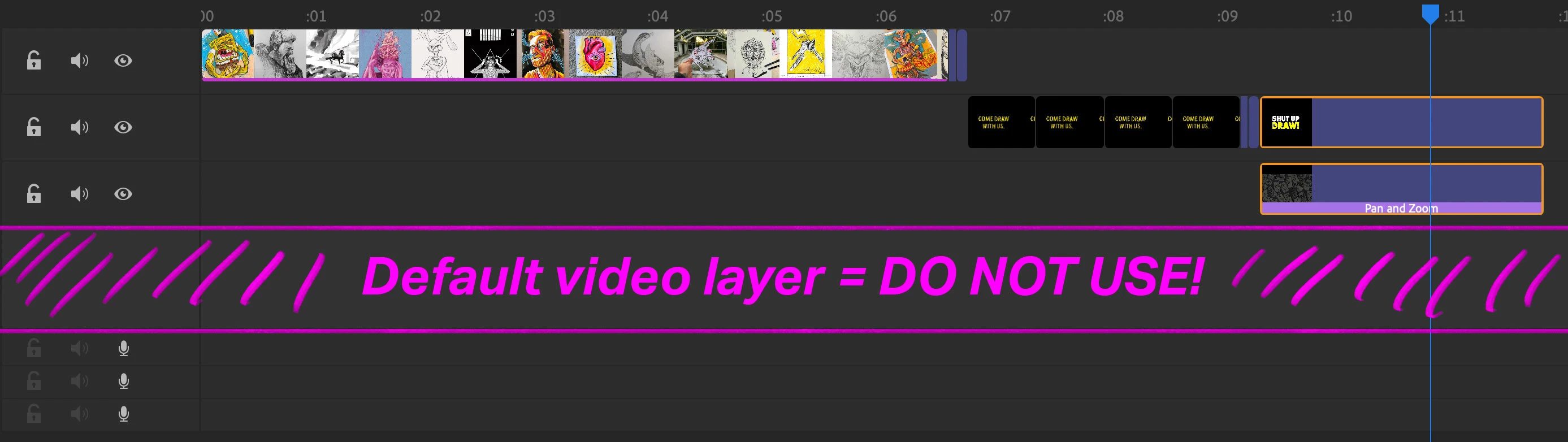
    The default video layer is causing this linking / locking. If you drag all of your clips onto higher video layers, then you can move them all independently of one another. Notice that the default video layer is taller than the other 3 video layers.


    6 replies

    artichoked
    artichokedCorrect answer
    Inspiring
    March 11, 2021

    SOLVED!

    The default video layer is causing this linking / locking. If you drag all of your clips onto higher video layers, then you can move them all independently of one another. Notice that the default video layer is taller than the other 3 video layers.


    Phoenix15
    Known Participant
    June 29, 2021

    I have this same issue with the annoying linking. I'm using 4 video layers and they all seem to be linked to the bottom layer with orange lines. I've dragged the top 3 into one layer (leaving a 2 layer gap between them and the default layer) but they're all still linked. If I delete items on the default layer, it deletes items above! This is ridiculous,

    artichoked
    Inspiring
    March 11, 2021

    I'm experiencing the same issue with separate clips somehow getting nested / linked / stacked. I don't want this! How do you unlink them?? See attached video.

    paulcSkipton
    Participating Frequently
    March 4, 2021

    I'm also wondering this myself as it keeps stopping me from using Rush. I find myself in a situation where anything added above the first layout somehow becomes linked to that layer and can no longer be moved independently. How do you break the link and why does it form in the first place?


    Participant
    March 7, 2021

    Thank you for the image paulcSkipton. Hopefully, somebody will answer this as the discussion above is unclear. Your image points out the most frustrating feature in Rush. If I am dealing with four tracks, (3 video and 1 audio) and the audio is the final track which I uploaded independently of any video while muting audio in the video tracks, the video track above the independent audio track ALWAYS links. Anything I do to that video track impacts the audio track and eliminates any video mixing I want to do with the video tracks higher in the stack. I am either missing something very obvious, or this is a serious design flaw that needs to be addressed.  My vote is to lose the links. 

    Participating Frequently
    January 9, 2021

    They've fixed it! I just went on to do some editing and the linking issue has been fixed Zippity Doo Dah!!!

    Ko.Maruyama
    Community Expert
    Community Expert
    September 28, 2019

    The video layers (stacks) that you have in your image allow you to make multiple transitions or give you more potential for blending your video or add Titles or graphics to your edit - you can also MOVE/SCALE the clip in the layer above, to reveal the layer underneath.   If you want to insert the deer (before/after) the eagle clip select and drag the clip down to the main video layer, Rush will move the clips out (extending the length of your project).


    You can edit the duration of the new insert by sliding the large orange handles on either end of your clips. (bold orange indicates selected).  


    You can lock a video layer, but unless you migrate your project to PremierePro, you'll just move the individual clips around rather than doing any kind of advanced nesting.  

    stuestol
    Participant
    June 16, 2024

    Hi

    Im pretty new to the video editing with premiere rush, and i can´t access those orange handles on either end of the clips  to edit the duration of the inserted slides. They don´t appear very bold orange to me when indicates selected. I have like 110 stills which i want to put together to a movie. When i tried it out with less stills, i could access this orange handles, but trying to grab them with a larger amount i just end up moving the clip around. Any ideas how i can shorten each clip?

    stuestol
    Participant
    June 16, 2024

    Just found it out myself:)


    Legend
    September 28, 2019

    I'm not exactly sure what you mean by "stacked clips". But I'll be uploading a series of Basic Training tutorials for Premiere Rush in support of my new book on Rush to YouTube in the next few days. They may answer some of your questions.

    I'll let you know when the videos are up!


    Legend
    September 28, 2019
    Hi, Troy. I've uploaded by Basic Training tutorial series to YouTube. You can see it here: https://www.youtube.com/watch?v=wbF4J8mHcC0