

B_Ribs
Participant
July 25, 2023
Question

Video Migration issue

  • July 25, 2023
  • 1 reply
  • 188 views

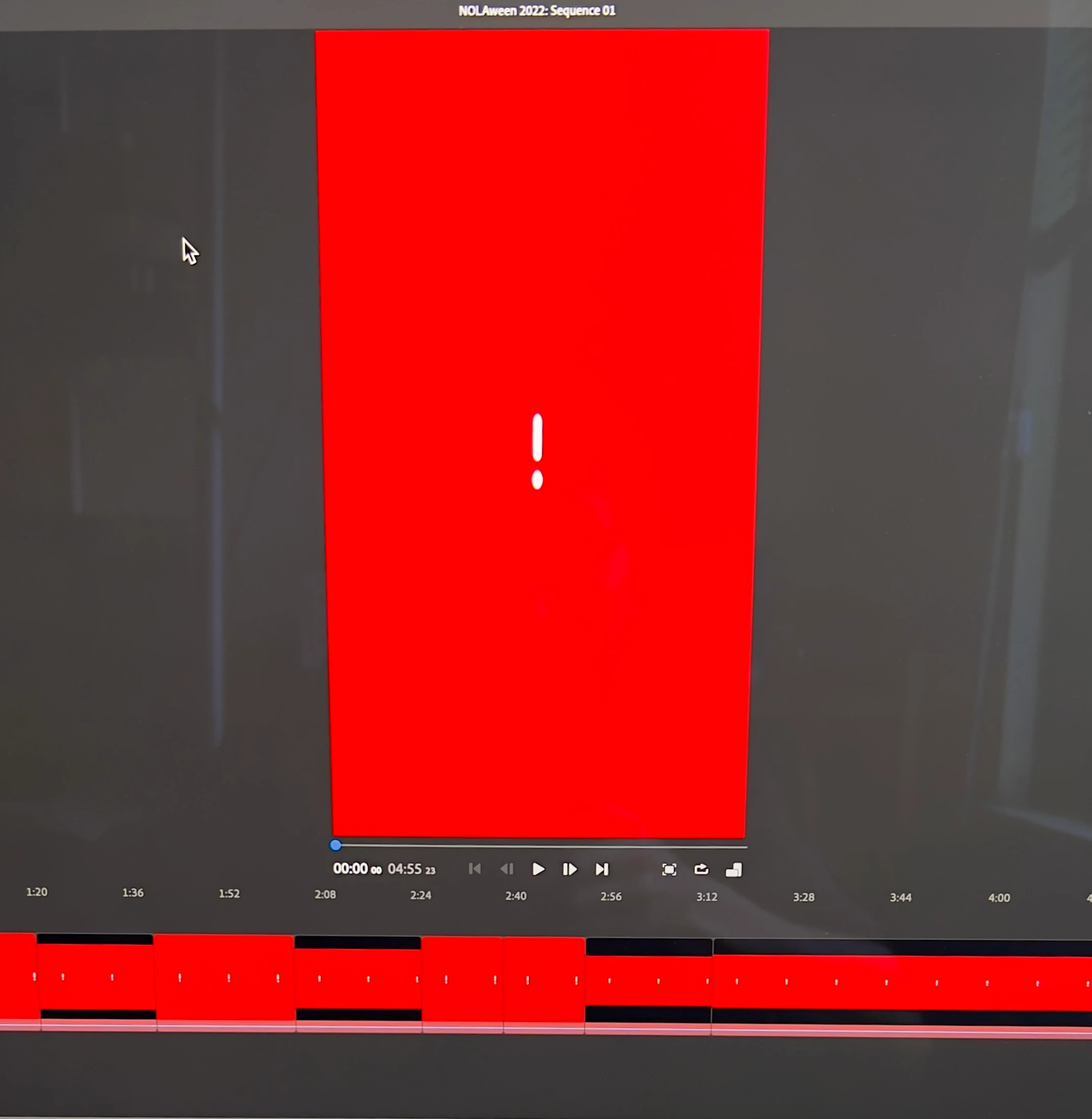
I just installed Premium Rush on my Mac Studio, with the Apple M2 chip. I then installed the iOS  version on my iPhone, started a project on the phone by adding several short videos from my camera roll, closed the app and opened it on the Mac. On the home screen, the project I started on the phone was present, but when I selected it to edit, all of the component videos and frames came out as red blocks with a "!".  Any suggestions would be appreciated.  Thanks.
This topic has been closed for replies.

1 reply

Kevin J. Monahan Jr.
Community Manager
Community Manager
July 26, 2023

Hi @B_Ribs,

Sorry about that. Sometimes, it takes a long while for files to sync up. Can you give it 24 hours and report back? If that doesn't work, sign out of Creative Cloud, then sign back in. Hope the advice helps.


Thanks,
Kevin

Kevin Monahan - Sr. Community and Engagement Strategist – Adobe Pro Video and Audio
B_Ribs
B_RibsAuthor
Participant
July 26, 2023

Thanks for the response. I tried both of your suggestions, but got the same result when I tried to open the project. (The app works as expected when opening the included sample project). When I had the red blocks open, as described above, and clicked on "Share", this message popped up:

The videos play perfectly on the iPhone. In fact, the iPhone Photos app was able to automatically produce a video montage from several of these, so I'm wondering if there's something else I need to do in PR. In the meantime, I will try and work with some videos already on my Mac and see if I get a different result. One other point: I'm able to work on these videos on the iPhone PR app. It's just easier to work on a desktop with a large screen and a mouse.

Thanks,

Bruce

Kevin J. Monahan Jr.
Community Manager
Community Manager
July 28, 2023

Hi Bruce,

See if you can locate the files on your Mac and then relink the media to the clips by right-clicking on each clip and choosing "Find and Connect." I hope that works for you.


Thanks,
Kevin

Kevin Monahan - Sr. Community and Engagement Strategist – Adobe Pro Video and Audio