


Inspiring
May 16, 2024 5:58 PM UTC
Answered

Why does Adobe Premiere Rush changes the color of an imported graphic?

Hello,


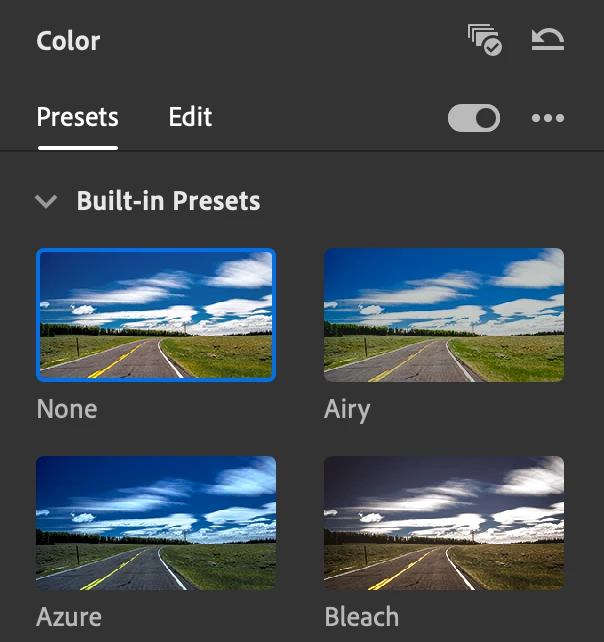
I imported a graphic which I use as full screen image in a video. I did not apply a color filter:

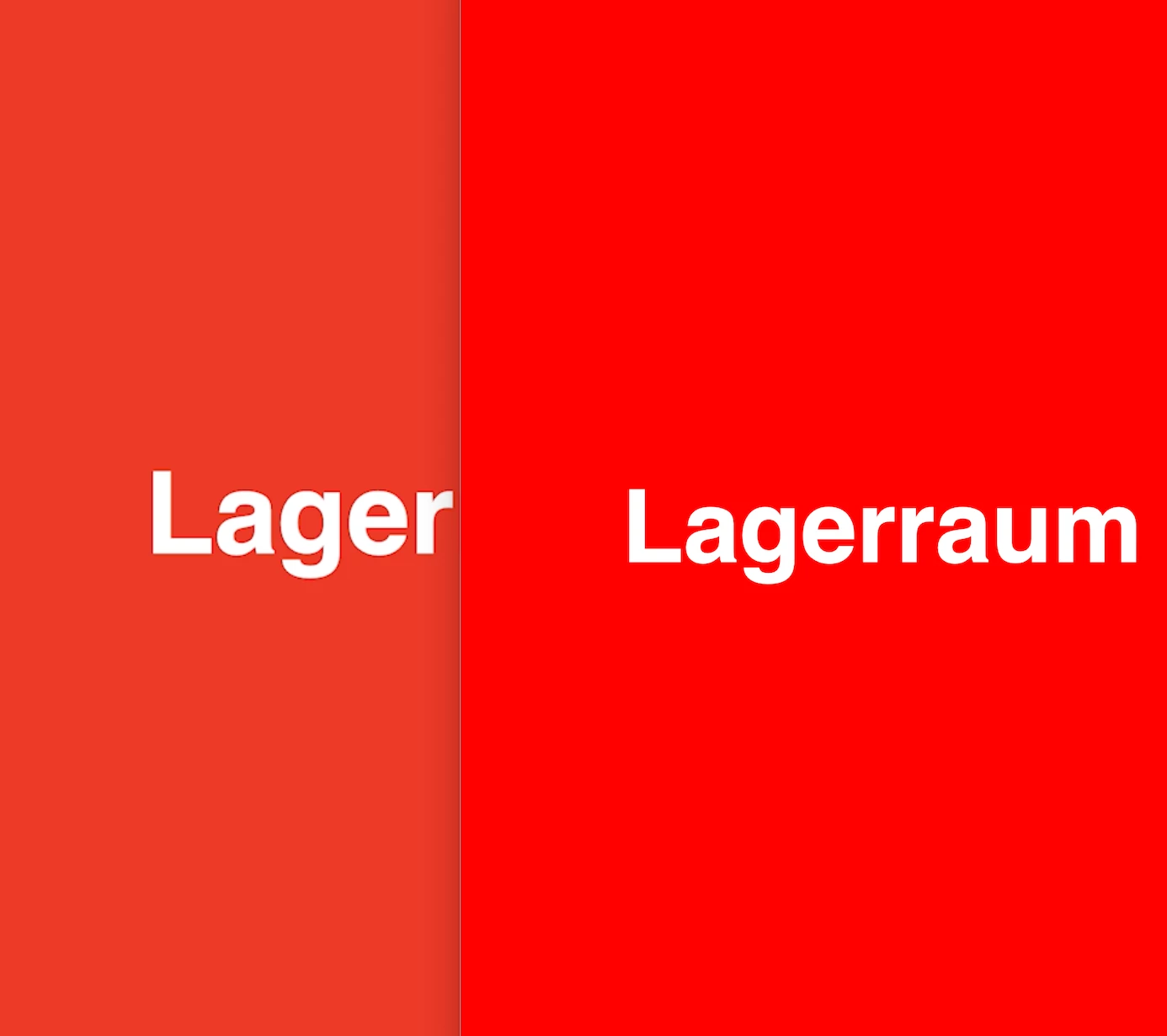
Both in the app and in the exported video the color (#ED3A28; left) is different from the color used in the original graphic (#FF0000; right).

I created the graphic in Apple Keynotes and it should be in RGB mode.

What is the reason for that and how can I avoid this?

Kind regards,

Philip
This topic is closed to new replies. Start a new post to keep the conversation going.
flip838Correct answer
Inspiring
May 16, 2024 8:09 PM UTC

After hours of researching and try-and-error I could fix it by using these solutions:

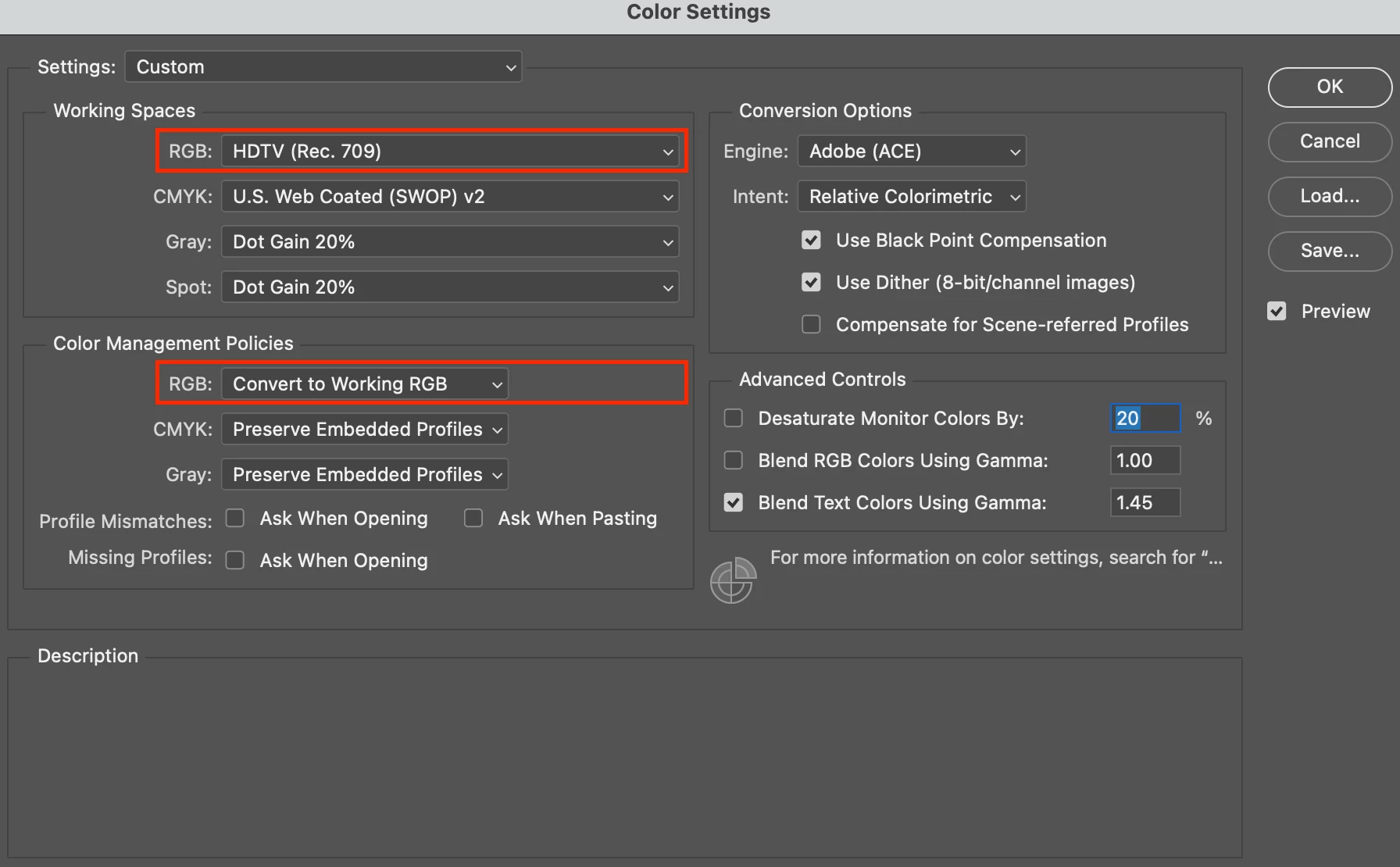
1. Changing in Photoshop under Edit > Color Settings the Working Spaces RGB to HDTV (Rec. 709).

2. Either opening a new image document, pasting the image into it and saving the new file or setting in Photoshop under Edit > Color Settings the Color Management Policies RGB to Convert to Working RGB. Afterwards I opened and saved image file.


Really complicated :-(. Not sure how other videographers streamline their workflow. Furthermore, I always need to change back the Color Settings so that SRGB is used when using Photoshop for other use cases.

4 replies

flip838Author
Inspiring
May 16, 2024 7:10 PM UTC

Hello,

I would like to add the following:

I am using a large LG curved display.

I could figure out that it is probably related to different color profiles (sRGB in the image and Rec 709 used by Premiere Rush). I couldn't find a solution how to save the image in Photoshop in Rec.709 and import it to Premiere Rush without desaturated color. I tried the following:


In Photoshop under Edit > Color Settings I changed the Working Spaces RGB to either HDTV (Rec. 709) or Rec. ITU-R BT.709-5. Not sure what shall be used. In this video tutorial is mentioned Rec.709 Gamma 2.4 which I do not have in my list. Why?


After that I saved or exported the files in Photoshop to different formats:

  • Save as ... PNG or JPG
  • Export to ... PNG or JPG


When I import all these variations to my Adobe Premiere Rush project, the color is still washed out. Any idea what I am doing wrong?

What I did notice in Photoshop when using Export to PNG, is that the preview becomes washed out / desatured when I choose these options:


Enable Smaller File (8-bit)


Disable Convert to sRGB


I would appreciate any insights which could bring me onto the right track 😉 I do not need to know the scientific details about which I could find infos on the web but rather a practical guide how to save the image in Photoshop to avoid the washed out color effect in Premiere Rush.


Kind regards,

Philip

Translate
flip838AuthorCorrect answer
Inspiring
May 16, 2024 8:09 PM UTC

After hours of researching and try-and-error I could fix it by using these solutions:

1. Changing in Photoshop under Edit > Color Settings the Working Spaces RGB to HDTV (Rec. 709).

2. Either opening a new image document, pasting the image into it and saving the new file or setting in Photoshop under Edit > Color Settings the Color Management Policies RGB to Convert to Working RGB. Afterwards I opened and saved image file.


Really complicated :-(. Not sure how other videographers streamline their workflow. Furthermore, I always need to change back the Color Settings so that SRGB is used when using Photoshop for other use cases.

Translate
Kevin J. Monahan Jr.
Legend
May 17, 2024 12:03 AM UTC

Sorry for the workarounds here, @flip838. Color management is much more straightforward in Premiere Pro. You might try a trial to see if you can improve your workflow. I am glad you were able to solve your problem, though!


Thanks,
Kevin

Translate
Kevin Monahan - Sr. Community and Engagement Strategist – Adobe Pro Video and Audio