
Participating Frequently
November 14, 2024
Answered

2 actions on a checkbox

  • November 14, 2024
  • 4 replies
  • 997 views

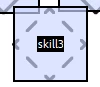
Hey there, I have a bit of a complicated problem, since I am relatively new to acrobat. I want this checkbox to get a full border, ideally in the shape of the line behind it, when first clicked, and it being filled when clicked a second time. I have tried around with checkboxes and buttons. It seems like buttons are better for a custom filling, but they can't stay in the clicked state?  Any advice is appreciated, thanks!
 

This topic has been closed for replies.
Correct answer JR Boulay

You can freely download 2 "toggle button" samples on this page: https://www.pdfscripting.com/public/Free-Sample-PDF-Files-with-scripts.cfm


Otherwise you may want to use a "tri-state button": https://community.adobe.com/t5/forums/searchpage/tab/message?advanced=false&allow_punctuation=false&q=tri-state%20button


4 replies

JR Boulay
Community Expert
JR BoulayCommunity ExpertCorrect answer
Community Expert
November 15, 2024
Acrobate du PDF, InDesigner et Photoshopographe
Participating Frequently
November 18, 2024

Thank you so much! That was exactly what I was looking for.

Nesa Nurani
Community Expert
Community Expert
November 14, 2024

Use buttons field for icons and hidden checkbox if you need 'clicked state'.

Bernd Alheit
Community Expert
Community Expert
November 14, 2024

Try this:

Use different form buttons with icons and show/hide the buttons.

PDF Automation Station
Community Expert
Community Expert
November 14, 2024

Are you referencing the the grey broken line in the shape of a diamond?  You want the border like that?  I'm not sure what you mean by "they can't stay in the clicked state".  Check boxes and radio buttons have the exact same fill options.

Participating Frequently
November 14, 2024

I want the broken line to be filled with the first click. I meant normal buttons with the "They don't stay filled" since those have the option to use custom images as filling.

PDF Automation Station
Community Expert
Community Expert
November 14, 2024

Create 2 button fields.  The names in this example are Button1 and Button2.  In Button would, add the diamond shaped icon.  Button2 will have no icon.  Enter the following mouse up action script in Button1:

event.target.display=display.hidden;
this.getField("Button2").display=display.visible;

Enter the following mouse up action script in Button2:

event.target.display=display.hidden;
this.getField("Button1").display=display.visible;

Move one field directly on top of the other.  The icon will toggle on and off when you click.  I assume that's what you want.