

santhoshr29800103
Known Participant
June 26, 2023
Question

Accessibility Full Check

  • June 26, 2023
  • 1 reply
  • 688 views

Hi,

Anyone please let me know how to identify the empy tags in Accessibility PDF from Adobe Acrobat Professional.
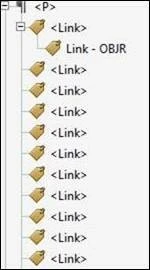
Also, want to know is there any validations available for nesting issue in List tags . <LBody> tag should be stay with next to <Lbl> tag. Here it was moved to next <LI> tag while change the reading order in Acrobat Pro. 
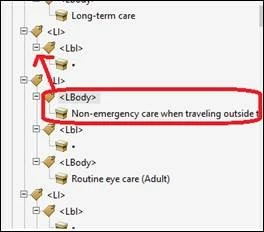
Thanks,

Santhosh


This topic has been closed for replies.

1 reply

Participating Frequently
June 26, 2023

To identify empty tags in Accessibility PDF using Adobe Acrobat Professional, you can follow these steps:

  1. Open the PDF file in Adobe Acrobat Professional.
  2. Go to the "Accessibility" tool pane. If you don't see it, you can enable it by going to "View" > "Tools" > "Accessibility."
  3. In the Accessibility tool pane, select the "Full Check" option. This will check the accessibility of the PDF document.
  4. After the accessibility check is complete, a "Accessibility Checker" window will appear. This window will display any accessibility issues found in the document.
  5. In the "Accessibility Checker" window, navigate to the "Tags" category on the left-hand side.
  6. Expand the "Tags" category to view the list of tags used in the PDF document.
  7. Look for any tags that are empty. Empty tags may indicate missing or improperly structured content.

Regarding the nesting issue in List tags, where the <LBody> tag moves to the next <LI> tag while changing the reading order in Acrobat Pro, it's important to note that changing the reading order can affect the structure and nesting of tags.

To validate the nesting issue, you can follow these steps:

  1. Open the PDF file in Adobe Acrobat Professional.
  2. Go to the "Tags" tool pane. If you don't see it, you can enable it by going to "View" > "Show/Hide" > "Navigation Panes" > "Tags."
  3. In the "Tags" tool pane, locate the relevant list tags (<L> and <LI>).
  4. Check the nesting structure by expanding the tags to see their child tags.
  5. Ensure that the <LBody> tag is properly nested under the <L> tag and not moved to the next <LI> tag.

If you encounter issues with the nesting or structure, you can manually adjust the tags in the "Tags" tool pane by dragging and dropping them into the correct positions. This will help ensure proper accessibility and reading order.

Remember to save the changes after you have made the necessary adjustments.

I hope this helps! Let me know if you have any further questions.

santhoshr29800103
Known Participant
June 26, 2023

I know the above mentioned process. This is totally user manual check required. I want to throw an error/warnings for empty tags present in the document and also for Wrong nesting List tags.