1 reply

Legend
March 10, 2025

Hi @xushaohua


Sorry for the delayed response. 


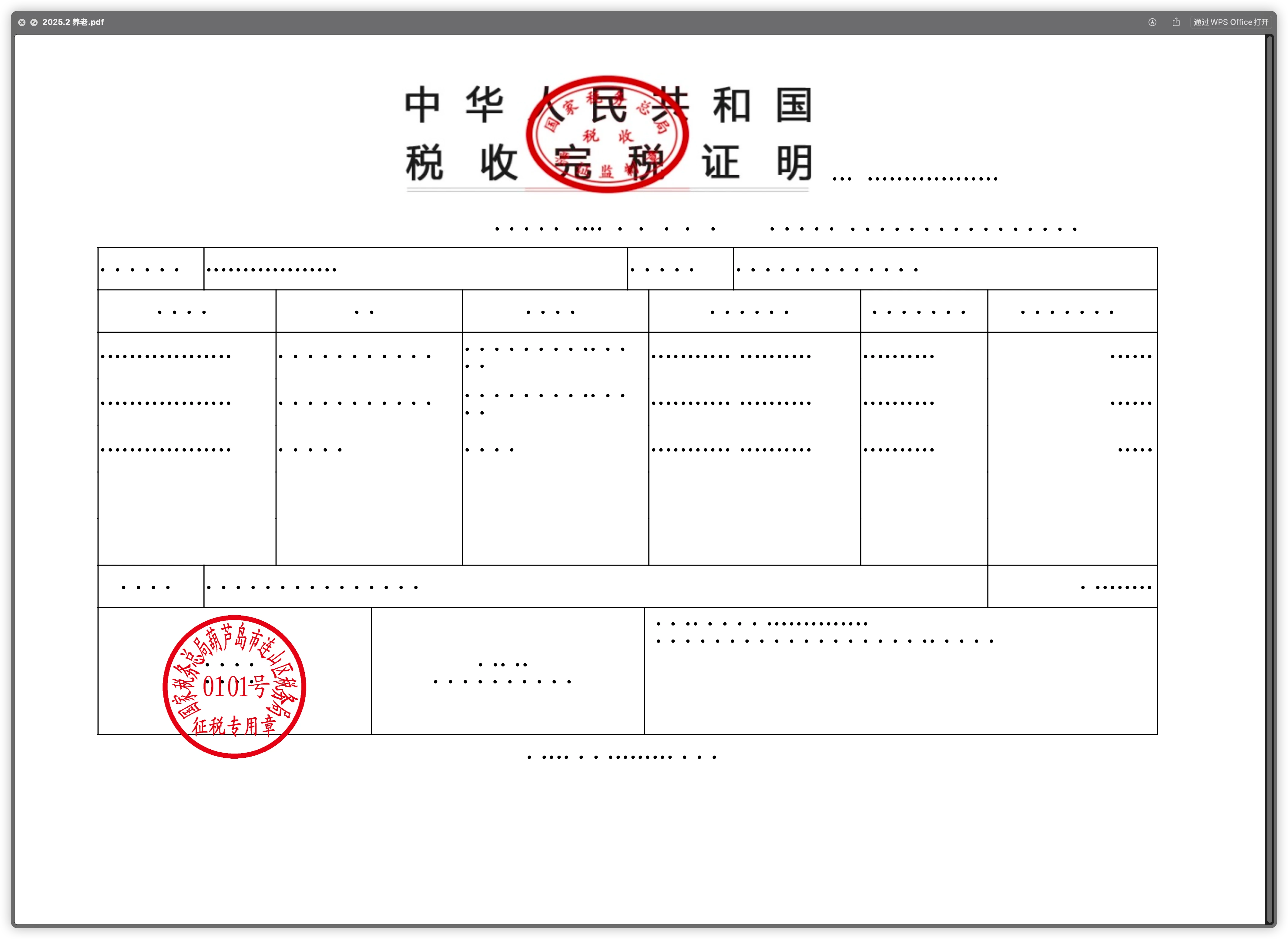
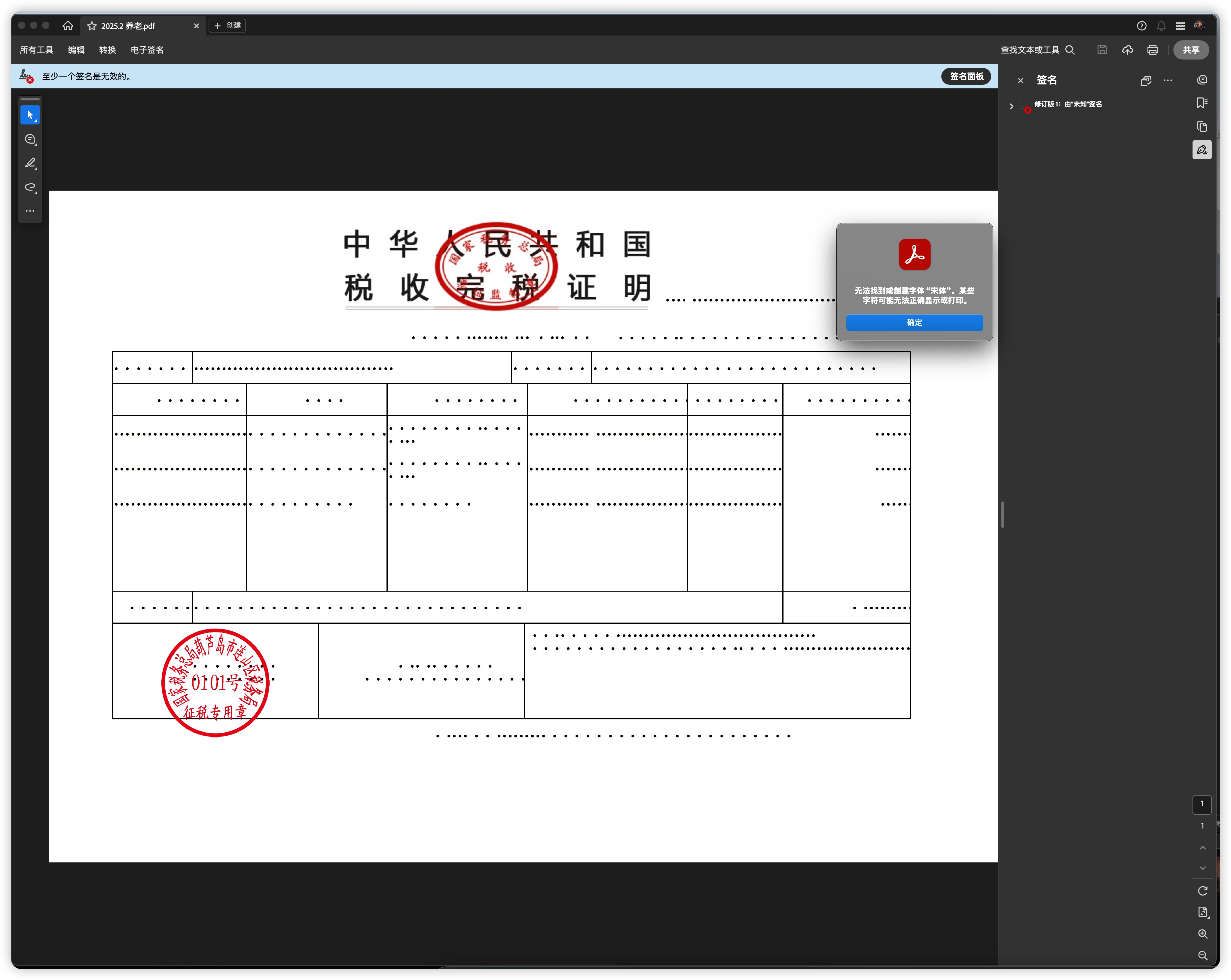
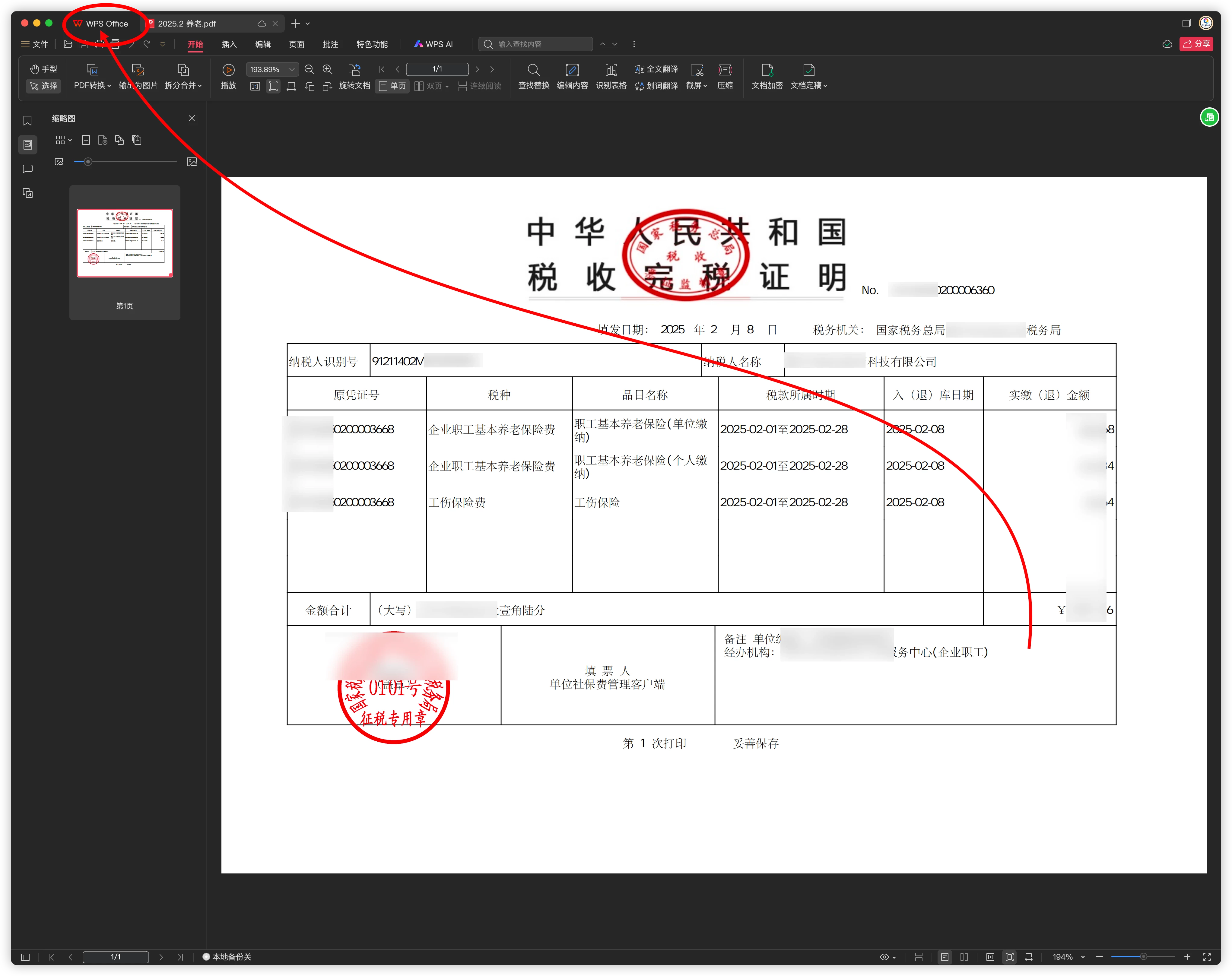
If fonts are not embedded in a PDF and you try to view the document, several issues can arise depending on the viewer, the system fonts available, and the PDF settings. Here are some possible outcomes:


1. Font Substitution

  • If the font used in the PDF is not available on the system, the PDF viewer will substitute it with a similar one.
  • This may alter the appearance of the text, affecting readability, alignment, and spacing.


2. Formatting Issues

  • The substituted font may have different character widths, leading to text misalignment, wrapping issues, or overlapping text.
  • Tables, charts, and forms may appear distorted if text expands or contracts unexpectedly.


3. Missing or Garbled Text

  • Some characters may appear as blank spaces or incorrect symbols if the system lacks a proper substitution font.
  • Special characters, symbols, or non-Latin scripts might be completely unreadable.


4. Printing Errors

  • If the printer does not have the required font, text may print incorrectly, be substituted, or be missing.
  • Rasterized printing (where the document is converted to an image) may occur, reducing text clarity.


5. Search and Copy Issues

  • If the substituted font does not match the original encoding, searching for text may fail.
  • Copy-pasting text from the PDF may produce garbled or incorrect characters.


6. Compliance and Accessibility Issues

  • Many industries require fonts to be embedded for compliance (e.g., legal, archival, accessibility standards).
  • PDFs without embedded fonts may not meet accessibility guidelines (e.g., WCAG, PDF/UA).


Best Practice: Always Embed Fonts

To avoid these issues, ensure fonts are embedded when creating a PDF, especially if sharing or printing across different systems. In Adobe Acrobat, you can check this via File > Properties > Fonts to see if fonts are embedded or substituted.


Embed Fonts During PDF Conversion:

Using Adobe Acrobat:

  • In Microsoft Word, navigate to the “Acrobat” tab.
  • Click on “Preferences.”
  • Select the desired “Conversion Settings” profile and then click on “Advanced Settings.”
  • Go to the “Fonts” section and ensure that “Embed all fonts” is checked.
  • If necessary, save this profile under a new name and use it for your conversions. 

For more information on Fonts embedding, please visit: https://helpx.adobe.com/acrobat/using/pdf-fonts.html 


~Tariq