Once I was able to open a document, I changed the settings in the menu and it seems to have kept them. Prior to this, I had to find the bubble every time I opened a document. I went to Menu>Preferences>Documents and checked off the first one that says "Restore last view settings when reopening documents". Hope this helps as I’ve been struggling all day trying to open docs.
Here’s a method for troubleshooting this issue without asking users to go into the registry.
It is true that this issue is caused by the how the registry subkeys are set at "HKEY_CURRENT_USER\Software\Adobe\Adobe Acrobat\DC\SDI". These keys correspond with the x and y dimensions of minimized and maximized Acrobat document windows. And the latest update of Acrobat seems to prefill these subkeys wrongly if the keys haven’t been set by user actions.
But deleting these subkeys provided only a temporary fix for the user I was helping. When the user would close Acrobat, the previous deleted subkey values would return and the problem would start again.
Instead of deleting the registry subkeys at "HKEY_CURRENT_USER\Software\Adobe\Adobe Acrobat\DC\SDI". Users can fix this issue by doing the following:
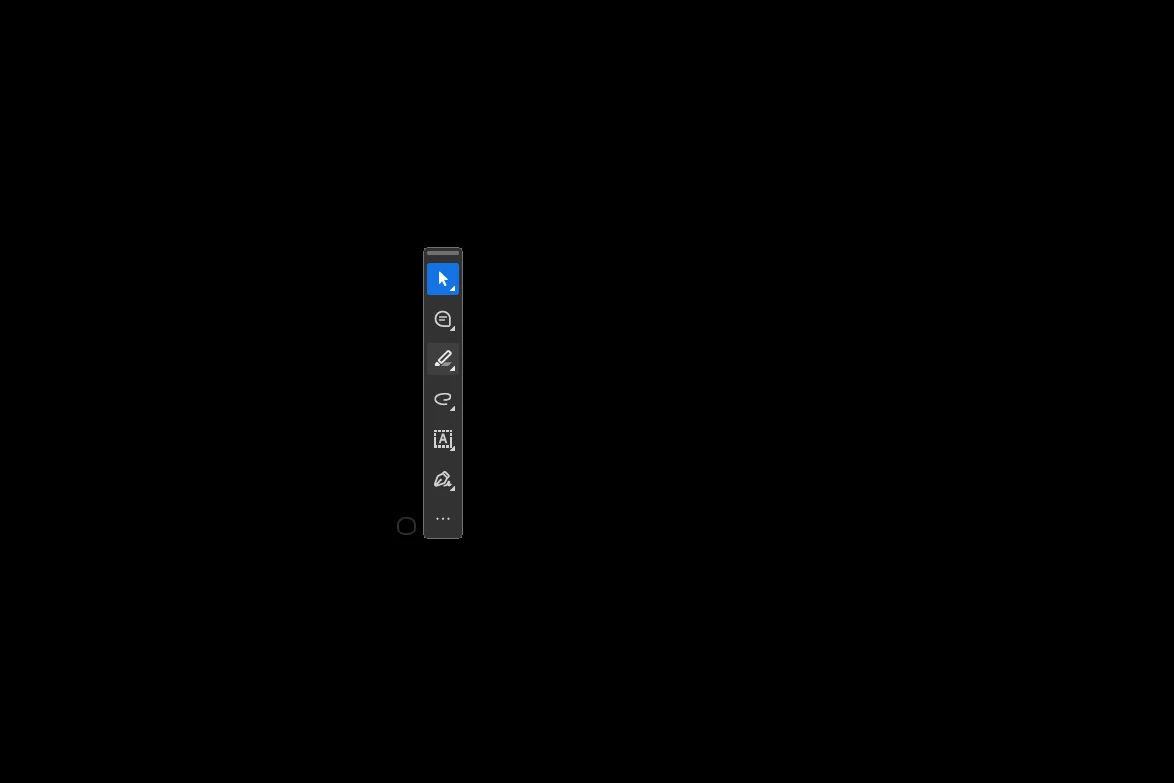
Hover your pointer over the floating toolbar until a white dot appears to the upper-left of the floating toolbar. (This dot is related to resizing the minimized window.)
Click and drag the white dot outward from the floating toolbar until you see the document window that had been hidden. (This will write new values into the registry subkeys at “HKEY_CURRENT_USER\Software\Adobe\Adobe Acrobat\DC\SDI".)
Close Acrobat.
Open a document in Acrobat to confirm that it appears. It should appear in the same size window you created in Step 2.
You can revisit the registry subkeys at “HKEY_CURRENT_USER\Software\Adobe\Adobe Acrobat\DC\SDI" and see that they have been populated with new values that align with the user’s actions in Step 2.
Hover over the Acrobat icon in your Taskbar. A small bar will appear above it with a partial filename, like a smaller version of the thumbnail of a minimized document.
Right-click on this mini-thumbnail and select Maximize to make Acrobat full-screen.
With the file open in full screen mode, press Shift + Control + J OR click the Menu hamburger button in the upper left corner, hover-select Window from the drop-down menu, and select Cascade.
The file will appear in window mode (as opposed to minimized and/or full screen), and Acrobat will now behave as normal.
Two of our users that i have tried to help with this problem dont have this registry location available. They are both using adobe from Creative Cloud. Here is a screenshot from one user. Is there another workaround or an update on the horizon?
Please close all the Adobe apps, including the Creative Cloud desktop app. Restart the machine. Right-click on the Acrobat icon and run it as an administrator. Check if the issue occurs.
If yes, check the registry settings and delete the entry shared above.
This did not work either. I checked with a 3rd user and he also didnt have that registry location. Some are fixed by maximizing the program from the taskbar popup, but that doesnt work for everyone and isnt always permanent. so far the only real fix was to revert to the old version of adobe acrobat. Is there a patch in the works?


 AdChoices