Solution for me was the floating dot suggested by Brian289730683j3f with some caveats…
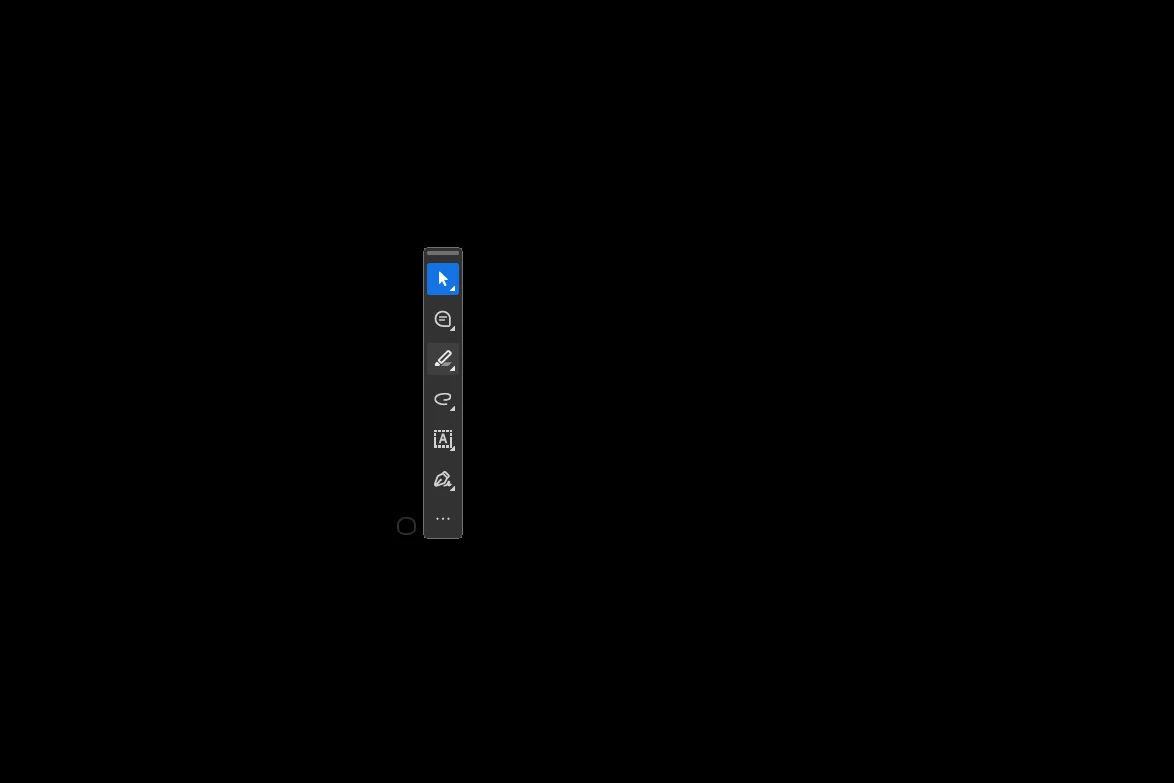
I never saw a white, floating dot when hovering on the toolbar appeared after attempting to open a document. When opening Acrobat with no document a small translucent (not white) dot would appear. It wasn’t easy to see the dot. clicking the Acrobat icon on the toolbar made it disappear/appear, which helped find it -I needed to drag that dot and the window resize happened. 1. Was it a right-click drag that did it? I cannot reliably say; try left click drag, then then try right-click if that didn’t work 2. Dragging to the upper right direction worked. Upper left had not worked previously… maybe that’s the right-click drag I referred to above though?
My symptoms/what did not work: -When the floating toolbar appeared I’m able to select it and hit Ctl+L which would show my document in a borderless, full max screen. This could not be resized -I could hit Ctl+K to pull up settings but I was not able to affect meaningful change here. I did take the recommendation by sjtini to check the “restore last view settings” but that did not solve anything initially for me. -I deleted the Computer\HKEY_CURRENT_USER\Software\Adobe\Adobe Acrobat\DC\SDI key and that let things open normally… once. The next open was broken again
Good luck fixing yours -May the odds be ever in your favor!
Thank you bkilgore - yes Adobe please fix your software immediately and do not ask your customers to try all these “fixes” which BTW did not work for me…..
Here is a new idea, how about get your people to fix the issue with an update instead of having novice users get into regedit and risk doing real damage to their PCs?
This is absurd!
We are paying you for a service - you broke it, you fix it!
Once I was able to open a document, I changed the settings in the menu and it seems to have kept them. Prior to this, I had to find the bubble every time I opened a document. I went to Menu>Preferences>Documents and checked off the first one that says "Restore last view settings when reopening documents". Hope this helps as I’ve been struggling all day trying to open docs.
Thank you so much for this. Confirming it also worked. I was able to open an older Adobe file and a tiny window popped up with it. My mouse pointer changed to a drag arrow over that tiny window and allowed me to drag it open, showing the file and menu bar, after which point I was able to access Preferences. This stole some time from my day for sure.
Here’s a method for troubleshooting this issue without asking users to go into the registry.
It is true that this issue is caused by the how the registry subkeys are set at "HKEY_CURRENT_USER\Software\Adobe\Adobe Acrobat\DC\SDI". These keys correspond with the x and y dimensions of minimized and maximized Acrobat document windows. And the latest update of Acrobat seems to prefill these subkeys wrongly if the keys haven’t been set by user actions.
But deleting these subkeys provided only a temporary fix for the user I was helping. When the user would close Acrobat, the previous deleted subkey values would return and the problem would start again.
Instead of deleting the registry subkeys at "HKEY_CURRENT_USER\Software\Adobe\Adobe Acrobat\DC\SDI". Users can fix this issue by doing the following:
Hover your pointer over the floating toolbar until a white dot appears to the upper-left of the floating toolbar. (This dot is related to resizing the minimized window.)
Click and drag the white dot outward from the floating toolbar until you see the document window that had been hidden. (This will write new values into the registry subkeys at “HKEY_CURRENT_USER\Software\Adobe\Adobe Acrobat\DC\SDI".)
Close Acrobat.
Open a document in Acrobat to confirm that it appears. It should appear in the same size window you created in Step 2.
You can revisit the registry subkeys at “HKEY_CURRENT_USER\Software\Adobe\Adobe Acrobat\DC\SDI" and see that they have been populated with new values that align with the user’s actions in Step 2.


 AdChoices